Add a domain-verification TXT record without breaking existing DNS
An event team may be asked to prove control of its domain before enabling email, analytics, a website host or a ticketing integration. The top Google result shows how to add a TXT record in a DNS editor. The fragile part is deciding which name and existing values the editor will affect. Treat the new token as one reviewed addition, then confirm it appears in public DNS and in the requesting service.
Boletolibre editorial team
Published
Capture the service’s exact request
Record the requesting service, account owner, exact domain or subdomain, TXT owner/name and full token value. Copy from that service’s current setup screen; a token for example.org is not automatically valid at www.example.org or _acme-challenge.example.org. Google Workspace, for example, gives a unique value such as one beginning `google-site-verification=` and instructs the owner to add it at the specified host before clicking Verify.[2]
Decide whether the request is really a one-time ownership proof, an ongoing email policy or certificate automation. The requested lifetime differs by service. Do not share the token outside the DNS and service administrators, and do not remove it later without checking the service’s retention rule.
Find the authoritative zone and preserve current values
Open the DNS service that currently hosts the authoritative zone, which may differ from the registrar selling the domain. Before editing, export or record the existing TXT values at the exact owner name. Also note nearby names such as `_dmarc`, selector-based DKIM records and delegated subzones; they are not interchangeable with the root. In many provider interfaces `@` denotes the zone apex, while other UIs expect a blank name or full domain. Use the provider’s own field conventions.[1][3]
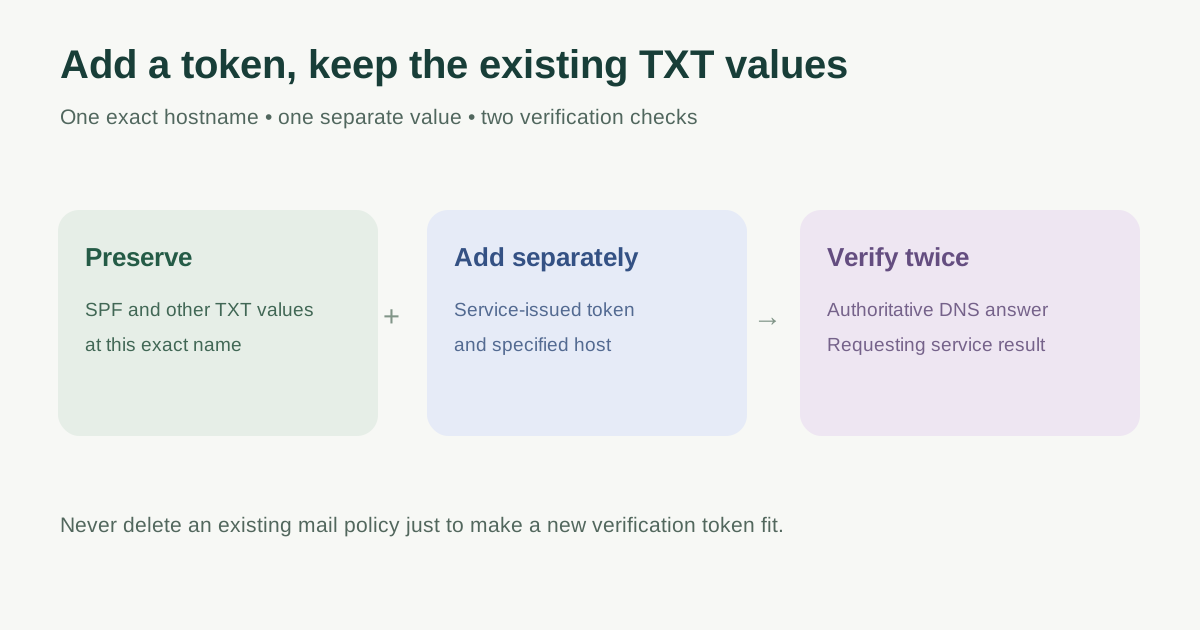
At a given name, multiple TXT values can coexist. Adding a verification token should not overwrite a pre-existing SPF policy, mail-verification token or other TXT value. Provider editors represent this differently: Route 53 simple routing stores multiple values for one name and type in one record set, with separate values on separate rows. Do not paste two independent tokens into one quoted string. SPF’s one-policy-per-domain rule is separate: it does not prohibit unrelated verification TXT values at that name.[4][5]
Add only the requested name and value
In the DNS editor choose TXT and use Add New unless the provider requires editing an existing same-name TXT record set to add a separate value. Check the preview: type TXT, correct owner/name, exact token, provider-appropriate quoting and unchanged existing values. Save a before/after snapshot or change record with approver and time. Avoid editing MX, SPF, DKIM, DMARC or CAA just because the form groups them in one zone view.[1][4]
If the editor refuses a same-name addition, inspect whether it wants another value inside an existing TXT record set; do not delete that set to proceed. If a CNAME already owns the exact same name, a normal TXT cannot coexist there, so stop and ask the requesting service or DNS owner for its supported verification route. Do not invent a different host label—the service will check the name it specified.
Verify the DNS answer and the service result
Ask the DNS administrator to query the authoritative server for TXT at the exact owner name, or use the provider’s published-answer tool. Check that the new token and all expected old values are present. A default recursive resolver can still show a cached answer, so compare it with the authoritative answer if verification fails. Then return to the requesting service and use its Verify action. A saved dashboard row is not evidence that the value is publicly answerable.[2][4]
Record the service’s success or error state and the time. If it cannot find the token, recheck name expansion, wrong zone, quoting/line breaks and current delegation before waiting blindly. Do not claim a universal propagation deadline; the provider’s TTL, prior caches and the service’s polling behavior all matter.
Keep a small audit trail
Note which product relies on the token, who owns the DNS and service accounts, and whether it must remain for revalidation or renewal. If a contractor requested the token, ask the organization’s account owner to approve the target service and scope before publishing it. The worksheet below records only change evidence, not login credentials.
Download the TXT verification change card (Markdown, English)
Sources and further reading
- Add a TXT recordGoDaddy Help · Accessed
- Verify your domain with a TXT recordGoogle Workspace Help · Accessed
- About TXT recordsGoogle Workspace Help · Accessed
- Supported DNS record types: TXTAmazon Route 53 · Accessed
- About SPF recordsGoogle Workspace Help · Accessed