New ticket tier announcement email: two adaptable examples
A new ticket tier needs more than a “big news” subject line. Readers need to know what is different, which option fits them, and whether the next click buys a ticket or only registers interest. Use the two examples below after checking the live ticket page and the facts sheet.
Boletolibre editorial team
Published
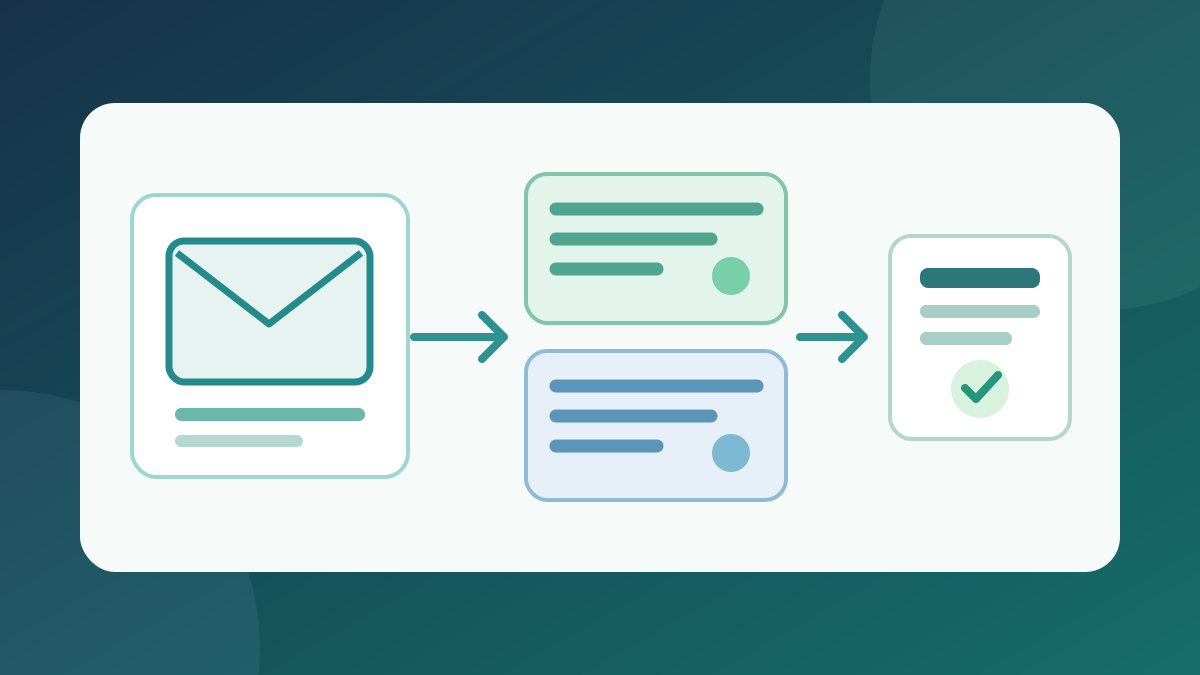
Decide whether this is an interest-list or on-sale announcement
Download the ticket-tier email worksheet (Markdown, English)
The first choice is the stage of sale. A pre-registration email invites someone to request a reminder or access; an on-sale email can direct them to a purchasable tier. Never let the subject say “tickets are live” if the link only collects interest. Mailchimp’s event-email guidance treats announcements and later reminders as separate messages with a clear purpose.[1]
Identify the recipient too. A past buyer who already holds a ticket may need an explanation of upgrade or exchange rules, while a prospect needs a comparison and purchase path. Do not imply an existing ticket changes automatically. If the message goes to both groups, use copy that is true for each and link to the applicable rules.
Approve the buyer-facing facts first
Before writing, confirm the tier name, exact inclusions, price and currency, fees or fee disclosure, eligibility, quantity or capacity, sale opening and closing times with time zone, and the destination URL. Eventbrite’s ticket-type documentation illustrates how name, quantity, price, description, and sale availability are separate settings. Your own ticketing system may use different controls; use its live buyer view as the final check.[2]
Choose one approved source of truth for each claim. If the ticket page has not yet published a price or a benefit, do not invent one for the email. Where availability can change, point readers to the current ticket page rather than promising stock will remain. A reviewer should be able to compare every sentence in the message with a dated fact sheet.[2]
Explain the difference in one glance
Lead with the specific change: “A workshop pass is now available” tells more than “Exciting update.” Then state the one or two benefits that distinguish it from the existing option. If a premium tier adds an earlier entry time, name that time; if it adds a session, name the session. Put the event date and location close to the choice, and send the main action to the relevant ticket comparison or tier. Preview text should extend the subject with a useful detail, as Mailchimp explains, rather than repeat it.[3]
Adapt one of these two email examples
The examples are fictional and use bracketed fields that require verification. The first stops at an interest-list action; the second assumes a tier is already purchasable. Replace every bracket, remove claims that do not apply, and keep the full ticket terms on the linked page. The editable worksheet below stores both versions and the facts used to approve them.
| Part | Before sale: interest list | On sale: new tier live |
|---|---|---|
| Subject | [Event]: see the new ticket options | [New tier] is now available for [Event] |
| Preview | Compare [tiers]; sale opens [date, time, zone]. | [Verified benefit] at [price and currency]; see current availability. |
| Body | Hello, [Event] on [date] at [place] will offer [new tier] alongside [existing tier]. [New tier] includes [verified benefit]; [existing tier] includes [different benefit]. Sales open [date/time/zone]. Join the interest list for [exact benefit of joining]. [State whether this reserves a ticket]. See the full comparison at [URL]. | Hello, [new tier] is now on sale for [Event] on [date] at [place]. It includes [two verified benefits], while [existing tier] includes [key difference]. The listed price is [amount/currency]; [fee note]. Review current availability, eligibility, and full terms at [URL]. Questions about an existing ticket? Contact [support path]. |
| Primary action | See options / join the interest list | Compare tiers / view the new tier |
Qualify urgency and eligibility
Scarcity must describe a real constraint. If the new tier has a fixed allocation or a published sale end, say which one and confirm it immediately before sending. Avoid “last chance,” “only a few left,” or “exclusive” when no evidence supports those words. Some ticketing systems can show remaining quantity or sale status; their settings and live page are the place to verify the claim.[2]
Eligibility needs equal care. State whether the tier is open to everyone, only to a defined group, or available through a specific access path. For existing buyers, describe upgrades, refunds, or exchanges only if those rules have been approved and are available to read. When a rule is unresolved, link to support rather than implying a benefit that the checkout cannot deliver.
Test the message and buyer path
Open the final link as a buyer, on a phone and a desktop. Check that the named tier appears, its benefits and price match the email, the sale stage is correct, and the action can be completed. Test any access code without exposing it to the wrong audience. Mailchimp recommends previewing and testing because email clients render HTML differently; its link checker has documented limits, so manual destination review still matters.[4]
Send a test to the approver and read the inbox subject, preview text, sender name, body, and footer together. In Mailchimp, contact-specific merge tags do not behave like live contact sends in ordinary test emails, so check personalization with the appropriate preview or controlled live test. Record the approved version and send time; if the tier changes later, prepare a correction rather than silently reusing old copy.[4]
Keep a reusable fact sheet
Use the downloadable worksheet to record the approved tier facts, current ticket-page URL, sale stage, recipient group, and owner. It includes both message variants so a later release does not inherit an old price or deadline by accident. Keep one version per send and recheck any time-sensitive statement before scheduling. The shortest useful email is the one that gives a truthful choice and a working next step.
Sources and further reading
- Maximize Attendance and Engagement With Event Email MarketingMailchimp · Accessed
- Create and edit ticket typesEventbrite Help Center · Accessed
- About Preview TextMailchimp · Accessed
- Preview and Test Your EmailMailchimp · Accessed