Conference live-poll run sheet and fallback checklist
A live poll can stall a session when the audience sees a join code before anyone has checked the question, connection or display. Give each poll one owner and a short run sheet that links the speaker, moderator and AV technician. Use the venue's approved equipment and connectivity plan; the checklist below does not assume a particular polling product or that every attendee has a phone.
Boletolibre editorial team
Published
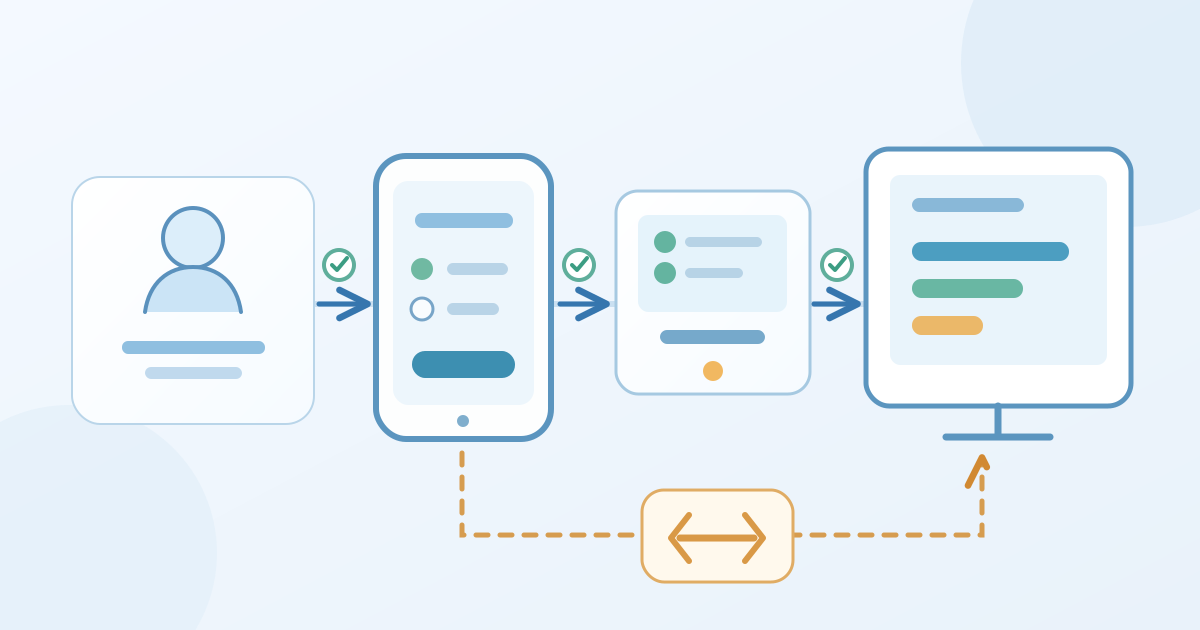
Decide what the answer will change
Start with one session decision: will the answers choose a discussion topic, reveal prior knowledge or prompt a comparison? Write what the speaker will do with the result. A poll that cannot change the discussion may not deserve time in the programme. Record the exact session, question, response choices and approved version. If several people can edit the poll, name who may change it and when the version freezes.
Assign separate operating roles. The speaker introduces and interprets; the moderator watches incoming responses if that function is available and agreed; the technician controls the display and resolves AV faults. One person may hold more than one role, but the handoffs still need explicit cues. Do not leave the speaker to troubleshoot the projection while also speaking. Confirm how much of the slot the poll may use with the session chair rather than applying a universal time allowance.
Approve the question and participation route
Read the question aloud and check that the options answer the same question. Keep wording plain, show the complete response choices and explain whether people may select one or several. W3C's forms guidance calls for labels, instructions and clear feedback; use that as a review prompt for the actual participant view, not as proof that a provider's interface is accessible. Test with people who will use the event's language and access routes.[3]
Show a short join URL as well as any QR code, and agree how someone without a suitable device or connection can participate or observe. State what the tool actually collects before promising anonymity or publishing a free-text response. If names, personal examples or sensitive answers could appear, use the approved moderation and display plan or choose a safer question. Check the provider's current settings and the event's privacy instructions; a generic live-poll label does not settle either.
Put each poll on a one-session run sheet
Download the editable live-poll run sheet (Markdown, English)
Copy the English editable sheet for each session. Record the approved question and version, join route, screen source, cues, operator, test evidence and fallback. The table is a cue sequence, not a prescribed number of minutes. Put the same poll ID on the speaker's deck, moderator notes and technician's display list so an edited or duplicate poll cannot silently replace the rehearsed one.
| Cue | Owner and action | Record or decision |
|---|---|---|
| Before doors | Speaker approves wording; moderator and technician test their views | Poll ID, version, participant test and fallback |
| Launch | Speaker introduces; operator opens the approved poll | Correct question and join route visible |
| Collect and close | Moderator watches responses; speaker closes on cue | Display state and any excluded test answers |
| Fault | Chair chooses fallback; technician handles AV or network fault | Adapt, skip or retest, with named owner |
Rehearse the real path and name a fallback
Run a participant-side rehearsal from inside the venue using the same type of device and network attendees will use. Follow the exact join route, submit a test answer, confirm the response and projected state, then reset or clearly exclude test data as the tool permits. Poll Everywhere's own preparation checklist specifically calls for testing its response URL, sample responses, display and shared moderation link; translate those checks to the selected provider rather than assuming identical controls. Ask the technician to test the screen switch and the moderator to test their access separately.[1]
Decide before doors open what happens if the join page, audience network, moderator view or projected result fails. A spoken show-of-hands question may work for a simple choice, while a sensitive or anonymous question may need to be skipped. Put the decision owner and cue in the run sheet. Do not promise that a backup channel preserves anonymity or vote totals. If the fault affects the venue network or equipment, the technician and venue lead decide the repair route under their plan.
Run, explain and close the poll
At the cue, introduce the purpose, how to join and how long the response window will stay open for this session. Have the operator confirm the right poll is visible before collecting responses. The moderator or speaker signals when to stop; the technician changes the screen only on that cue. For open text, display only material approved through the configured process. Poll Everywhere documents shared moderation for some activity types, but that is a product-specific option, not a feature to assume in every tool.[2]
When the result appears, say what it counts: responses to this question, not every attendee's view. Give people time to read and explain any skipped, incomplete or test responses before using the result to steer discussion. Record whether the poll ran, was adapted or was skipped, plus the reason and owner of any follow-up. Decide separately whether results may be exported or published after the session; a live display is not permission to post a public chart. Hand the final state to the session chair and follow the event's approved data-handling plan.
Sources and further reading
- Event Preparation ChecklistPoll Everywhere · Accessed
- Shared ModerationPoll Everywhere · Accessed
- Forms TutorialW3C Web Accessibility Initiative · Accessed