Email marketing calendar template: plan each send with confidence
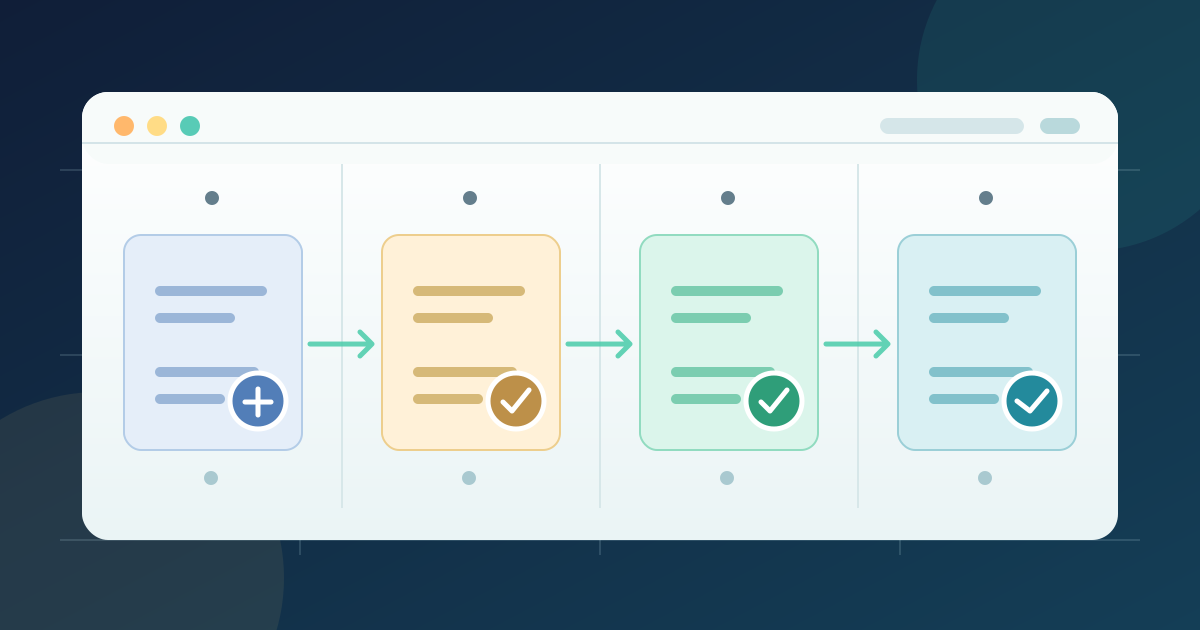
A date in a calendar is only one part of an email plan. The person sending also needs to know why this message exists, who should receive it, which version was approved and what will be checked afterward. This editable calendar gives every newsletter or campaign one working row, from idea to report. It works in a text editor and can be adapted for a spreadsheet. The examples show choices, not a recommended number of emails.
Boletolibre editorial team
Published
Download the editable calendar
Download the email marketing calendar template (Markdown)
Make a copy for one planning period. Replace the example rows with real sends, including newsletters, launches, invitations and follow-ups. Keep one row per message and audience version. If a newsletter has different language or audience editions, use separate rows so each destination and approval can be checked. Record local date, time and time zone; a bare “Tuesday morning” is ambiguous when a team works across regions.
The template includes a monthly overview, a detailed send register, an approval checklist, a pause rule and a short post-send review. A calendar is a coordination record, not the email service itself. Enter only the campaign metadata your team needs; keep subscriber addresses and private data in the authorized sending system.
Decide what the month needs before filling dates
List the actual audience questions and business milestones first. A useful issue might explain a new service, link to a current resource, announce ticket availability for an event, or answer a common customer question. Each proposed email needs one main purpose and one next action. If the purpose is unclear, leave it in ideas instead of assigning a send date. Mailchimp’s planning guides connect content themes, audience, goals and a realistic schedule; treat those as prompts for your own plan, not as a fixed frequency formula.[1][2]
- Audience: name the eligible group and the source of its permission; do not turn a purchase or registration list into a marketing audience by assumption.
- Promise: state what the reader will learn or be able to do after opening the message.
- Action: choose one primary destination that is actually ready; secondary links can support it.
- Goal: decide what observable outcome would make the send useful, such as qualified visits, replies or a completed action you can reliably measure.
Look at other planned messages to the same group. A service notice and a promotion may both be valid, but their timing and priority should be coordinated so the audience receives the essential information clearly. A calendar helps reveal these collisions before scheduling.
Fill fields that answer a release question
Use the template’s compact overview for the month, then complete a detailed row for each email. The row should point to the final copy and asset files rather than trying to hold the whole message in a narrow table cell. Keep planned and actual send times separate; a scheduled email has not necessarily finished sending. Statuses should mean the same thing to every reviewer.
- Identity: campaign ID, message type, objective and audience version.
- Timing: draft due date, review deadline, intended send time with zone, and actual send time.
- Content: subject and preview text, primary action, final URL, copy file and any required asset or translation.
- Control: fact or offer owner, final approver, last approved version, QA result and hold reason.
- Learning: reporting source, chosen primary measure, review date, observed result and next decision.
For example, an event newsletter may have a confirmed event-page link and a draft programme block. If the programme is not approved, label that part as pending and keep the email in review. The template’s “ready” state should only be used after content, recipients and destinations have been checked.
Work backward from the intended send
Choose the send date only after you know when facts, copy, design, translation and approvals can realistically be ready. Add internal deadlines for a first draft, factual review, link check, inbox preview and final decision. Leave room to revise. If a deadline slips, move the send or simplify the message instead of silently treating a draft as approved. In a multi-message series, write the dependency in the row: an announcement should not promise a page or offer that has not opened yet.
Plan at the level your team can maintain. A one-person newsletter may need a topic, a draft deadline and a final self-review. A multilingual launch with multiple owners needs separate rows, approved versions and a named person who can hold a send. Neither case requires an arbitrary weekly or monthly volume. Review response and unsubscribe signals before adding more sends to the same audience.
Make the release gate visible
Before changing a row to “ready,” check the audience selection and exclusions in the actual sender. Read the subject and preview together, verify the sender and reply route, inspect the final copy on mobile and desktop, and open every important link to its live destination. Mailchimp specifically recommends previewing, testing and checking links because email programs render HTML differently. Its test-email behavior and feature availability are product-specific; use your own provider’s current preview and test controls.[3]
- If a price, date, availability claim or destination changes after approval, mark the row held and reapprove the affected version.
- If a scheduled send must move, record who changed it and the new intended time; confirm that the sender reflects that change.
- If a message already sent, do not edit its calendar row to pretend the old content never existed. Record the actual send and the correction decision separately.
The calendar is an aid to judgment, not proof of delivery. Record the provider’s final status or report after launch. Keep private contact data and test account credentials out of a broadly shared worksheet.
Use the report to improve the next calendar
Set a review date when you schedule the email. Record the reporting window, delivered count and the one measure chosen before launch. A click on a link is evidence of a tracked interaction, not proof that the linked action was completed. Opens and clicks can be affected by tracking settings and automated activity; compare like with like and note limitations. Mailchimp’s report documentation describes recipient, delivery, click and unsubscribe fields, while warning that bot activity can inflate some metrics.[4]
Write a short decision in plain language: repeat the format, change the audience, improve the destination, answer a question raised in replies, or stop a low-value series. Include the evidence and any uncertainty. A row that says only “good open rate” does not tell the next editor what to do. An unsent row also deserves a reason; “held because registration page was not live” is useful planning evidence.
At the end of the month, archive the actual send links and decisions, then copy only still-relevant ideas into the next calendar. Recheck dates, prices, event editions and URLs before reusing an old row. The goal is a trustworthy working record that reduces last-minute guesswork, not a full marketing database.
A small example
Suppose a community organization plans a monthly update and a separate event registration announcement. The update row serves subscribers who asked for ongoing news, leads with one useful resource and points to a public article. The announcement row serves the eligible event-interest group and points to a live registration page. Each has its own approved copy, send time, fact owner and review date. The two rows can share a campaign theme without sharing a recipient rule or a success measure.
The provided worksheet includes this kind of example and blank rows. Replace every example fact and destination before sending anything. You can add columns for a regulated or complex workflow, but keep the core release decision easy to scan.
Sources and further reading
- How to Plan Your Monthly Content Calendar: Tips and TricksMailchimp · Accessed
- What's Your Email Marketing Plan?Mailchimp · Accessed
- Preview and Test Your EmailMailchimp Help · Accessed
- About Email ReportsMailchimp Help · Accessed