Plan a welcome email series for new newsletter subscribers
A new subscriber should not have to guess why your first emails arrive or what will come next. A welcome series can deliver the promised item, show one useful example of your publication, and help the reader choose a topic or follow the regular issue. It does not need a universal five-message funnel. Use the editable planner to decide whether one email is enough, what each additional email earns, and when the series ends.
Boletolibre editorial team
Published
Start with the promise made at signup
Copy the exact claim from the signup form into the planner: what the person requested, which publication they joined, and the stated frequency. A download promised at signup should be available in the first welcome message or in the confirmation flow you actually use; do not make the reader wait through a sales story to receive it. Name the source of the subscription and the system that holds its status. A purchase, event registration or downloaded file alone is not a new marketing subscription.[1][3]
If your signup uses confirmation, distinguish the confirmation step from a marketing welcome email. Check when your provider marks a contact subscribed and when its welcome automation can enter. Do not send the series to an unconfirmed, unsubscribed or suppressed address merely because a form submission occurred. The first email should restate what future messages contain and how to leave; that is useful context, not a substitute for the permission record.
Decide if a series is needed
A single welcome email may be enough for a short newsletter with a clear signup promise. Add a second only if it teaches something the first could not without becoming crowded. Add a third only if there is a meaningful choice or resource to offer before the normal issue starts. The number is a content decision, not a score to optimize. A sequence that repeats 'welcome' in different words asks for attention without giving anything new.[2][1]
Define the reader task and one observable result for each message. The task may be 'find the guide I requested,' 'see what a typical issue helps me do,' or 'choose the topic that matters to me.' A promotional offer belongs in the series only when it fits the subscription and the reader's stage. Keep sales claims, testimonials and deadlines truthful and optional; a newsletter can build a relationship without turning every subscriber into a lead.
Map distinct jobs before writing
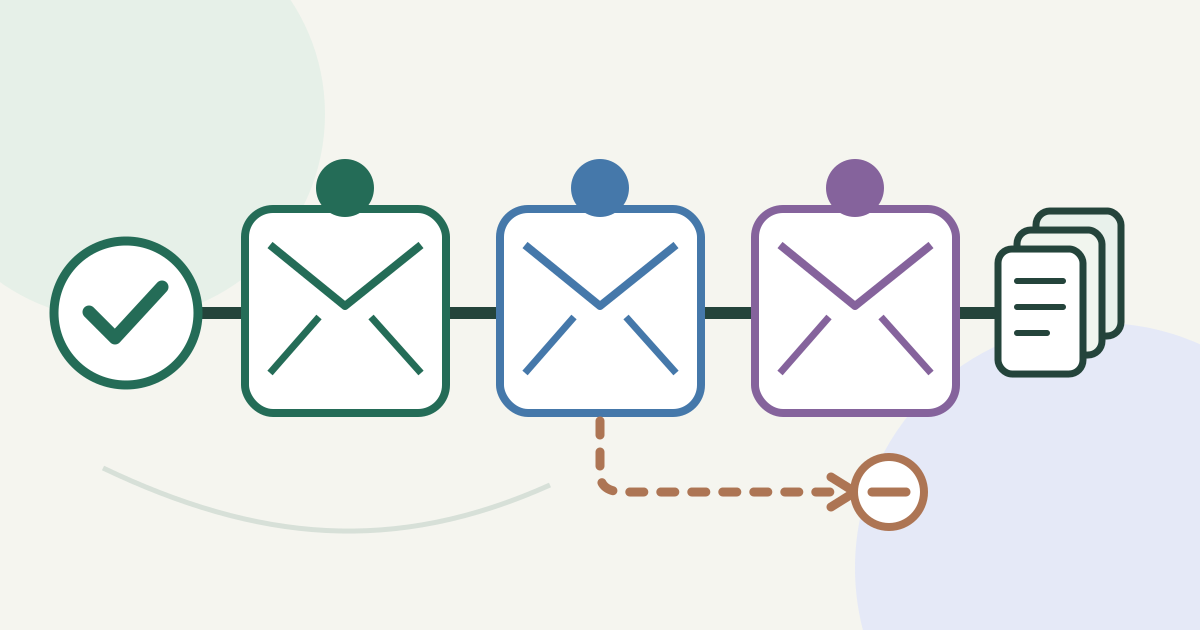
Use the three-message map as an example, not a fixed recipe. Give each row a trigger, one reader benefit, one primary action, and an exit condition. If two rows have the same job, merge them. If a promised download and a normal issue arrive on the same day, decide which message takes priority. The worksheet has empty rows so a one- or two-message version is just as easy to plan.[2]
| Message job | Possible timing | Reader benefit | Completion or exit |
|---|---|---|---|
| 1 · Deliver | On eligible subscription | Find the promised guide and know the monthly rhythm | Guide link works; unsubscribe remains available |
| 2 · Show | After a reader-friendly gap | Try one useful example of the publication | Relevant resource visited or message skipped |
| 3 · Choose | Only if choice can be honored | Save a topic preference or enter regular issues | Preference saved, or series ends without one |
Fictional example: a local science newsletter offers a field-guide PDF at signup. Message one delivers the guide and says the newsletter normally arrives monthly. Message two points to one evergreen observation article so the reader can try the publication's style. Message three invites the reader to choose 'sky,' 'plants' or 'water' for future examples. Nothing in this example requires an immediate sales pitch or a particular automation product.
Email one: deliver and orient
Write the first subject so the reader recognizes the signup, such as 'Your local field guide is ready.' In the opening, thank them briefly, give the exact promised link, and state the sender and publication name. Explain what the regular issue covers and its actual frequency in one sentence. If the first message is also a confirmation of subscription, check the provider's flow so you do not accidentally create two welcome messages with conflicting instructions.[1][4]
Test the resource destination from a fresh device or signed-out browser. A link that works for the editor may fail for a new reader. Say whether a download requires an account or expires. Do not attach a file simply because the example uses a PDF; use the distribution path your provider supports and verify it. Leave an accessible reply route for a broken link and keep the usual unsubscribe mechanism visible.
Email two: prove the publication's value
Use the second message to demonstrate what future issues feel like, rather than reintroducing the organization. Select one durable article, short lesson or curated answer to a common reader question. Tell the reader why it is relevant to the interest they stated, then link directly to it. If you lack reliable interest data, send a broadly useful example instead of inventing a personal recommendation. Avoid a pile of five unrelated links that makes the next step hard to see.[1]
For the science newsletter, the second email might show how to make one five-minute observation on a neighborhood walk, then link to the full guide. It should still make sense if the reader never opened email one. Check that any fact in the example remains current; an evergreen topic can still contain an obsolete event date or broken route. If the resource cannot be maintained, choose a stable one or remove this message from the sequence.
Email three: invite a useful next choice
A third message can invite a preference that genuinely changes future content, or it can point to the next regular issue and end. Tell the reader what the choice changes and whether it affects frequency, topics or both. A click to open a preference form is not the same as a saved choice. If your system cannot honor topic choices, do not ask for them. A reply question may be more useful when a human can read and answer it.[1]
The fictional newsletter could ask which of three subjects the reader wants to see first, with a short description of each. Someone who skips the question still receives the ordinary monthly newsletter if they remain subscribed; do not invent a preference for them. If the reader unsubscribes or changes an email preference at any point, that latest state must govern the rest of the series and the regular newsletter.
Set timing, overlap and exits
Pick spacing from the actual publication rhythm and the burden on readers. The first message should fulfill an immediate signup promise promptly; later messages need enough separation to be useful. There is no universal 'day two' or five-email rule. Write the earliest and latest acceptable timing for each step, the local time zone if scheduling matters, and who may pause it. If a regular issue is due before the next welcome message, decide whether to skip, delay or replace that step so a new subscriber is not flooded.[2][7]
Define an exit for every state: completed sequence, unsubscribe, bounce, duplicate signup, preference change or a new customer action that makes the message irrelevant. The provider may handle these states differently, so verify each rule in the active flow. Do not re-enter an existing subscriber into the first-time series on every form submission unless that is an intentional, tested choice. Keep transactional receipts or service notices separate from this marketing series.
Test a real subscriber path
Preview the copy and actual links, then test the entry path with controlled addresses. Try a new confirmed signup, a pending confirmation, an existing subscriber who submits the form again, a recipient with no recorded topic, and an unsubscribe after email one. Watch which message queues and when it sends. A normal test email may not populate contact-specific fields, so use the provider's supported contact preview or controlled live test for those states. Document what the test actually proved.[5][3]
Check mobile reading order, descriptive links, images-off meaning, reply handling and the unsubscribe path. Confirm that the first download works and that a later message does not run after an exit condition. If a regular newsletter sends during the test window, examine its interaction with the welcome messages. Fix the route and rerun only affected cases before enabling the flow for new subscribers. The worksheet keeps the test cases and owner together.
Review a cohort, not just opens
Review a cohort of people who became eligible during one period. Record how many were eligible, how many entered, how many were sent each message, how many left before the end, and which primary reader actions completed. Define a cutoff long enough for the last message and its action; otherwise newer subscribers will look like dropouts. Use the same denominator when comparing stages or explicitly label a stage-specific one. Opens can be distorted by privacy loading and are not proof that the promised item was used.[7][6]
Look at replies, broken-link reports, preference changes, unsubscribes and complaints alongside clicks. A click to the guide is not proof the PDF was read; a saved topic choice is stronger evidence of that particular task. If the second message adds little useful action or creates unwanted volume, remove it instead of adding another reminder. Preserve the version, timing rules, signup source and review window so the next editor can understand why the series changed.
Download the editable welcome-series planner
Download the welcome-series planner (Markdown)
Download the localized planner for the signup promise, each message's reader job, sequence timing, exit rules, test states and cohort review. It includes the fictional field-guide example and blank rows for your own publication. Replace the example dates, links and content with verified facts before enabling any automation.
Sources and further reading
- How to Convert Visitors to Email SubscribersMailchimp · Accessed
- A Winning Welcome Email SeriesMailchimp · Accessed
- Choose Opt-in SettingsMailchimp · Accessed
- Send a File to New SubscribersMailchimp · Accessed
- Preview and Test Your EmailMailchimp · Accessed
- Apple Mail Privacy Protection (MPP) FAQsMailchimp · Accessed
- Email sender guidelinesGoogle · Accessed