Repair pasted CMS headings and lists for accessibility
A document pasted into a CMS can look orderly in the editor while its published page tells a different story. A bold line may be a paragraph rather than a heading; bullet characters and line breaks may not form a list. The problem is the lost relationship, not the act of pasting itself. This workflow helps an editor choose a sample, repair the intended structure without assuming a particular CMS toolbar, and ask for technical help when the published markup still disagrees.
Boletolibre editorial team
Published
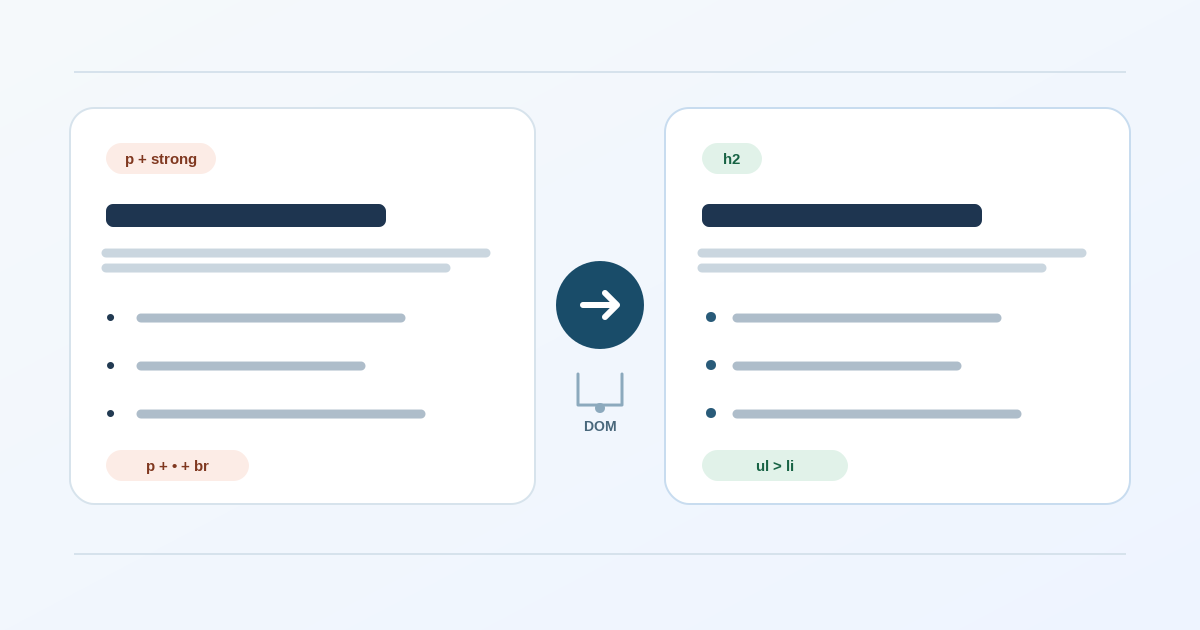
Recognize a visual imitation of structure
Download the pasted-content structure audit (English Markdown)
W3C's Info and Relationships criterion concerns information and relationships conveyed visually that must also be programmatically determinable or available in text. The WAI page-structure tutorial explains why semantic markup gives assistive technology a more meaningful structure. A large, bold paragraph may announce a section to a sighted reader while remaining an ordinary paragraph in the DOM. Likewise, a sequence of typed bullet symbols may look like a list without creating list items.[1][3]
Do not treat every pasted passage as broken. Some editors preserve real headings and lists, while templates may transform saved content before publication. The reader job is to compare an intended outline with the public result. Separate this from data-table accessibility, link wording and navigation anchors: those have different structures and repair decisions. Record an actual mismatch before changing a page.[2][3]
Select a useful audit sample
Choose a representative published page that received rich text from a document, email or older CMS. Include one section heading, one group of items, and any nested steps; a page with only paragraphs cannot test this issue. If a reusable content block feeds many pages, inspect at least one rendered instance and note the component or page type. Give priority to instructions, eligibility or other passages where a lost sequence changes how a visitor acts.
In the worksheet, copy a short excerpt and write its intended role before editing: page title, section, subsection, unordered group, ordered procedure or ordinary paragraph. Note the public URL, editor location, language, owner and date. A change in font size is not enough evidence of role. If the source document itself has inconsistent levels, decide the correct information hierarchy with the content owner first.[1]
Restore headings by meaning and level
Use heading elements for actual section titles, choosing levels from the page's hierarchy rather than their visual size. WAI describes h1 through h6 as ranked headings; a lower rank begins a subsection, while the same or higher rank starts a new section. For example, a page title can be h1, ‘Getting there’ h2 and ‘Step-free route’ h3. Avoid skipping levels where possible, but returning from an h3 subsection to the next h2 section is normal.[2]
In the CMS, select a heading style or ask the template owner for an equivalent that produces the right element. Do not manufacture a heading by making a paragraph bold, increasing its font size or adding a decorative icon. Confirm whether the page template already supplies h1 so the pasted body does not add another page title by accident. Preserve the intended heading text while removing formatting that only imitates its role.[2]
Turn real groups into lists
Use a real unordered list when items are a group with no necessary sequence, such as several transport options. Use an ordered list when the sequence matters, such as registration steps. WAI's content-structure tutorial shows ul and ol containing li elements and explains that list markup gives a programmatic grouping. A manually typed ‘•’ or ‘1.’ at the start of separate paragraphs does not create that HTML relationship.[3]
For a nested substep, keep it within the relevant parent list item instead of using spaces or tabs for indentation. If the content is not actually a group, leave it as paragraphs; do not turn every short line into a list. In the editor, use whatever list control or structured content option genuinely produces list elements. If the CMS strips them on save, record that as an editor or template defect for the implementer rather than replacing it with more visual styling.[3]
Verify the rendered page
Open the published page without an editor login. Locate the suspect text, then use a browser's element inspector to see the live DOM: is the section title an h2 or h3, or merely p/strong/span? Are the grouped items inside ul or ol with li children, or are they paragraphs separated by line breaks? Chrome's Elements panel is one documented way to inspect those nodes. Inspecting the live DOM matters when scripts change the page after the initial HTML loads.[4][1]
Compare the observed elements with the worksheet's intended structure and follow the content in reading order. A heading list or screen-reader pass can corroborate the result when available, but appearance alone cannot. Check one phone-sized layout too: responsive styling may make a real heading look smaller without changing its semantic level. If you cannot inspect the DOM, ask a technical reviewer to record the elements; do not mark an unseen page as verified.[4][2][3]
Publish with an owner and a retest
Correct one sample, publish through the normal content approval path and retest its public URL before bulk editing. If the editor preview is right but the published page is wrong, capture both states and assign the template owner. If the content is semantically correct but visually awkward, assign a styling fix rather than downgrading the elements. Keep before/after excerpts, affected page URLs, observed DOM and the person who approved the hierarchy.
Recheck after a CMS upgrade, editor change, template redesign or large copy import. A green result for one page does not prove every locale or page type uses the same renderer. Sample each affected template and language, then record any exception. WCAG 1.3.1 is about preserving information and relationships, so the release decision should be based on the actual published structure and the meaning it communicates.[1]
Sources and further reading
- Understanding WCAG 2.2 Success Criterion 1.3.1: Info and RelationshipsW3C WAI · Accessed
- Page Structure Tutorial: HeadingsW3C WAI · Accessed
- Page Structure Tutorial: Content StructureW3C WAI · Accessed
- Get started with viewing and changing the DOMChrome for Developers · Accessed