How to make an event programme PDF accessible: an editor's checklist
A printable programme can be useful at the venue, but an image of a schedule or an unreviewed PDF may hide times, rooms and access instructions from assistive technology. Work from an editable source, export a tagged PDF and inspect the published file. Keep the current programme available as an HTML page too, especially when room or time changes need a quick update.
Boletolibre editorial team
Published
Start with a structured programme source
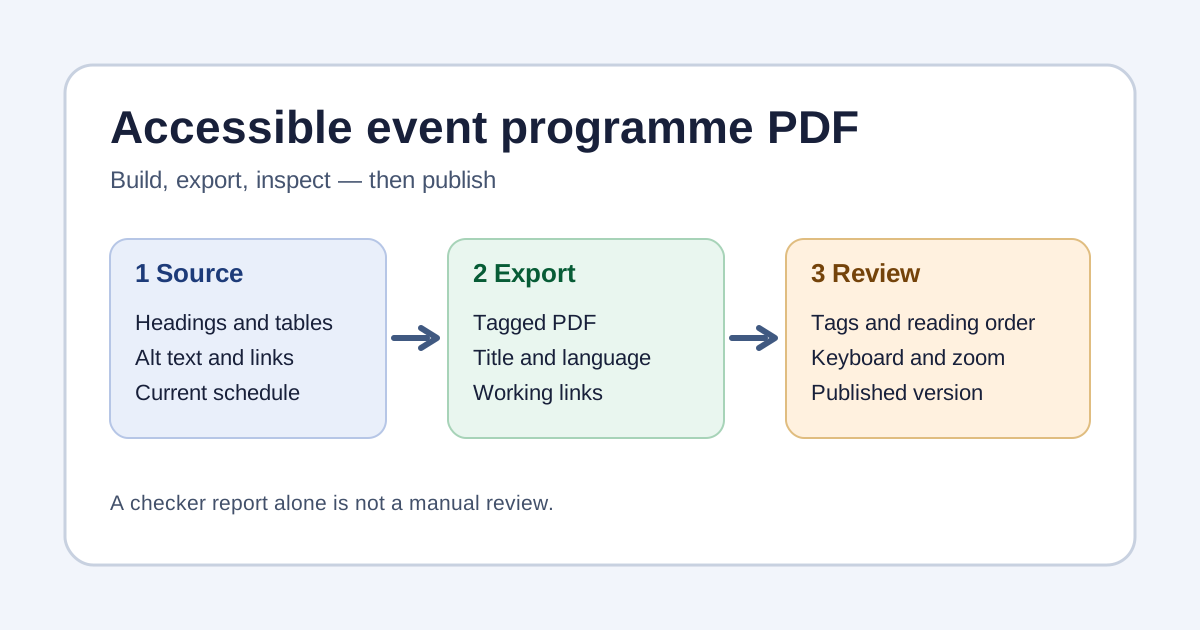
Use the authoring tool's real heading styles for the title, date, day headings and session sections. Keep time, room, session name and access notes in a reading order that works linearly. A schedule table needs actual header cells; do not use a complex visual table merely to position text. Add meaningful alternative text to informative venue maps and mark decoration as decorative. Name links by destination or action rather than “click here.” Set the document language and title. Microsoft recommends running its Accessibility Checker before creating a PDF; resolve its findings in the source first.[2][3]
Export a tagged PDF without discarding the structure
Choose the application's tagged or accessible PDF export route. Adobe explains that tags made from an authoring application's structure can preserve heading levels, links, tables and reading order more reliably than trying to infer them later. Printing to PDF, flattening a poster into a picture, or assuming an automatic tagger understands a complex layout is not the same as reviewing a tagged document. Record which source and export method produced the file so a later programme change can be repeated.[1]
Inspect the resulting file, not only the source
Open the exported PDF and inspect its tags, headings, lists, table headers, links and document language. Read the tag tree in the same sequence an attendee needs: date, time, session, room, access information and help. Adobe warns that automatic tagging can misread columns, complex layouts and tables; an accessibility checker report is a starting point, not a complete manual check. Try keyboard navigation, link destinations, text selection and zoom or reflow where supported. Use an appropriate screen reader or assistive-technology review with a competent reviewer when available; record unresolved issues rather than declaring the file compliant.[1][4]
Keep the public programme current
Compare the PDF with the approved event page before release. Confirm date, time zone, venue, room names, accessible route, help contact and the visible update time. If a session changes, update the authoritative HTML page and PDF together, replace the published file, and tell staff where the current version lives. Link the HTML programme next to the PDF rather than making the download the only way to read essential details. A printable design and a digital document serve different contexts; both need factual review.
Use the review record
Download the event programme PDF accessibility review (Markdown, English)
Download the editable review record and assign each finding an owner and retest. It separates source-document work from PDF inspection and published-route checks. The worksheet is not a certification or a substitute for a user's actual experience. If an event listed on Boletolibre.com points to an organizer programme, check that the linked version matches the event's published date and ticket details; the organizer remains responsible for the programme file it provides.
Sources and further reading
- Creating accessible PDFsAdobe Acrobat Help · Accessed
- Create accessible PDFsMicrosoft Support · Accessed
- Testing a PDF for accessibilitySection508.gov · Accessed