Buyer or attendee questions: set the right scope for a multi-ticket order
When one person buys several event tickets, a registration question can belong to the purchaser or to each ticket holder. Decide that relationship before adding the field. Otherwise a single answer may be mistaken for a response from everyone, or the same group-level prompt may repeat for every ticket.
Boletolibre editorial team
Published
1. Assign an owner to each answer
Download the buyer-versus-attendee test card (Markdown, English)
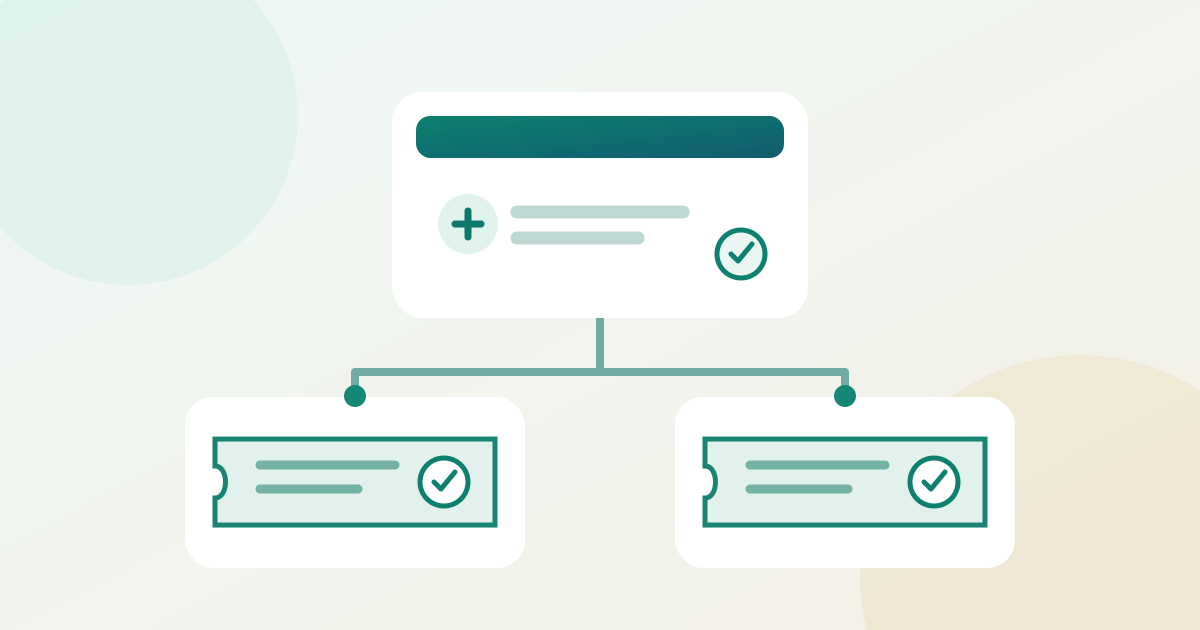
Write down the operational use of each answer. A group-level prompt such as “How many printed programs should be set aside for this order?” belongs to the buyer or order. “Which activity track will this ticket holder attend?” needs a separate answer for every relevant ticket. For a two-ticket order, sketch the expected record first: one buyer answer, plus two independently identifiable attendee answers. Do not use the purchaser’s response as a substitute for the second holder’s choice. Keep the examples free of real personal details.
2. Find the supported form scope
Inspect the form editor for its actual collection scope. Eventbrite’s cited order-form flow offers “Ticket buyer” and “Each attendee” collection types. Ticket Tailor separates Buyer questions, Event questions and Attendee questions; its help page says Buyer questions are asked once per order and Attendee questions for every ticket issued. Those labels and the presence of an event-level option are platform-specific. A setting that merely shows a question for selected ticket types answers a different question: which tickets see it, not how many answers the order must supply.[1][2]
3. Configure the question and its response point
Create one short prompt at the chosen scope. Mark it required only if the answer is needed to complete a defined organizer task; then check how your platform handles unanswered required fields. Confirm when the buyer will encounter the prompt. Ticket Tailor documents checkout-form questions during its checkout; Eventbrite says questions in the cited flow are asked after the order and tickets are issued when required information is provided. Do not describe either timing as the universal event-registration sequence. Save the form, reopen it, and verify the prompt, scope and required setting.[1][2]
4. Run a controlled multi-ticket path
Use a supported preview or authorized test order with two controlled tickets and invented answers. Give Ticket A and Ticket B different activity-track values, and answer the buyer-level program question only once. Check the mobile path too if that is how your audience buys. Record whether the form asks once or twice, which ticket each attendee answer is attached to, and whether the response point matches the configuration. Test an order with one ticket as a baseline; the two-ticket case is what exposes accidental buyer-level setup.
| Controlled order | Expected answer count | Record to inspect |
|---|---|---|
| One ticket | One buyer answer; one attendee answer | Order plus Ticket A |
| Two tickets | One buyer answer; two attendee answers | Order plus Tickets A and B |
| Two different ticket types | Check actual eligibility and answer count | Each included ticket and order |
5. Verify the saved answers
After the test, inspect the platform’s order and ticket records or its supported export. Match the buyer answer to the order and each attendee answer to the intended ticket; do not infer that a flat spreadsheet column proves ticket association. Ticket Tailor says attendee answers can appear in its check-in app while buyer answers require downloaded reports. Your provider may use different views, so name the actual view or export the on-site team will use and verify that it contains the needed answer at the needed level.[3]
6. Fix a mismatch before relying on the data
If the prompt repeats at the wrong level or an attendee answer cannot be tied to its ticket, correct the scope and run the two-ticket path again. If the platform cannot collect at the level you need, redesign the question or choose a supported follow-up workflow rather than labeling one order response as two attendee responses. Record the final form version, the test result, and the person responsible for checking the live answers. Changes to an already-used form may need separate handling for earlier orders.
Sources and further reading
- Create custom questions for attendeesEventbrite · Accessed
- How to edit your checkout formTicket Tailor · Accessed
- How to see answers to your checkout form questionsTicket Tailor · Accessed