Hosting storage nearly full? Check usage before an event upload
Before publishing a new poster set, programme PDF or photo gallery, the hosting dashboard shows little space left. First find out which account and which stored items the gauge counts. A directory chart is evidence, not permission to delete an unfamiliar folder. This worksheet turns the reading into an upload decision and a clear host-support question.
Boletolibre editorial team
Published
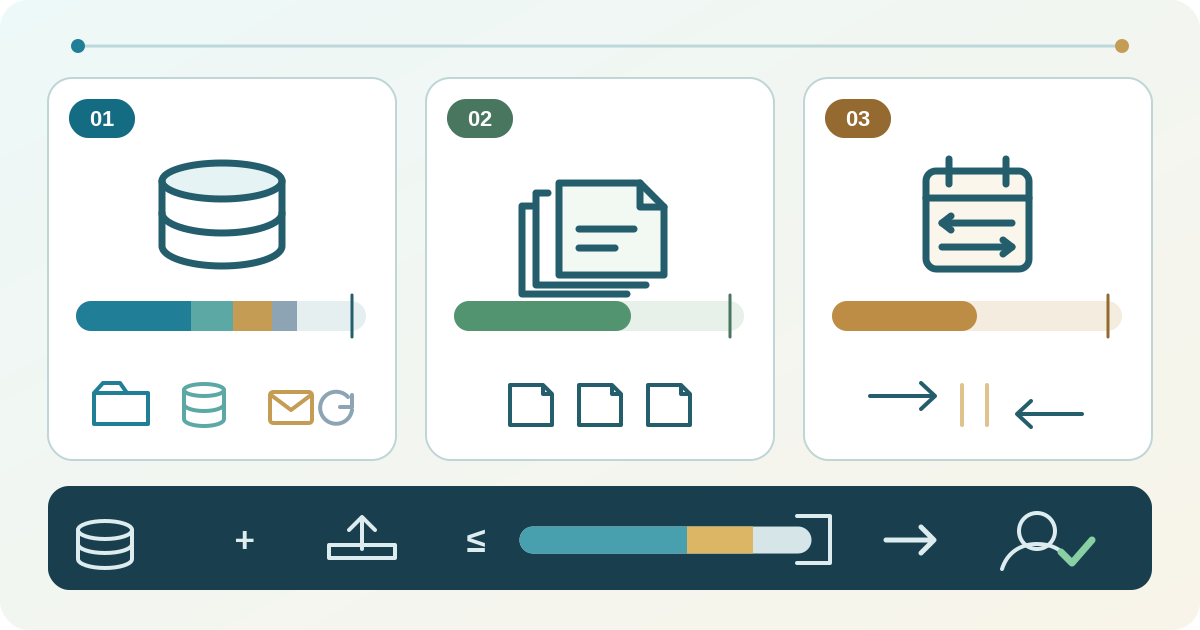
1. Record the meter and its scope
Write down the hosting account or subscription, used storage, stated limit, unit and time of the reading. Identify whether the meter covers one site or several sites. cPanel labels Disk Usage, File Usage (file and directory count) and Bandwidth separately; a full file-count limit is not the same as a full byte quota. Monthly transfer is not stored disk space.[2]
If the dashboard does not expose a limit or usage breakdown, ask the hosting owner for the plan’s accounting scope. Do not infer available space from the size of the public site alone: hosted mail, databases, logs or backups may also count, depending on the service.[3][4]
2. Find what actually occupies the account
Open the host’s storage or disk-usage view and note the largest categories with their measured sizes. In cPanel, the Disk Usage view summarizes directories and hidden subdirectories, while database sizes are included in account usage; its figures may not reflect very recent changes. In Plesk, Statistics can separate website content, mail, databases, logs and backups. These are examples of panels, not a promise that every provider offers the same categories. In cPanel, database size appears in calculated usage, but an overage caused only by the database does not trigger the account disk quota; confirm which figure actually governs a new file upload.[1][3]
Map each large category to a responsible person and a function: public site files, content uploads, database, mail, backups or logs. Mark unknown entries “owner needed.” A large folder name alone does not show whether its contents are disposable or whether a recovery process depends on them.[1][4]
3. Estimate the next upload without double counting
List the new files intended for this host and their total bytes. Ask the CMS or hosting owner whether publication also stores generated image sizes, draft versions, temporary copies or local backups under the same quota. Count those only when the actual setup confirms them; files held by an external media service may be outside this host’s quota.[4]
Use a simple planning estimate: current used bytes + confirmed new stored bytes = projected used bytes. Subtract that projection from the stated byte limit to see the apparent margin. Record uncertain copies separately instead of hiding them in a made-up percentage. A provider’s usage meter can lag, so note when it was refreshed.[1]
4. Make a release decision from the evidence
If the margin is unknown or too small for the planned batch, postpone that optional upload and ask the host how the quota is enforced, what is included and what capacity options exist. cPanel documents that a quota-exceeded account cannot save new files and that backup creation near the quota can fail; this is cPanel behavior, not a universal prediction for every host.[1]
- Proceed only when the account, quota, planned bytes and owner are known.
- Ask the host about a separate file-count limit and the plan’s overage or upgrade terms.
- If the source of growth is unclear, record the largest category and ask its owner before moving or removing anything.
5. Verify the small release and preserve a recovery path
Once the responsible owner approves capacity, publish a small representative batch. Check that its public file opens, an editor can save a routine change, and the refreshed meter moves as expected. If readings differ, keep both timestamps and ask the provider how its report is calculated.[1][4]
Keep the current backup and any mail or log retention under their respective owners while the question is open. Do not erase an unexplained category to make a gauge fall. Save the completed inventory with the release decision so the next event has a starting measurement.
Sources and further reading
- Disk UsagecPanel & WHM Documentation · Accessed
- The cPanel InterfacecPanel & WHM Documentation · Accessed
- Viewing StatisticsPlesk Obsidian Documentation · Accessed
- About Disk Space Usage CalculationPlesk Obsidian Documentation · Accessed