Conference audience Q&A question queue: moderation and handoff checklist
A question submitted to a conference session is not automatically ready for the stage or screen. It may repeat another question, belong to another session, contain personal information or arrive after the chair has called the last turn. This guide gives the organizer a small operating system for the question queue: who receives it, who chooses, what the audience sees and who owns what remains open.
Boletolibre editorial team
Published
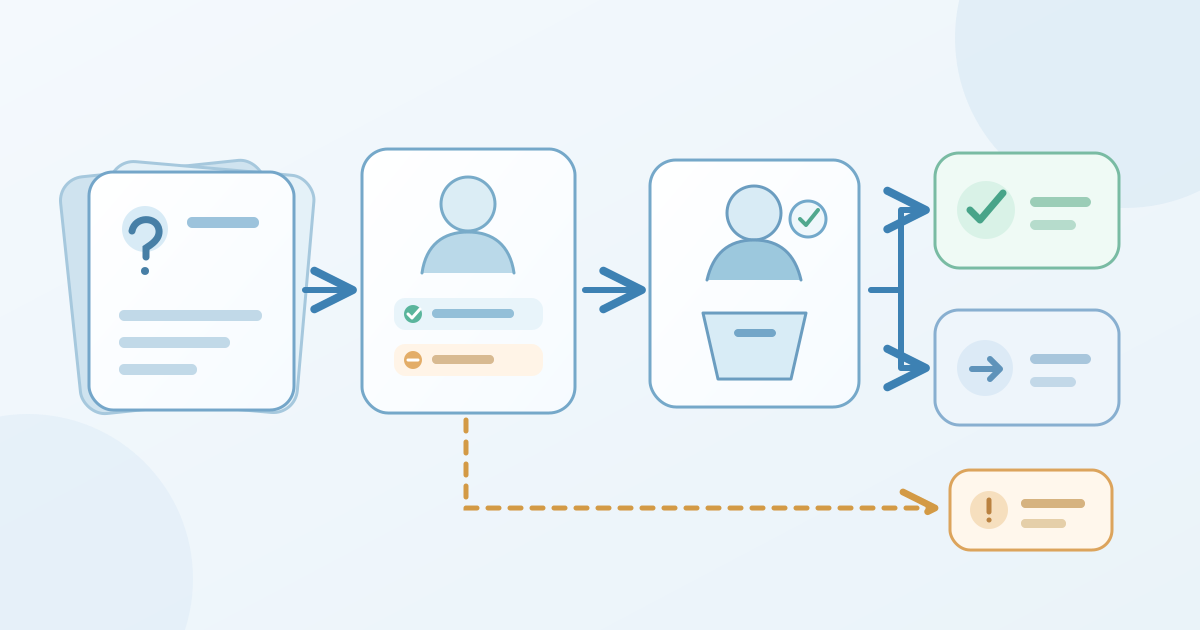
Give one session one queue and named decision makers
Download the editable audience-question queue and handoff sheet (Markdown, English)
Define the queue for this session before inviting questions. Record its session ID, opening and closing cues, the attendee submission route and whether a floor microphone, online form or both will be used. Name a curator who reads incoming text, a chair who decides which question is asked, a technician who controls any public display, and a programme or conduct contact for issues outside the session. A person can cover two roles, but the decision and cue still need to be explicit.
The editable English worksheet records the queue setup, a minimal item register, live cues and unresolved-item handoff. Copy it for each session and give it a version. Keep names, contact details and unreviewed question text in the approved tool or restricted record; the broadly shared run sheet needs only a short topic and reference. Slido and Zoom document different Q&A roles and settings, so check the actual account instead of assuming every platform exposes the same moderator controls.[1][3]
Test the route from audience to curator
Tell attendees where and when to ask, how a question may be selected, and what happens when time runs out. If the entry route is a QR code, provide a usable written route too. If the event offers a microphone or other participation option, tell the room how to use it without making the digital queue the only path. Do not promise anonymity, upvoting, editing or a public answer until the chosen tool and event policy have been checked.
Rehearse with a test question from an attendee view. The curator confirms it appears in the expected queue; the chair receives the agreed short cue; the technician confirms exactly what is visible publicly. Test a duplicate, a withdrawn or held question, and a question submitted as the intake closes. Slido can hold submissions “In review” under its enabled moderation feature; Zoom webinar Q&A has its own role, visibility and anonymous-question settings. Those are examples of controls to verify, not instructions for all tools.[1][3]
Review each question before it reaches the chair
Use a simple decision for each incoming item: candidate for this session, duplicate or combined theme, needs clarification, outside scope, or hold for the assigned specialist. The curator may suggest a topic and speaker, but the chair owns the on-stage choice. Keep a small reference and status so an item is not silently lost; avoid duplicating full participant text into a shared spreadsheet. A question about a person, incident or confidential case should follow the event’s approved private route rather than appearing on a public screen.
Check the tool’s visibility before clicking an approval control. In Slido, approved questions become public to participants when moderation is enabled; its help also warns that a private reply can become visible if the pending question is later approved. Zoom allows hosts to choose whether attendees see answered questions only or all questions in the applicable webinar Q&A setting. The reviewer should know the current configuration and make a conscious public-display decision for every free-text item.[2][3]
Pass a selected question with an explicit cue
Agree how the curator sends one selected question to the chair: queue reference, short verified wording, intended speaker and whether the question may be displayed. The chair can read it, paraphrase with care or ask the questioner to speak under the session format. The technician displays it only after the agreed cue. Do not let an automatic upvote order, a duplicate count or an AI summary decide what goes on stage; those may help sorting, while the chair and programme owner retain the actual decision.
A cue needs a confirmation. The curator marks “sent”; the chair acknowledges the reference; the technician confirms the right item or no item is on screen; after the response, the curator marks answered, partly answered or still open. If a speaker asks to defer, record who will decide the next step rather than marking the question answered. Johns Hopkins’ moderator guidance treats question handling and turn management as a facilitation task; the worksheet turns that responsibility into a traceable handoff without prescribing a universal number of questions.[4]
| Queue state | Who decides or confirms | Minimum handoff record |
|---|---|---|
| Received | Curator confirms intake | Reference, session, short topic |
| Selected | Chair confirms next turn | Speaker, chair cue, display decision |
| Answered or partial | Chair and curator confirm | Outcome and remaining point |
| Held or follow-up | Programme owner accepts | Reason category, next owner, check |
Keep the queue honest when the session changes
If the programme runs late, the chair announces the last-question cue agreed for that session. The curator stops promising new live turns and marks newly received questions as not selected or pending review. If the queue tool, audience network or display fails, use the rehearsed alternate route only if it preserves the event’s approved participation and privacy expectations. A floor microphone can keep discussion moving, but it does not recreate a private text queue or a record of everyone who asked.
If a question is abusive, discloses sensitive information or demands a specialist response, use the assigned conduct, privacy or programme route. This checklist does not ask a volunteer to make a legal, medical, security or safeguarding determination. Keep the visible screen on approved material and tell the chair only what is needed to manage the session. Do not silently publish a machine translation or summary of a participant’s question; have a human confirm the wording and context first.
Close each remaining item with a real owner
At close, distinguish answered live, partly answered, duplicate covered by another answer, not selected, needs an owner, and withdrawn or held under the event process. Decide which items may be exported and who may see that export. Zoom documents a webinar Q&A report, but report availability and contents depend on the product and settings; an export is a source record, not permission to circulate participant details. Give the chair and programme owner a short count by state plus the unresolved references.[3]
For any promised follow-up, record the responsible speaker or programme owner, the approved audience channel and the next check. If no follow-up was promised, say so clearly; do not invent a response deadline. Review a drafted answer before attributing it to a speaker, and publish only through the event’s approved communications process. When the last item has an owner or a documented no-follow-up decision, close the queue version so late edits do not rewrite what happened in the room.
Example: two similar questions and a late one
Suppose a panel receives two differently worded questions about the same budget decision and one late question about a separate dispute. The curator gives the similar items separate references, proposes one neutral combined question, and asks the chair to confirm it. The chair chooses to ask it of the relevant panelist; the technician shows the approved combined wording only after the cue. Both original references are marked covered by that live answer, with no attendee names copied into the run sheet.
The dispute question arrives after the chair’s last-question cue. The curator does not slip it onto the screen or promise an answer. It is marked for the programme owner to review under the event’s private route, and the chair closes the session on its published plan. This example illustrates a decision trail, not a rule that similar questions must always merge or late questions must always receive a written response.
Sources and further reading
- Set up a Q&A sessionSlido · Accessed
- Use Moderation and manage audience questionsSlido · Accessed
- Using Q&A in a Zoom webinarZoom · Accessed
- Guide for Moderators or FacilitatorsJohns Hopkins University · Accessed