File-count limit reached on your website host? Diagnose it before cleanup
A site can fail to create an upload or cache file while gigabytes remain free. Before removing anything, confirm which limit is actually full and who owns the files behind it.
Boletolibre editorial team
Published
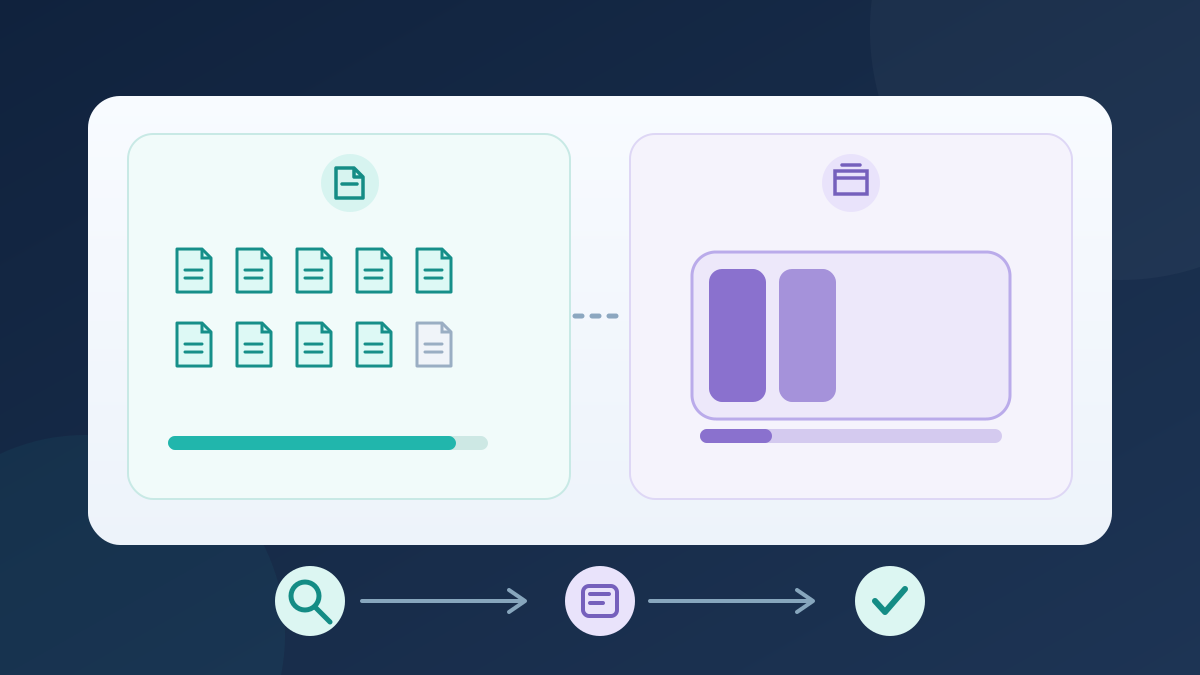
Recognize the file-count problem without guessing
Download the file-count incident worksheet (English Markdown)
A file-count or inode warning is about how many files and directories the hosting account can hold, not simply their combined size. cPanel calls the account meter File Usage when the provider enables it; Disk Usage is a separate byte measure. A failed media upload, a cache-write error or an unsuccessful backup can be consistent with a full file-count quota, but each symptom has other possible causes. Record the exact error and time before naming the cause.[1]
A file count is not the same thing as website traffic or monthly bandwidth. A folder with many tiny generated files can use little disk space while exhausting a file-count allowance. Conversely, one very large archive can fill the byte quota while adding only one file entry. The goal is to distinguish these two cases, not to infer them from how large the site looks in a browser.[1][2]
Compare the account meters before opening folders
In the hosting panel, capture the account name, File Usage used and allowed, Disk Usage used and allowed, and the time of the reading. If File Usage is hidden or shows no limit, ask the host what quota applies to this account and what the meter includes. cPanel notes that the File Usage display depends on provider configuration; a distributed account can show Local File Usage, which is only the local server portion.[1]
If shell access is available, a read-only GNU `du --inodes --max-depth=1 -x ~` can help find top-level directories with many entries. GNU `df -i ~` shows inode availability on the underlying filesystem, not necessarily your hosting account’s imposed file cap. Do not call a healthy `df -i` result proof that the account quota is healthy, or assume the shell count exactly matches the panel: ownership, mounted paths and provider accounting can differ. These commands are optional; a panel screenshot and host support are enough to begin.[5][4]
| Reading | What it measures | What it cannot establish |
|---|---|---|
| File Usage | Account files and directories, if enabled | Which directory is responsible |
| Disk Usage | Account bytes stored | How many file entries remain |
| df -i | Filesystem inode availability | Your account-specific file cap |
| du --inodes | Entries below the chosen path | Whether those entries are safe to remove |
Locate the directory adding the most entries
Compare broad locations before individual files: webroot, mail, cache, temporary files and any backup directory under the account. A count-heavy directory is a lead, not permission to empty it. If email is hosted in the same account, cPanel’s Email Disk Usage lists message counts by mailbox as well as bytes. If mail is elsewhere, do not blame it for this account’s file meter.[4][3]
Write down which application or person creates each large category and whether the files are generated, user content, logs, mail, dependencies or recovery copies. Count before inspecting content. A `du --inodes` result describes a filesystem tree; its top-level total may include nested directories and will not explain the age or necessity of individual files. Ask the owner of an unfamiliar directory rather than treating an opaque name as disposable.[4]
Choose a change with an owner and a recovery path
Choose one bounded action only after the category is understood. Use the owning application’s supported cache purge for cache files; review mailbox retention with the mail owner; move or remove a redundant local export only after confirming a usable copy and a restore path. Uploaded media, active application code, current mail, and the only backup are not cleanup targets simply because they have many entries. A large compressed backup may be important for bytes but barely change the file count.[3]
Record the candidate path or mailbox, owner, reason it is safe to change, expected count reduction, and recovery method. Change one category at a time and keep the before/after readings. Avoid broad recursive deletion commands copied from a search result: their effect depends on the installation, and deleting session or cache files outside the application’s process can interrupt current visitors.
Work a small example before deleting anything
Suppose File Usage reads 249,500 of 250,000 entries (99.8%) while Disk Usage is 4 of 20 GB (20%). A 2 GB archive is worth reviewing for byte capacity, but deleting that one file would free only about one entry. If an owned, regenerable cache directory contains 12,000 entries, a supported purge is a better file-count hypothesis. These numbers are illustrative, not a normal threshold or a promise of recovered capacity.[1][2]
First capture the readings and confirm which cache owns that directory. Follow that application’s purge procedure, then re-read File Usage and try the exact operation that failed, such as saving a small test upload. If the meter barely moves, stop: perhaps another directory is responsible, the display has not updated, or the host accounts for entries differently. Do not keep deleting unrelated files to force a numerical change.
Verify recovery and watch for renewed growth
Verification has two parts: the relevant meter has headroom, and the original operation works again. Note the post-change count, bytes, time and exact result. A successful upload with File Usage still near its limit may be temporary; a lower count without a successful upload may mean the failure had another cause. Keep both facts in the record.[1]
Check the count again after the next normal content update or scheduled job. If it rises rapidly, identify the process generating entries and adjust its retention or cache policy through its owner. Decide on a plan change using observed growth and the host’s real limits, including backup and mail scope, rather than treating an upgrade as proof of diagnosis.
Give the host evidence when the limit is still unclear
Send the host a concise case when the File Usage meter is absent, the panel and shell disagree, or a confirmed safe purge fails to change the situation. Include account and affected domain, time and exact error, the two account-meter readings, the broad directory counts if available, and what changed. Share paths and counts; redact private filenames or message contents when they are unnecessary.[1]
Ask the host whether the limit is account-level or filesystem-level, which sites and mailboxes are included, when the meter refreshes, and whether quota recalculation or a larger file allowance is available. If the account legitimately needs many files, compare the next plan’s file count and byte quota together. Keep the worksheet with the answer so a future incident starts from evidence.
Sources and further reading
- The cPanel Interface: Statistics and File UsagecPanel & WHM Documentation · Accessed
- Disk UsagecPanel & WHM Documentation · Accessed
- Email Disk UsagecPanel & WHM Documentation · Accessed
- GNU Coreutils: du invocationGNU Project · Accessed
- GNU Coreutils: df invocationGNU Project · Accessed