PHP “Allowed memory size exhausted” on a website: find the limit that failed
A PHP fatal error can break one checkout, upload or administration action while the rest of a site still loads. The message gives you a limit and a failed allocation, but not necessarily the code that caused the growth. Use this worksheet to separate the PHP request from the hosting account before changing any limit.
Boletolibre editorial team
Published
1. Read the error before changing settings
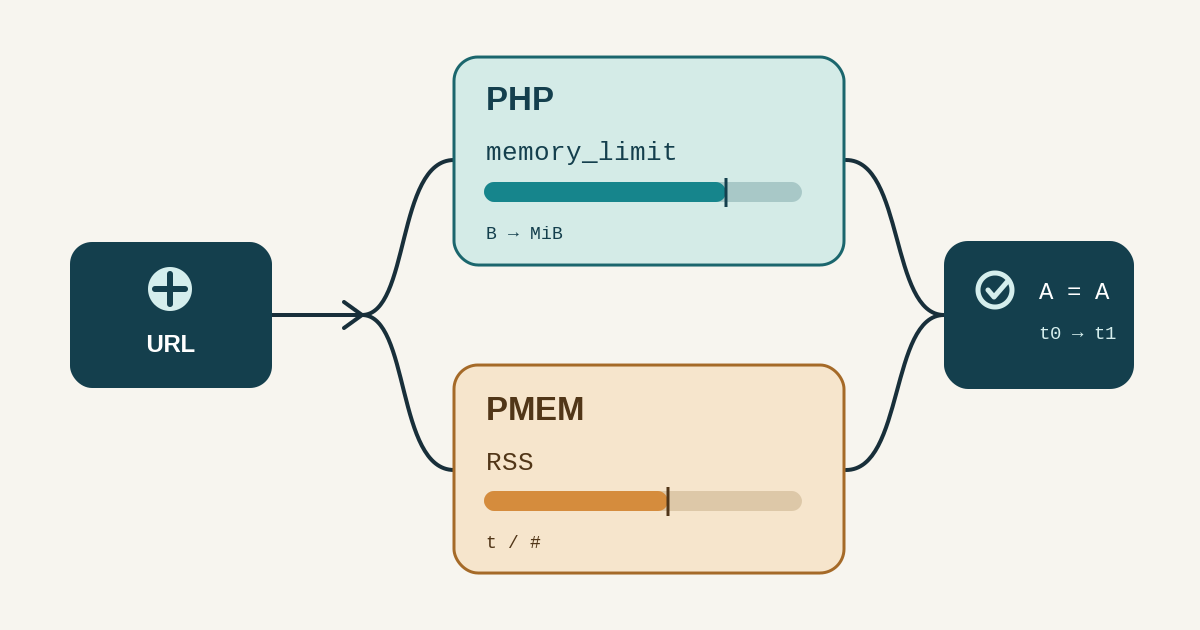
“Allowed memory size of … bytes exhausted (tried to allocate … bytes)” means a PHP script could not obtain another allocation under its effective memory limit. The file and line in the fatal message show where allocation failed; they are not, by themselves, proof of the original leak. Record the allowed bytes and requested bytes exactly, then convert the first figure to MiB by dividing by 1,048,576. The attempted allocation is the next request, not the script's total peak or a reliable amount by which to raise the limit.[1][5]
Capture the affected URL or task, timestamp and time zone, user-visible outcome, and a sanitized excerpt of the error. Remove personal data, tokens and paths that should not be shared. Keep detailed errors out of public pages; use a controlled staging environment or the host’s private diagnostic channel.[8]
2. Check the web PHP runtime
Check the effective `memory_limit` for the web request that fails, including PHP version and server API. A command-line `php -i` result may use a different configuration file from the web server. Ask the host where the relevant setting is applied, or use a temporary access-controlled diagnostic and remove it after recording the value.[2][1]
On WordPress, `WP_MEMORY_LIMIT` and `WP_MAX_MEMORY_LIMIT` are application requests for front-end and administrative contexts. They cannot force a higher limit when PHP or the host disallows it, and WordPress does not lower a higher PHP limit. Record the effective value at the failing web action rather than assuming a line in `wp-config.php` took effect.[7][6]
3. Separate script memory from account memory
PHP’s `memory_limit` caps memory available to an individual script. A shared host may also enforce a separate account-level physical-memory limit; CloudLinux calls this PMEM and accounts for process memory, shared memory and, by default, page cache. One number does not automatically explain the other. If the host exposes account faults, compare their time window with the PHP fatal timestamp.[1][9]
`memory_get_peak_usage()` can show the peak tracked by PHP’s allocator for a request. Its `true` argument reports allocator memory obtained from the system, not the operating system’s complete process RSS. Use that measure to compare similar PHP requests; use the host’s meter to assess account pressure.[3][4][9]
| Evidence | Likely scope | Next check |
|---|---|---|
| PHP fatal names “Allowed memory size” and a byte ceiling | One PHP script hit its effective limit | Confirm that limit in the failing web runtime; compare peak for the same action |
| Host dashboard shows PMEM faults at the incident time | Hosting account reached physical-memory control | Check concurrent processes and ask the host what was counted |
| Only one import or image size fails | Workload-specific peak | Repeat safely with bounded input sizes; reduce the batch or image demand |
4. Find the request that grows
Reproduce only a safe, representative action: the same page render, image processing task, import size or scheduled job. Note input size, peak memory if instrumented, duration and whether the error recurs. Compare with a smaller input or a known-good version. If a new plugin, theme, extension or import preceded the failure, test one reversible change at a time in staging.[3][6]
Do not treat the last file named in the stack trace as the only suspect. A large array, recursive rendering, image decode or batch job can exhaust memory later in a different function. If only one route fails, prioritize that route’s workload before buying more account capacity.[6]
5. Choose one bounded repair
First reduce avoidable peak demand: split an import into bounded batches, resize source images before processing, restore a known-good plugin version, or fix the specific code path. If the task legitimately needs more memory, ask the host for the permitted web-PHP setting and account headroom, then raise the limit by a measured increment. Do not set `memory_limit` to `-1` as a routine fix; that disables PHP’s per-script limit.[1][6][9]
If the host reports PMEM faults but no PHP-limit fatal, investigate concurrent PHP workers or other account processes with the provider. Raising `memory_limit` alone can increase account pressure. If the PHP fatal recurs at the same byte ceiling while PMEM remains healthy, confirm that the intended web setting took effect.[9][2]
6. Verify the same action and hand off evidence
Repeat the same representative action after the change. Record the new effective PHP limit, peak memory, account fault count if supplied, response outcome and visitor-visible result. Include one larger but safe input to test headroom; a single successful small request is not enough. If the same input still fails or account faults rise after a temporary increase, restore the prior limit and continue diagnosis instead of raising it again.[3][9]
Escalate with the sanitized fatal excerpt, time zone, route or task, PHP version and web limit, input size, account-memory evidence, recent change and exact reproduction steps. Ask the host whether the PHP limit, a host account limit or another process ended the request. The editable incident worksheet below keeps these facts together.[2][9]
Sources and further reading
- PHP Manual: core php.ini directivesThe PHP Documentation Group · Accessed
- PHP Manual: the configuration fileThe PHP Documentation Group · Accessed
- PHP Manual: memory_get_peak_usageThe PHP Documentation Group · Accessed
- PHP Manual: memory_get_usageThe PHP Documentation Group · Accessed
- WordPress: common errorsWordPress Developer Resources · Accessed
- WordPress: editing wp-config.phpWordPress Developer Resources · Accessed
- WordPress: PHP optimizationWordPress Developer Resources · Accessed
- WordPress: debuggingWordPress Developer Resources · Accessed
- CloudLinux OS: limitsCloudLinux Documentation · Accessed