Is a service worker showing old event details? A safe diagnosis and update plan
An organizer corrects the entrance time at noon. A new visitor sees the fix, while someone who opened the event site yesterday still sees the old time. A service worker can cause that split, but so can an old publication, CDN copy, browser cache, or another language page. This guide starts with evidence, then gives the site owner a controlled way to repair a worker-controlled page. It applies only if the site actually registers a service worker; it does not assume any Boletolibre feature or provider.
Boletolibre editorial team
Published
Prove the symptom before blaming the worker
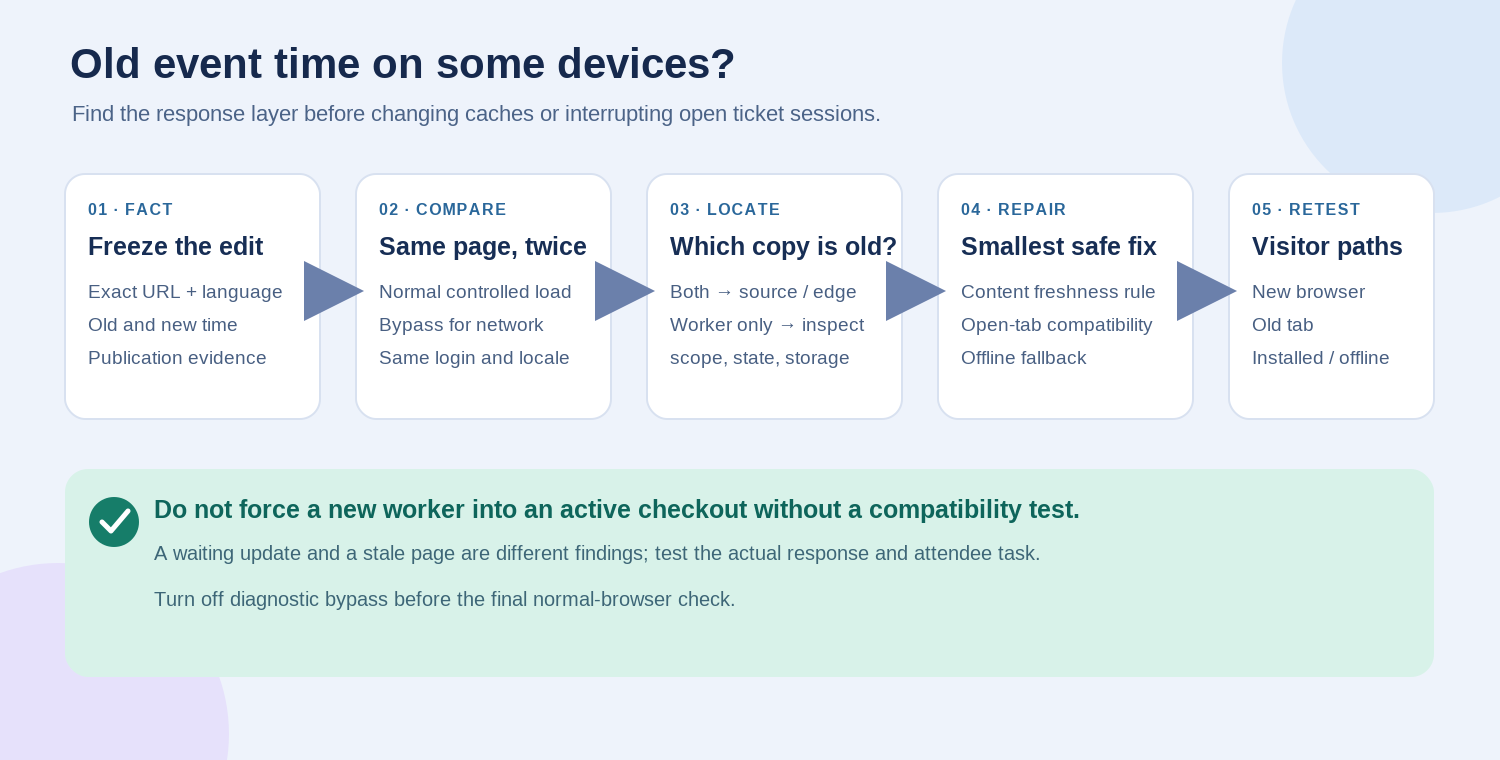
Write down the exact public URL, language, old fact, approved new fact and publication time. Capture one affected browser and one unaffected browser on the same URL. Note whether the affected visit is an installed app, a long-open tab, or a return visit. A fresh private window can help isolate a client-specific issue, but it does not prove the service worker is the cause. Confirm first that the origin or published page has the new fact; otherwise repair the publication, not the browser.[1][4]
Download the service-worker evidence and update worksheet (Markdown, English)
In Chrome, open Application → Service Workers for the affected page. Record the registration scope and whether the page has a controller. If no service worker covers that URL, stop this branch and use the broader published-update diagnostic. Do not tell attendees to clear all site data as the first step: that can remove offline content or locally stored work and leaves the site defect in place.[1][2]
Compare the same page with and without worker control
On the affected client, compare a normal load with Chrome DevTools Application → Service Workers → “Bypass for network,” then reload the identical URL. This is a local diagnostic switch, not a repair for other visitors. Keep the same login state, language and URL; if personalization changes, the comparison is inconclusive. Save the visible fact and the document request for each run. In Network, the service-worker-intercepted request filter and Cache Storage can help identify the response path.[1][4]
| Observation | Likely next check | Do not infer |
|---|---|---|
| No worker controls the URL | Publication, CDN and ordinary browser cache | That an installed app exists for this exact scope |
| Bypass shows new fact; controlled load old | Active worker fetch rule and matching Cache Storage entry | That a waiting worker is necessarily the cause |
| Bypass and controlled load both old | Published response, edge, HTTP cache, data endpoint or redirect | That clearing local storage will fix the source |
| Only one ticket or agenda embed old | External provider response and embedded URL | That the site worker is the only cause |
| New worker waiting while old tabs open | Activation and open-session compatibility | That forcing takeover is always safe |
If the bypassed version is current while the controlled version is old, inspect the worker and its caches. If both are old, inspect the response evidence for publication, edge cache, ordinary HTTP cache, redirects or a data endpoint. If only one embedded ticket or schedule surface is old, check that provider separately. A CDN purge cannot directly remove a response already held in a visitor’s Cache Storage; a DevTools bypass does not by itself prove that the worker script is outdated.[1][2]
Inspect the registration, waiting version and stored response
Record the worker script URL, scope, active and waiting states, install times, and whether the document or event-data request appears in Cache Storage. Inspect the specific old response, not every stored file. A service worker can intercept navigations and return a cached response; the browser’s ordinary HTTP cache and the service worker’s Cache Storage are distinct. Record the exact request URL, response body or date, and whether a network request occurred. Avoid clearing storage before preserving this evidence.[1][2]
A newly installed worker may wait while old pages remain open. This protects pages from mixing code versions. A waiting version does not automatically explain stale data: the active worker may be returning an old HTML or API response, while a current worker can also use a cache-first rule that keeps a date stale. Conversely, a worker update can fail to install. Check the actual state and fetch behavior before deciding. Modern browsers generally bypass HTTP caching for update checks of the main worker script; imported scripts and an explicit updateViaCache setting can differ. Do not assume a long Cache-Control header on sw.js is the sole cause.[2][3]
Choose the cause, not a universal cache fix
Use the evidence to pick one repair owner. If the server-side page is old, correct the publication. If the public edge is old, ask its owner to inspect that cache. If only worker-controlled clients are old, examine the fetch rule for the unversioned HTML or event-data URL. A cache-first rule without a refresh path can preserve yesterday’s time. For a time-sensitive public page, the developer may choose a network-first response or a measured refresh strategy with an explicit offline fallback; the acceptable stale interval is an editorial decision. Versioned assets can follow a different rule.[2][3]
Treat update activation separately from content freshness. Do not treat skipWaiting() and clients.claim() as automatic fixes for stale content. web.dev warns that a new worker may then control pages loaded with older code and produce mixed-version behavior. For an active checkout or registration form, ask the developer to test the compatibility and consider an “update ready” prompt after the user finishes. Never cache personalized ticket, account or checkout content as if it were public event information.[2][4]
Plan a repair that respects open attendee sessions
Before changing production behavior, reproduce the old-client path in a safe test environment with the previous worker already installed and an open tab. Publish the new event fact and candidate worker using its established script URL and scope. Test the intended cache rule on a navigation and on the specific event-data request. Keep existing active clients in mind: a new version can sit waiting until old clients close. A request to update a registration checks for a newer worker but is not proof that it activated or that its cached content changed.[4][3]
If the deployed worker is genuinely buggy and cannot be corrected with a normal versioned update, Chrome’s Workbox guidance describes a no-op worker at the same URL as a recovery pattern. That is a developer-owned last resort: test it with old tabs and installed clients because removing a fetch handler or forcing reloads can change offline behavior and interrupt attendee tasks. Do not simply delete or rename the script; an existing registration can remain on devices. Delete only caches owned by this application after their purpose and migration path are understood.[2][5]
Retest old, new and offline journeys
Retest at least four states: a never-before-used browser, a returning controlled browser, an old tab with the previous worker, and the installed or offline experience if the site offers one. For each, open the real event URL, navigate again, and compare the event date, venue, entry instructions and relevant linked ticket destination. Test the attendee’s actual path, not just the homepage. An offline page should say when its saved facts were last checked or direct the visitor to a reliable update path; it must not present an old gate or start time as unquestionably current.[1][3]
Disable diagnostic DevTools toggles before the final normal-browser check. “Update on reload” and “Bypass for network” change local behavior while DevTools is open. Record active/waiting state after the change and whether Cache Storage still contains the obsolete document or data response. A successful test on one machine does not prove all installed clients updated, so define the remaining observation window and a fallback communication path for urgent corrections.[4][2]
Record the owner and freshness promise
The incident record should identify the fact owner, publication owner, worker or hosting owner, affected URL and language, first report, evidence of the old response, selected repair, deployment time and retest clients. Keep screenshots or response details free of personal ticket data. If the next event correction is time-critical, the organizer needs a path to publish a reliable public notice while the technical owner investigates the client cache. The worksheet keeps these two jobs visible.[1][2]
After recovery, define which event facts may be shown offline, how long a saved page can remain acceptable, and who can change the worker strategy. Rehearse the next venue or schedule correction before an on-sale peak. Service workers can improve speed and offline access, but the freshness promise for event facts must be observable in a returning browser, not inferred from a successful deployment or a clean new profile.[3][4]
Sources and further reading
- Debug Progressive Web Apps in Chrome DevToolsChrome for Developers · Accessed
- The service worker lifecycleweb.dev · Accessed
- Update a progressive web appweb.dev · Accessed
- Using Service WorkersMDN Web Docs · Accessed
- Removing buggy service workersChrome for Developers · Accessed