How to fix conflicting event dates across a website
A visitor should not have to decide whether the poster, registration form or ticket page has the correct date. When those surfaces disagree, first confirm the schedule from the organizer’s approved source, then trace where each competing date came from. A site-wide correction is more than changing one headline, especially after tickets or travel plans have been made.
Boletolibre editorial team
Published
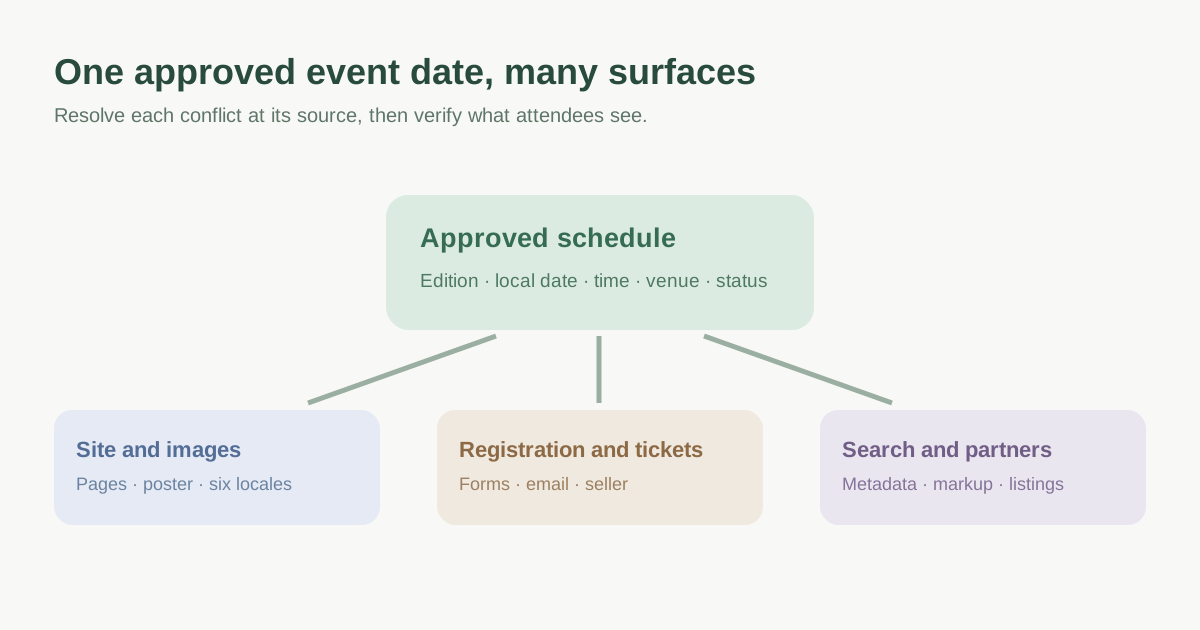
Establish the approved fact and what changed
Ask the event owner to confirm the edition, start and end dates, local time zone, venue, status and time of the decision. Keep a dated approval or schedule record. Distinguish a typo on one page from an actual postponement or a new annual edition: those cases need different attendee messages and structured-data status. If tickets already exist, confirm their validity and the support path before changing public copy. Do not invent a new date to make every surface look consistent.[2]
Write one short source-of-truth line that editors can use: “Event edition — date, local time, venue — status — approved by — as of.” Include a separate previous date when attendees saw it before. The record is an editorial control, not proof that every external platform updated.
Locate every place the conflicting date appears
Open the live site as an attendee, not only the CMS preview. Check the event landing page, schedule, speaker or exhibitor pages, registration form and confirmation, ticket buttons and the destination they open. Review banners, poster images, downloadable PDFs, calendar links, footer, language variants and any older page that still sends visitors to the event. A date baked into an image needs a new asset, not only text editing.[1]
| Surface | What to compare |
|---|---|
| Visible pages and buttons | Date, time zone, venue, edition and destination |
| Registration and ticket path | Form labels, email/calendar output, seller listing |
| Share and search metadata | Title, description, social image and Event markup |
| Other locales and old editions | Translated date format and correct year/URL |
| External partners | Directory, venue, sponsor and social posts |
Correct controlled surfaces without hiding a real change
Assign each mismatch an owner and an explicit correction. Fix the actual source of the bad value: a reused template field, a hand-edited page, a stale image, a different registration system or a cached publication. Keep the page title, visible event facts and Event structured data aligned. Google requires Event name, startDate and location to describe the real event; status and past dates have specific handling when an event is canceled or rescheduled. Test the published URL rather than assuming the editor preview is what visitors and crawlers see.[1][2][3]
If the date genuinely changed after announcement, say so prominently on the event page and tell ticket holders what to do. Do not silently swap the date on a poster while confirmations still say something else. Keep stable event URLs where they still represent the same event; if the destination really changes, plan a relevant redirect and update links you control. A recurring series and a new edition need their own URL decisions rather than a universal rule to keep or change a slug.[2]
Verify each route and separate live-site errors from stale search results
After publication, check the site on a fresh visit and a repeat visit, then submit and inspect the registration flow using a safe permitted method. Open the actual checkout destination and compare its displayed date. Review all six language routes and the mobile share preview. If the live page is correct but a search result still shows an old date, inspect the indexed URL and last crawl in Search Console; a recrawl request is a request, not an instant correction. The title shown by Google may differ from the page title, so record the exact surface still wrong.[1][2]
External listings and partner pages require their own owner and update request. Prioritize surfaces with active traffic or tickets, but keep a complete discrepancy log. Close an item only when someone verifies what an attendee sees, with URL, date, screenshot or other evidence and a responsible person. Recheck after a template or campaign change to avoid reintroducing the old date.[1]
Download the event date discrepancy audit worksheet (Markdown, English)
Sources and further reading
- Why Is My Event Date Showing Wrong, and How to Fix ItASP Events Knowledge Base · Accessed
- Event structured dataGoogle Search Central · Accessed
- General structured data guidelinesGoogle Search Central · Accessed