How to group event ticket types into sections without mixing inventory
A long ticket list is hard to scan, but a tidy heading is not proof that its tickets share stock. Set up sections or groups from an approved inventory map, then check both the buyer display and the quantity each purchase will consume.
Boletolibre editorial team
Published
1. Decide what each section represents
Download the ticket-section mapping and test card (Markdown, English)
List the ticket types buyers should see together. A section might describe a venue zone, an audience choice, or a shared allocation. These are different jobs: a display heading may simply organize checkout, while an inventory group may cap several types together. Write down which job your provider's control actually performs. Keep reserved seats and approved venue capacity on their own plan; do not assume a ticket heading changes either.
2. Map ticket types to the right pool
For each proposed section, record its buyer label, included ticket types, admission area or date, approved sellable stock, and any separate limit on a type. Put two prices for the same inventory in one pool only when the provider supports a shared limit. Keep a genuinely independent zone in its own pool. PheedLoop's registration categories are an initial registrant choice with ticket types assigned underneath; that does not by itself establish a shared-stock section. Give one person ownership of the map before editing checkout.[3]
3. Create sections in the supported event state
Check whether the event can still gain sections. Eventbrite says its ticket sections must be set up while the event is unpublished and has no ticket types; once registrations exist, sections cannot be added. Its section names also cannot be changed after creation. Ticket Tailor lets an organizer create a ticket group and assign existing types to it. Follow the applicable platform path, save one group at a time, and compare the saved membership with your map. Do not delete a live ticket type just to force a grouping option to appear.[1][2]
4. Set group and type limits separately
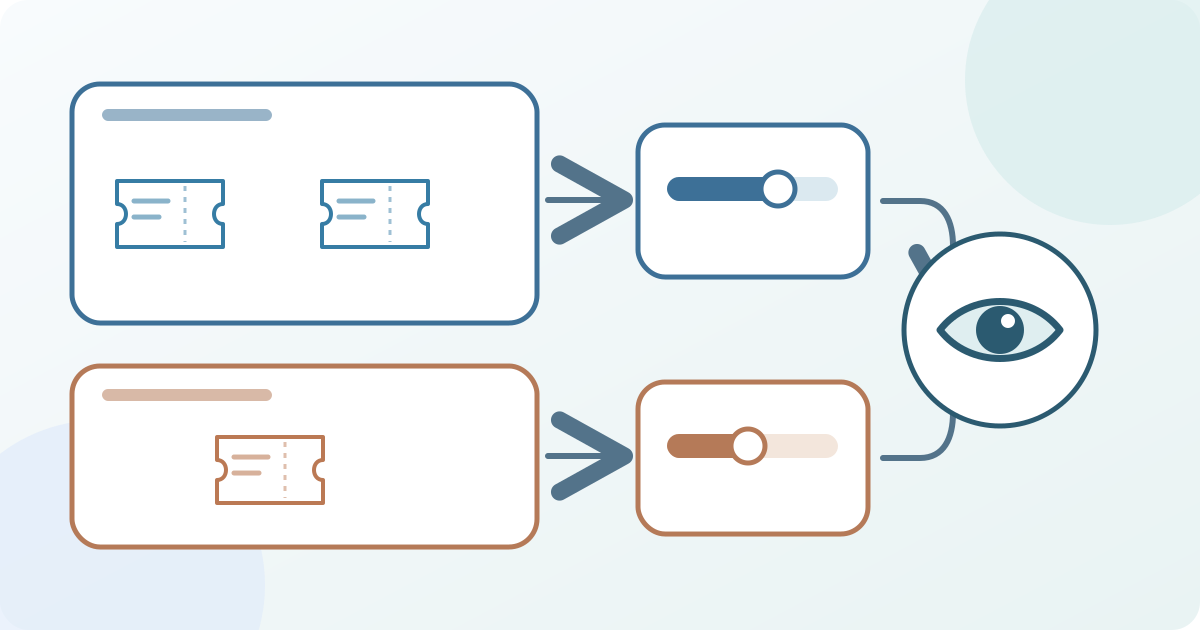
Enter the shared section or group maximum where the platform offers one. Then inspect any optional cap for an individual type, plus the event's overall sellable capacity. Eventbrite describes a section capacity across its ticket types and an optional quantity on a type that further limits that type. Ticket Tailor groups can be buyer-facing headings and can also carry a maximum across types; those settings deserve separate checks. A visible group label alone does not reserve inventory, and adding type quantities is not a reliable proof of available places.[1][2]
5. Check the buyer's ticket list
Use a buyer preview if the provider offers one. Check section order, names, which types appear under each heading, prices and descriptions, and whether a closed or hidden type appears as intended. If no preview is available, inspect the organizer draft and verify the public buyer page immediately after publication. Ticket Tailor offers an option to collapse groups in checkout; test whether that presentation still makes the options easy to find. Keep this display check separate from the stock check.[2]
6. Test the inventory boundary before launch
Before announcing sales, use the provider's approved test route to try one type from each of two shared types and one from an independent pool. Compare the before-and-after remaining quantities in the organizer record. Confirm that the shared pair draws from the intended pool and the independent type does not. Avoid a real buyer order merely to test the page. If a type appears under the wrong heading, a limit is missing, or remaining stock differs from the map, stop launch and assign a named owner to correct and retest it.
Sources and further reading
- Group your ticket types with ticket sectionsEventbrite Help Center · Accessed
- How to manage Ticket types and GroupsTicket Tailor Help Centre · Accessed
- How to Structure Ticket Types and Registration Categories for Your EventPheedLoop Set-Up Instructions · Accessed