Website lost its styling after a move? Diagnose the missing CSS request
An unstyled page after a host or CMS move is a symptom, not a diagnosis. The browser may be requesting an old address, receiving an error page instead of CSS, blocking an insecure URL or never receiving a stylesheet link. Start with one affected public page and one failing request. That evidence points to the smallest safe repair.
Boletolibre editorial team
Published
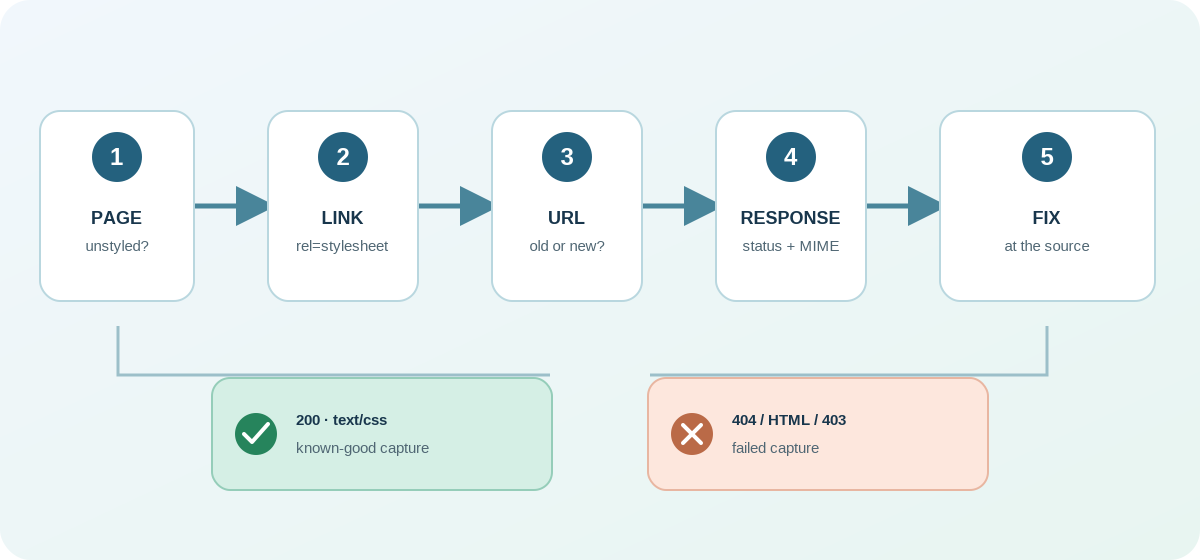
1. Capture the failing stylesheet request
Open the affected page in a private browser window. In developer tools, open Network, enable Preserve log if available, reload, and filter for CSS. Save the page URL, time, requested and final stylesheet URLs, status, Content-Type and a screenshot. Chrome’s Network panel exposes the request status, initiator, headers and response body; the CSS filter narrows the list.[1]
Also inspect the page HTML for a <link rel="stylesheet" href="…"> element. The href is the address the browser is asked to fetch. If no relevant link exists, investigate the theme, template or asset-generation step before changing server settings.[2]
- Compare the broken public page with a working page and, if possible, a known-good copy before the move.
- Try a fresh window and another network only to determine whether the failure repeats. Record the result; do not treat a refresh as proof of a fix.
2. Let the response choose the next check
| What you observe | Likely area to inspect | Targeted next action |
|---|---|---|
| No stylesheet request | Missing link or conditional template | Check generated HTML and the theme/build output |
| 404 or old hostname | Incorrect path or migration URL | Find where the href was generated; correct the source, then publish |
| 200 with HTML or text/plain | Fallback page or wrong MIME type | Inspect response body and Content-Type; fix routing or CSS media type |
| Blocked HTTP on HTTPS page | Mixed content | Update the source URL to HTTPS and confirm that asset exists |
| 403 | Asset access rule | Check host/CDN access policy and file permissions for that exact path |
| 200 text/css but wrong appearance | CSS content, selectors or order | Inspect applied styles and compare the expected build |
A 200 response is not sufficient if it is a login page or site fallback. Browsers expect stylesheets as text/css, and a nosniff response blocks styles with the wrong MIME type. An HTTPS page can also block an HTTP stylesheet request.[1][3][4]
3. Fix the source of the bad URL or response
If the request uses the old domain or directory, correct the CMS/site URL or the code that emits the stylesheet link. WordPress distinguishes its site address and WordPress address; moving files or paths can require updating both and stored URL references. Back up first, preview the replacement, and use a tool that understands serialized data rather than a blind database text replacement.[5][6]
If the path is right but returns HTML, check whether a fallback route, login redirect or missing static file is intercepting it. For a missing generated bundle, regenerate or republish assets through that CMS or build system, then confirm the file exists at the requested URL. If the response is CSS with a wrong type, correct the server’s Content-Type for CSS rather than weakening browser MIME checks.[1][3]
A cache purge may expose a corrected file, but it does not repair a wrong href, missing file, bad response type or access rule. Identify the failed layer before changing caches.
4. For intermittent failures, compare two captures
When the page works after a refresh or only fails for some visitors, keep one successful and one failed Network capture. Compare the requested and final stylesheet URLs, response status, body, headers, request initiator and time. If different hosts or paths answer, investigate where each version is generated or served; if the same URL alternates responses, inspect that asset path’s server/CDN logs. This is a comparison method, not an assumption that caching or DNS is at fault.[1]
- Record the exact affected page and device, then repeat on a second page.
- Note whether the failure occurs before or after publishing, and whether the request URL changes.
- Keep the working and broken captures so a host or developer can reproduce the issue.
5. Verify the repair across the site
Reload without a cached copy, open the requested CSS URL directly, and confirm a successful response containing CSS with Content-Type text/css. Check the browser console for mixed-content or MIME errors. Then test the homepage, event details, registration entry and one deeper page on desktop and mobile; a fix for one template may miss another. Confirm that the stylesheet request succeeds in the page’s Network capture; opening its URL directly is an extra check, not proof that the page uses it.[1][3][4]
If styles load but a component still looks wrong, switch from the Network panel to the element’s applied rules and computed styles. At that point the file is loading and the problem is within CSS or its order, not a missing request.
Sources and further reading
- Inspect network activityChrome for Developers · Accessed
- <link> HTML external resource link elementMDN Web Docs · Accessed
- MIME type verificationMDN Web Docs · Accessed
- Mixed contentMDN Web Docs · Accessed
- Migrating WordPressWordPress Developer Resources · Accessed
- wp search-replaceWordPress Developer Resources · Accessed