Pause a scheduled email when campaign facts change
A venue moves, a ticket link changes or a price becomes uncertain after your email is scheduled. The first job is to contain the pending send, not to rewrite the subject line. Use this sequence to establish what is queued, make a time-aware hold decision and record a safe release.
Boletolibre editorial team
Published
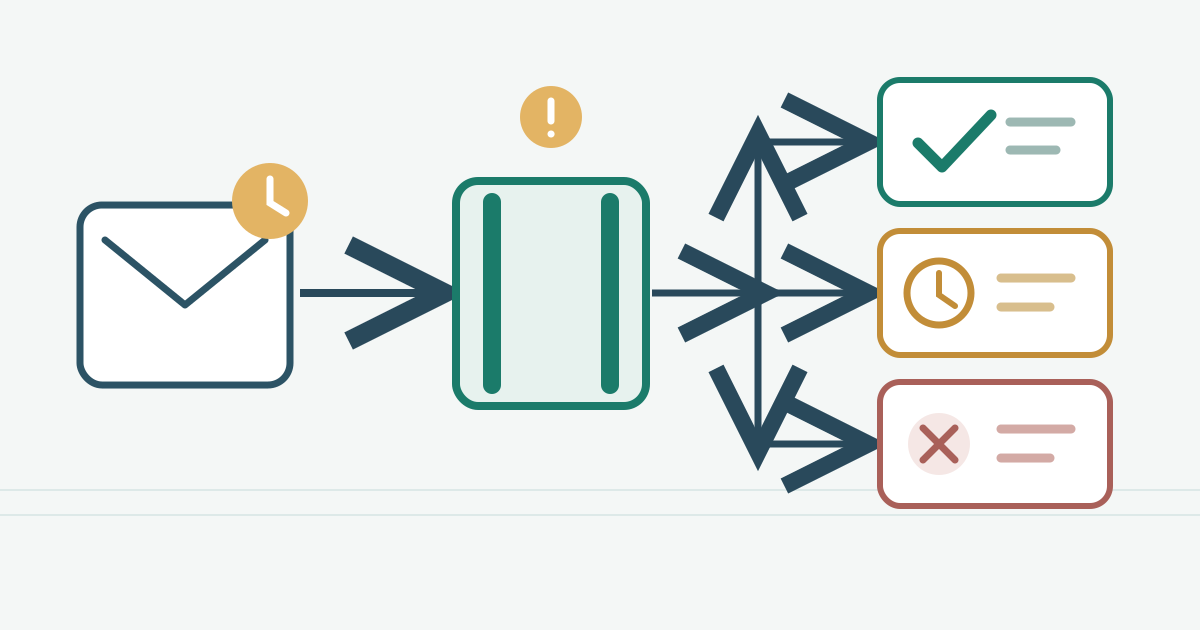
Confirm the change and the exact send
Record the campaign ID, audience, scheduled date, time zone and current provider status. Link to the authoritative source for the changed fact: the venue notice, current offer page or ticket inventory. Write what was previously true, what is now verified and who owns the decision. If the fact is only a rumor, hold the email while the owner resolves it; do not replace one unverified claim with another.
Compare the affected claim across subject, preheader, body, image, buttons, landing page and any queued variants. A moved event can make a reminder's travel instructions wrong even when its main ticket button still works. Record the earliest send or batch time; that is the practical deadline, not the calendar's end-of-day.
Hold the scheduled campaign before editing
Use the provider's scheduled-campaign control to pause, unschedule or cancel the specific message. Confirm the action and refresh its status. Mailchimp documents a Pause and Edit path, but warns that a campaign already prepared for delivery may still send; it recommends pausing at least five minutes before its scheduled time. Treat that as a Mailchimp-specific minimum, not a universal guarantee. Act as soon as the issue is known.[1][2]
Check other instances: a duplicate campaign, batch schedule, recipient-time-zone send or automation may have its own queue. Capture the IDs and states separately. Do not assume that editing copy, closing the browser or changing a calendar entry stops delivery. If you cannot confirm the hold before the deadline, escalate to the sender account owner and prepare for a partial-send response.
Choose revise, defer or cancel
Revise when the corrected fact is confirmed, the offer still serves the same audience and there is time for a full check. Defer when a date, price, venue or eligibility remains unsettled; set a decision time and owner instead of an automatic restart. Cancel when the promised action no longer exists, the audience is wrong or the campaign has lost its purpose. Preserve the canceled ID so a replacement is not mistaken for a continuation.
Example: a Saturday workshop email is scheduled for 14:00, and at 12:20 the venue reports a room change. Pause the queued email, verify the room on the organizer's live page, update the location in every email surface and test the directions link. If the room is still unconfirmed at the review deadline, keep it paused and move the send; if the workshop is canceled, cancel this promotion and plan a separate attendee notice.
Repair the message and its destination
Update the source-of-truth page before pointing readers to it. Then revise the subject, preheader, body, button text, URL and any image that carries the old fact. Check the audience and suppression rules again, particularly when a changed event applies only to one ticket group. Preview desktop and mobile, inspect personalized fields and click each destination. In Mailchimp, test emails cannot verify contact-specific merge tags or dynamic content; use its preview option with live merge-tag information for those fields.[3]
Keep a short change log: old claim, new claim, evidence URL, editor, checker and version. Give the checker the changed fact and the full message rather than asking for a quick spelling pass. If the correction changes price or terms, obtain approval from the person authorized to make that promise.
Release with a new decision
Before re-scheduling, record the final go decision, actual recipient segment, verified links, approved version and new send time with its time zone. Check how your provider handles resuming a paused campaign. HighLevel, for example, says resuming after the original scheduled time sends immediately; its reschedule action is separate. Do not press Resume as a substitute for choosing a later time.[2]
After release, verify the provider shows the intended scheduled state and time. Recheck near the send window, then watch the first delivery status and destination page. If a second campaign replaced the first, confirm the old one remains stopped so recipients do not receive both.
If the send already started
A scheduled hold and an in-progress stop are different operations. Once sending begins, check the provider's live delivery controls and identify who may already have received the message. Mailchimp's Stop Delivery exists only for eligible campaigns and plans, and its cancellation is not instantaneous; the final recipient count can grow while it processes. Other providers have different limits. Never promise that a late pause recalls mail already delivered.[4]
Preserve the observed sent count, affected audience and the exact wrong fact. Decide whether a targeted correction helps recipients act correctly. Link the incident to the separate correction-email process rather than resending the original promotion to everyone.
Use the stop-send record
The editable record below turns an urgent interruption into an auditable decision. Fill it when you hold the campaign, and finish it before you release or cancel. It records evidence, queues checked, the selected route and the final state; it is a team worksheet, not a control that changes any email platform.
Sources and further reading
- Schedule or Pause a Regular EmailMailchimp · Accessed
- How to Pause, Resume, or Cancel a Scheduled Email CampaignHighLevel · Accessed
- Preview and Test Your EmailMailchimp · Accessed
- Cancel a CampaignMailchimp · Accessed