How to move an attendee to a different seat after purchase
Moving one ticket to a different seat changes its assigned place, not necessarily its event, date, ticket category or holder. Keep those changes separate. Before touching the order, establish who requested the move and which record staff will trust at the door. This guide starts after the request is authorized.
Boletolibre editorial team
Published
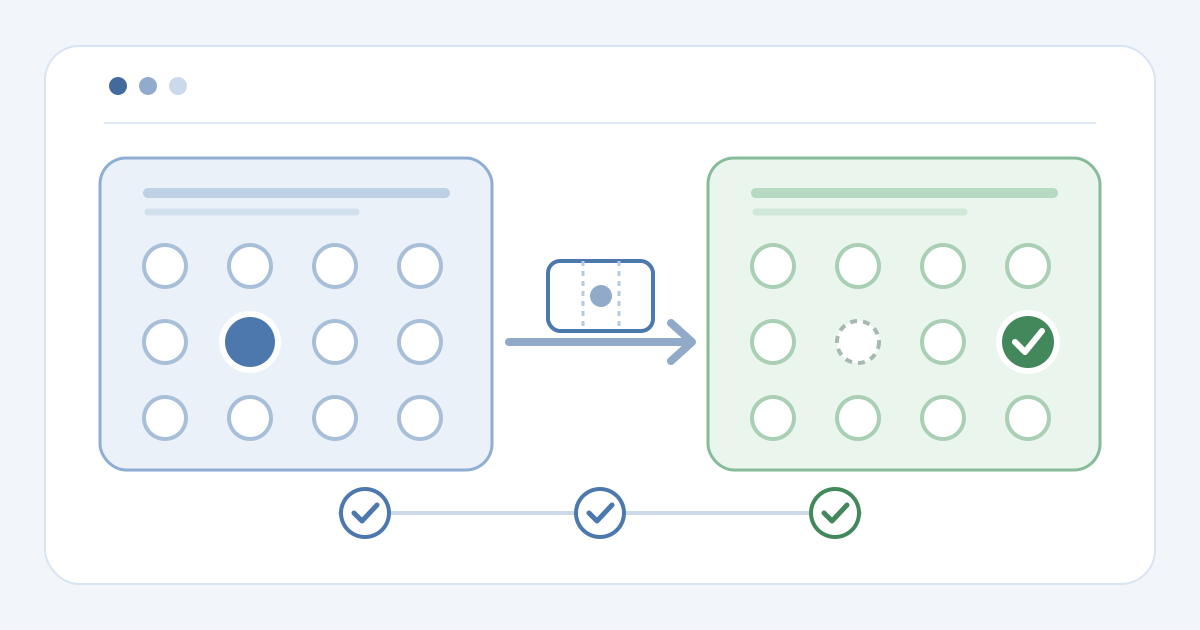
1. Identify the exact ticket and seat request
Download the before-and-after seat verification card (Markdown, English)
Identify the event and performance, order reference, individual ticket, current section, row and seat, and proposed destination. Confirm that the ticket holder or authorized organizer requested the change and whether a venue hold, companion seat or access arrangement limits the destination. If the request also changes the date, ticket category or attendee identity, stop and use the corresponding workflow. Record the decision owner without putting attendee details on the public worksheet.
2. Check the destination and provider eligibility
Look up the live seating map and check that the destination is actually available for this performance and ticket category. Inspect the current ticket state and any booking, hold or check-in restriction. Eventbrite's organizer help lists prerequisites for Change ticket, including an order that has not been checked in; its payment and event settings also constrain that specific flow. Do not assume another provider shares those conditions. If the target seat is unavailable or the record is ambiguous, route the case to the inventory owner.[1]
3. Record both seat states before the change
Capture the source and target seat statuses before making the change, plus the ticket's current seat on the order and admission view. This gives the team a before-and-after record if the map, ticket and gate roster do not show the same result. Do not promise a target seat from an outdated export or screenshot. Assign one operator to make the move while the case is open.
4. Use the supported seat-change action
Use the selected provider's supported organizer action for that one ticket. Eventbrite documents finding the attendee in Manage Orders, selecting Change ticket, and using Seating for reserved events. Humanitix documents finding the attendee in the seating map's Manage attendees view and changing the seat there. These are examples of different interfaces, not universal steps. Review the destination and affected ticket before saving; do not improvise a cancellation or new sale.[1][2]
5. Verify the ticket, map and admission view
Reopen the order and seating map. Confirm that the right ticket shows the target seat, that the destination has the expected status, and that the source seat has the expected status in this provider. Check the current digital ticket or download, attendee report and gate or usher view for the same event, performance and seat. Humanitix says the new seat appears automatically on its digital ticket and attendees report. Do not infer that an old code was invalidated or the source seat returned to sale without evidence.[2]
6. Notify the attendee and brief the door
Tell the attendee which seat to use and how to access the current ticket, then give front-of-house staff the updated seating record. Humanitix explicitly says it does not notify attendees of organizer seat changes; Eventbrite says the changed ticket can be accessed through its site or app. Neither statement proves what every platform emails. Name an exception owner for a mismatch at the door. Close the case only after the ticket, both seat states, attendee communication and gate record agree.[1][2]
Sources and further reading
- Change an attendee's ticket type, event, or seatEventbrite Help Center · Accessed
- How to move an attendee to a different seatHumanitix Help Centre · Accessed