Prevent duplicate emails from overlapping segments
A person may belong to the newsletter segment and the product-update segment at the same time. That overlap does not automatically mean two deliveries: the result depends on whether you select both segments in one campaign or send the message as separate campaigns. Before scheduling, write the recipient rule, inspect the final audience, and record who owns each send. This guide uses fictional counts and provider-neutral checks; confirm the behavior of your own email service.
Boletolibre editorial team
Published
1. Separate a segment overlap from a duplicate send
A segment is a rule for choosing contacts, not a separate person. In a single campaign, some services deduplicate a contact selected through multiple segments. Sender and Mailchimp each document that behavior for their own campaign workflows. The guarantee belongs to the named service and workflow; check yours instead of assuming every tool, audience or automation works the same way.[1][3]
The boundary changes when the same message is scheduled twice. Mailchimp says a contact in two audiences can receive two copies if the campaign is sent separately to each audience. Separate campaign records, a copied campaign or another automation can also create a second send path. A recipient counter on campaign one cannot prove that campaign two will exclude the same people.[3]
2. Write the inclusion and exclusion rule
Name the message and its primary audience before selecting checkboxes. Define A and B as the groups that should receive this exact message, and E as contacts who must be left out of this send. The working rule is (A union B) minus E, after your provider applies the contact's current marketing eligibility. Mailchimp's segment builder allows multiple selected segments and an optional do-not-send-to selection; Sender documents exclusions from selected groups. These are examples of controls, not a claim about Boletolibre.[2][1]
Make exclusions specific to this message. A person who already completed the action may be excluded from a promotion but still need an unrelated service notice. Keep unsubscribe and non-subscribed status outside the editor's marketing rule: no segment label turns an ineligible contact into an eligible one. Mailchimp states that only subscribed contacts in a segment can receive marketing email.[2]
- Message ID and owner: one person accountable for the send plan.
- Included sets: what qualifies A and B, with a source and refresh time.
- Excluded set: the reason for E and how its members are identified.
- Other send paths: scheduled copies, automations and other audiences carrying the same message.
3. Count each eligible address once before you trust the total
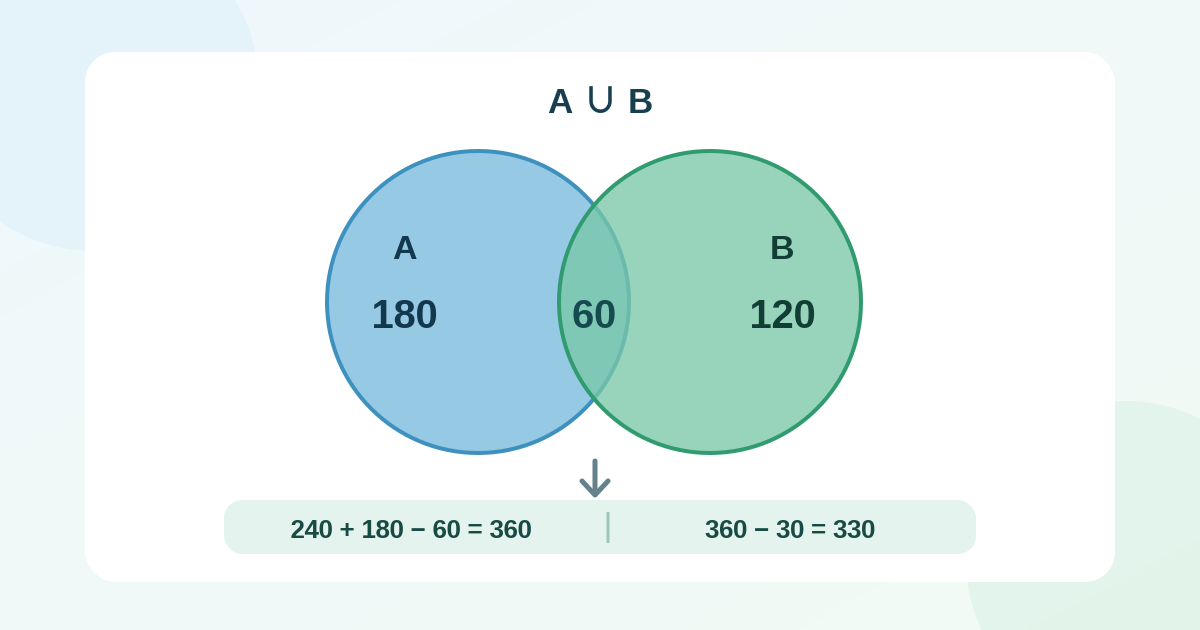
Suppose A has 240 eligible addresses and B has 180. Sixty addresses are in both. The two displayed segment counts add to 420, but the unique union is 240 + 180 - 60 = 360. This example uses email addresses within one audience snapshot as the identifier; 360 addresses do not guarantee 360 distinct people when aliases or separate audiences are involved. If 30 of those 360 are in the message-specific exclusion set E, the planned audience is 330, subject to a fresh provider eligibility check. The overlap is not an error by itself; treating summed segment counts as unique addresses is the error.
| Set | Example count | What the number means |
|---|---|---|
| A | 240 | Addresses matching the first inclusion rule |
| B | 180 | Addresses matching the second inclusion rule |
| A and B | 60 | The shared addresses, counted in both segment totals |
| A union B | 360 | Unique addresses before E: 240 + 180 - 60 |
| (A union B) minus E | 330 | Planned addresses after 30 in-union exclusions |
Use a permitted audience preview or a controlled export to count distinct contact identifiers; handle the export under your normal access rules. Never upload a live list to a calculator just to discover overlap. Check whether your provider's displayed total is before or after exclusions and status filtering. If the total is unexpectedly low, inspect an exclusion rule before enlarging the audience. Sender's help page shows a deduplicated final recipient count in its own review step.[1]
4. Decide whether this is one send or several
When both groups need the same content at the same time, one campaign with a combined audience is easier to audit. Review the unique recipient total and the exclusions in that one campaign. If the groups need different content, assign a precedence rule for people in both: for example, the product-owner version goes to B, while A receives the general version only when the contact is not in B. Write that rule before creating the second campaign.
If two campaigns are already scheduled, compare their recipient sets and send times. The 60 shared addresses in the example could receive both if each campaign targets its full segment. Remove the overlap from one campaign's eligible set or change to one combined send. Do not rely on a new subject line, a time gap or an assumed platform-wide dedupe to make repeated messages acceptable. Keep the two campaign IDs together in the decision record.[3]
5. Test the boundaries with sample contacts
Before release, preview the actual recipients or run a safe test using contacts whose segment membership you control. Mailchimp and Sender both expose recipient selection and exclusion steps in their documented campaign flows; the exact preview controls differ by provider. Test the rule rather than only checking a total.[2][1]
- A only: included once.
- B only: included once.
- A and B: included once in a combined campaign, or assigned to one of two planned campaigns.
- A and E, or B and E: excluded from this message.
- Neither A nor B: excluded.
- Unsubscribed or otherwise ineligible: not reintroduced by an inclusion rule.
Record the observed result for each case, including the campaign ID. If you cannot inspect individual membership, document what the provider does show and hold the release until the overlap can be resolved. A matching aggregate count is useful but can hide one wrongly included and one wrongly excluded person.
6. Reconcile the send and carry the rule forward
After sending, keep the final audience count, selected rules, exclusions, send time and campaign IDs beside the message version. Review any duplicate report against actual campaign records before changing contacts: two campaign IDs point to a planning problem, while one campaign may involve aliases, forwarding or delivery behavior. Mailchimp lists those as distinct duplicate-copy causes in its own system.[3]
If the plan changes for a later campaign, rerun the boundary cases. Segment membership and eligibility can change after a registration, preference edit or unsubscribe. Fix the source rule or campaign schedule rather than deleting a contact merely to make a count look right. The worksheet below gives one place to record the math, cases and decision.
Use the segment-overlap send worksheet
The editable card holds the message ID, inclusion and exclusion definitions, overlap count, two-campaign precedence rule, observed sample cases and final sign-off. It is in English; complete the final recipient logic in the language and system your team uses.
Download the segment-overlap send worksheet (Markdown, English)
Sources and further reading
- Handling Overlapping Segments During Campaign SendingSender · Accessed
- Create and Send to a SegmentMailchimp · Accessed
- My Subscriber Received Multiple Copies of My CampaignMailchimp · Accessed