Keep box-office buyers out of a ticket-promotion email
A ticket buyer can be missing from your email platform when a sale happened at the door or in another system. Before sending a ticket-promotion campaign, define what counts as a completed purchase and compare that rule with the sales records you actually have. An absent match means “not recorded here,” not necessarily “has never bought.”
Boletolibre editorial team
Published
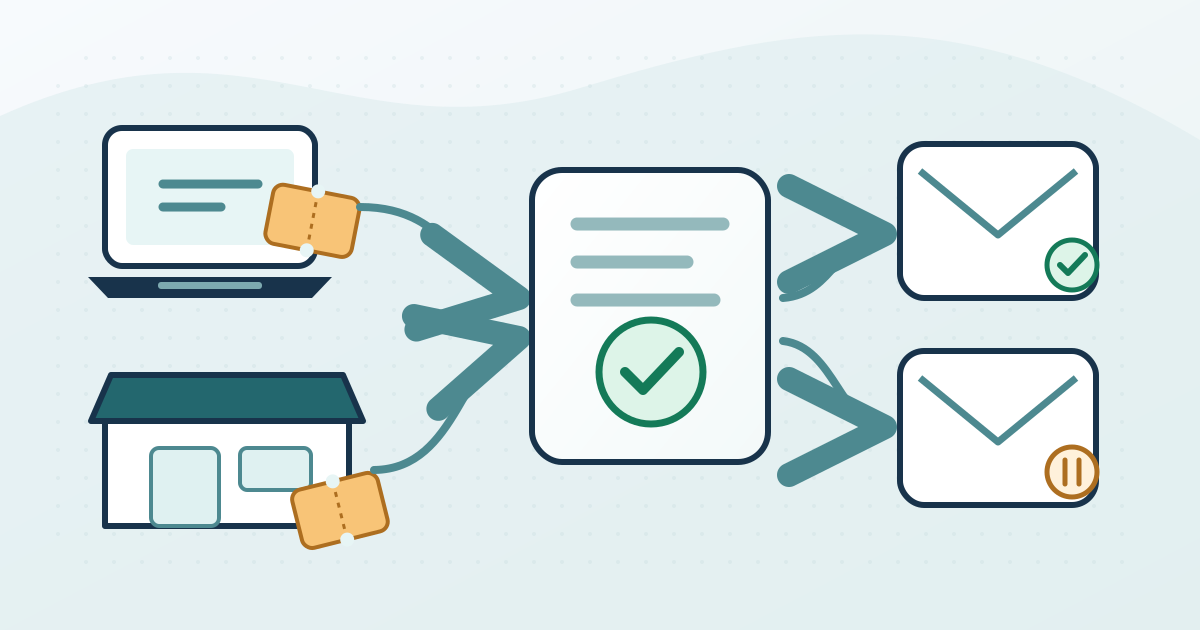
1. Define the buyer state for this message
Write down the event edition, ticket category, purchase cutoff, and order status that should stop the buy-now message. A paid order, an issued ticket, an unpaid hold, and a canceled order may mean different things in your system. Choose the state that makes the copy truthful. Keep purchase status separate from sending eligibility; confirm the permitted audience in the email platform independently.
Also decide who the message addresses. A group-order buyer may have purchased several tickets, while the holders are different people. For a sales campaign, test the buyer record and the current ticket state before using an attendee or holder field as a substitute.
2. Reconcile the source that email cannot see
Compare a recent online-order report with the box-office or external point-of-sale record for the same event and cutoff. Check whether door orders reached the ticketing system and whether the email audience received an updated buyer field. Ticket Tailor, for example, supports an admin order for a payment taken outside its service and can export filtered order data; those are Ticket Tailor workflows, not a guarantee that your email tool synchronizes them.[3][4]
If the offline source is incomplete or late, put its records in an exception queue for the authorized owner. Do not label unmatched contacts “first-time buyers.” Record aggregate counts and synthetic case IDs in the shared worksheet; keep actual addresses and order details inside approved systems.
3. Proof the audience and release one version
| Controlled state | Expected campaign treatment |
|---|---|
| Known recent online or door buyer | Exclude from the buy-now audience |
| No matched purchase after both sources are checked | Evaluate as a prospect only if sending eligibility is confirmed |
| Purchase state missing or not synchronized | Hold for review; do not infer “never bought” |
Build the inclusion and exclusion rules in the sending platform, then preview the resolved audience with one controlled case for each row. Mailchimp describes segments as conditions on available contact data; its import tool can update fields, but it does not change an existing contact’s marketing status. Treat both as platform-specific behavior, and verify your own integration rather than assuming that a ticket sale updates a segment automatically.[1][2]
Immediately before send, compare the audience count with the current sales report and repeat the door-sale sample. Name the owner who can pause the campaign if a sale has not arrived in the email system. After send, inspect misrouted replies and correct the data path before the next wave.
Download the buyer-state reconciliation card (Markdown, English)
Sources and further reading
- Getting Started with SegmentsMailchimp · Accessed
- Import Contacts to MailchimpMailchimp · Accessed
- How to manage orders and issued ticketsTicket Tailor · Accessed
- How to export your order informationTicket Tailor · Accessed