Reconcile skipped contacts after an event email-list import
An import can finish successfully while some event contacts never enter the intended email audience. Before a campaign is scheduled, reconcile the result against the source file and classify each difference. This is an import-results task; the separate list-source audit decides whether a contact is eligible for a particular message.
Boletolibre editorial team
Published
Save the source and read the import result
Download the event email import reconciliation ledger (Markdown, English)
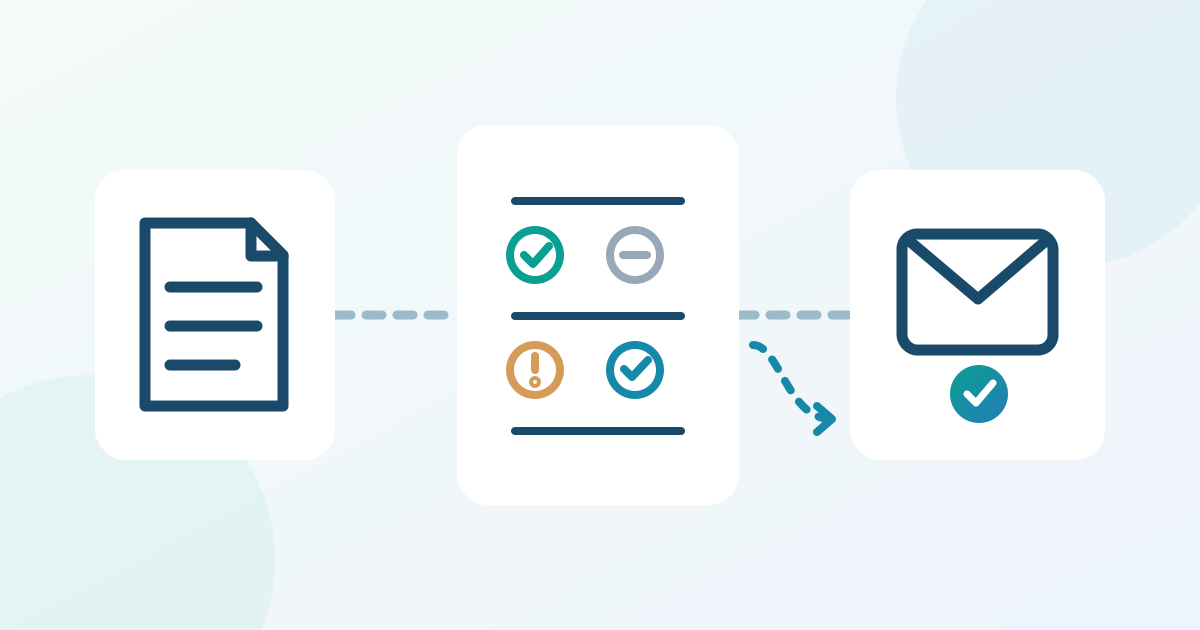
Keep a read-only copy of the exact file that was imported, its edition, export time, row unit and import owner. Count source rows and distinct email addresses separately: one buyer may have several registrations, while a marketing audience normally identifies a contact by address. Open the import result in the destination email tool before it expires. Mailchimp, for example, reports added or updated contacts, existing or skipped addresses, syntax errors and invalid or role-based addresses; its detailed error list is available in Import History for a limited period. Record category counts and a secure internal reference in the worksheet, not a shareable list of names. An “import complete” banner is not evidence that the event campaign has the audience you expected.[2][1]
Classify skipped rows before changing anything
Treat “already in the audience” as a category to investigate, not a command to reimport. The existing record may be subscribed, unsubscribed, non-subscribed, cleaned or pending; those statuses have different consequences in Mailchimp. A duplicate source row can also explain why added contacts are fewer than file rows. If Auto-update was used, Mailchimp’s “updated or added” count includes existing records and does not equal the number of new contacts. Preserve the platform’s status and inspect the particular result rather than changing status to make totals match. Keep people whose permission or identity is unclear in an unresolved bucket; the separate consent review and message purpose determine whether they should be in a send at all.[2][3]
Use the result label as a clue, not a final diagnosis. In Mailchimp, an “already in your audience” count can combine a normal existing contact with one that previously unsubscribed or bounced. A row marked invalid or role-based needs a different decision from a row with a removable space. Record the provider’s exact label beside your internal category and the evidence used to move a row between categories. Where the report groups reasons together, inspect an authorized contact profile or ask the data owner; do not assume every skipped address is safe to add manually.[2][3]
Repair only verified file or address errors
For genuine data errors, return to the source owner. Check blank or malformed addresses, leading or embedded spaces, obvious domain typos, column mapping, delimiter and file format. Mailchimp specifically documents syntax problems, semicolon-delimited exports and its CSV or tab-delimited TXT upload requirement; those rules belong to Mailchimp, not every provider. Correct an address only when the source record or the person confirms the correction—do not guess a missing character and accidentally target someone else. Create a small corrected file containing only rows you are authorized to repair. Keep the edition and approved status fields with each row, and check whether the import option would update an existing profile before running it. Never use a format fix as a way to override an unsubscribe, a bounce-related hold or an uncertain marketing status.[1][4]
Reconcile the audience for this event edition
Now compare the source, import result and final audience view for the exact campaign. Track at least these buckets: new contacts, existing or updated contacts, format errors being repaired, protected or unresolved statuses, and records outside this edition. The buckets are a reconciliation aid, not a universal provider formula: an updated record may already be counted in the audience, and a provider may group several skip reasons together. A useful example is an event coordinator with 50 source rows and 45 distinct addresses. If five rows repeat an address, the expected number of new audience records cannot be 50; the remaining 45 still need status and result review. Check a few records through the approved internal system without copying personal details into the worksheet. Compare the intended send segment with the email tool’s actual recipient count, including exclusions, before any campaign signoff.[2][3]
Check the correction and hand off unresolved cases
Reimport only the verified corrections, then read the new result and confirm the corrected records have the intended fields and edition marker. If the tool reports a protected or unresolved status again, stop trying to force the row through. Record the count, reason, owner and next action, such as source correction, a person’s own signup route or exclusion from this campaign. Review whether a previous import needs undoing only under the tool’s documented procedure and the team’s data owner; do not erase a whole audience to fix one batch. Hand the final counts, excluded buckets and unresolved decisions to the campaign reviewer. The pre-send QA can then inspect the actual segment and message; an import ledger alone does not approve a marketing send.[2][1]
If the event is close, distinguish a ticket or access update from a marketing campaign. A contact absent from the promotional audience may still need a practical service message through the original registration or support route, but that is a separate approved workflow. Do not change a marketing status merely to deliver a schedule or entry instruction. Record which team owns unresolved attendee support, what message is affected, and when the campaign reviewer will recheck the audience. This avoids treating an import repair as a substitute for event communication planning.
Sources and further reading
- Troubleshooting Contact ImportsMailchimp Help · Accessed
- View Your Contact Import ResultsMailchimp Help · Accessed
- About Your ContactsMailchimp Help · Accessed
- Import Contacts to MailchimpMailchimp Help · Accessed