Retire obsolete email list tags without breaking campaigns
An old campaign tag can look harmless after a season ends. It may still select a saved segment, exclude recipients from a send, start an automation, or be written by a form or integration. Deleting it to tidy the menu could change who receives the next message. Treat tag cleanup as a small migration: find every use, decide what the label still means, move active rules, then retire it deliberately. This worksheet works across email platforms; product-specific behavior must be checked in the service you use.
Boletolibre editorial team
Published
Find the tag's real job
Inventory tags that appear tied to a finished event, old campaign, retired product, or discontinued signup source. For each one, record the exact spelling, current contact count, who owns it, when it was last assigned, and why it was created. Open a few assigned contact records to check whether the label means what its name suggests. An old ‘2025 attendee’ tag may be historical evidence; an old ‘send next invite’ tag may be an active instruction. Mailchimp describes tags as internal labels for organizing contacts and using them in sends, segments, and automations. Age alone is therefore not a deletion rule. Do not confuse a tag with a contact's subscription status or permission record.[1]
Trace every reader and writer
Search every place that reads or writes the tag: saved segments, send-to and do-not-send-to choices, automated flow triggers and conditions, signup forms, landing pages, imports, API integrations, and staff procedures. Record the exact object and owner, not a vague note such as ‘used by marketing.’ A flow can start when a particular tag is added in Mailchimp, while a segment can filter contacts through stored conditions. If an external integration assigns the tag, changing a segment without changing that writer will recreate the old state. Pause the retirement decision until an owner can inspect any dependency you cannot access.[1][3][4]
Choose keep, rename, replace, or retire
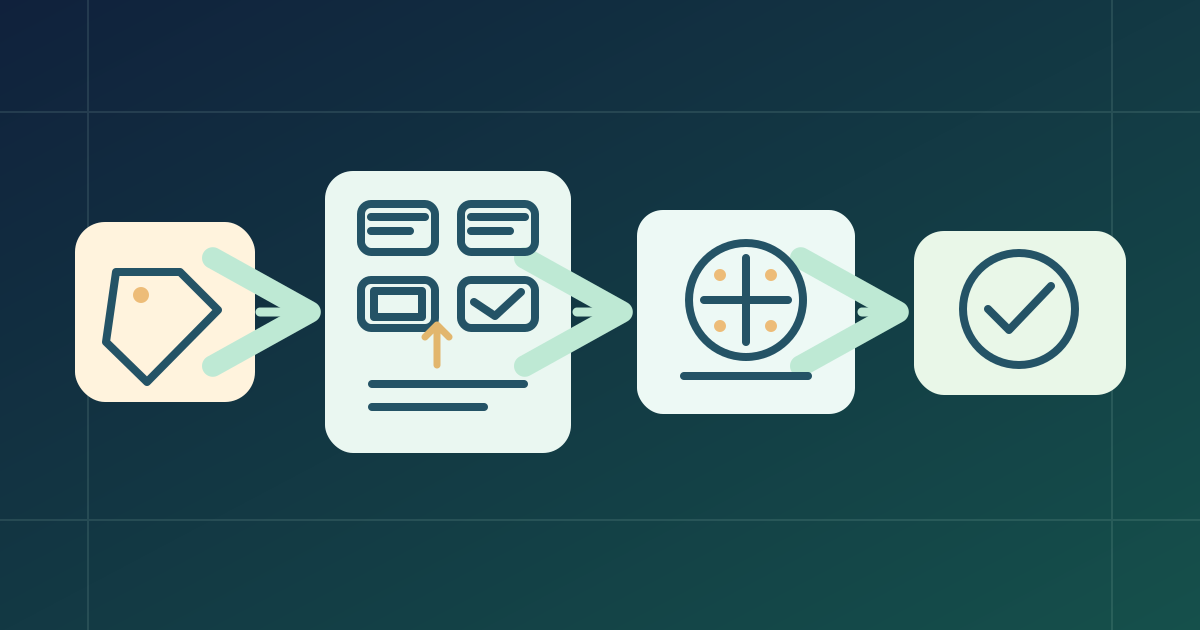
Classify each tag by its current meaning. Keep a historical tag when its evidence remains useful and no one mistakes it for permission. Rename a poorly named active tag when the underlying membership is still correct; in Mailchimp, a rename leaves assigned contacts in place. Replace a tag when a new rule or edition needs a different definition. Retire only when no active process requires it and any history needed for support or reporting has been preserved under the team's data policy. Never merge two labels merely because their names look similar: ‘registered’ and ‘attended’ describe different events, and ‘interested’ is not the same as consent to marketing.[2][5]
- Keep: the label still has a clear, needed meaning.
- Rename: membership is right; only the label is misleading.
- Replace: the future rule has a new definition or owner.
- Retire: dependencies are gone and required evidence is preserved.
Move dependencies before changing membership
For a replacement, write the new definition first: who qualifies, who can assign it, and when it is removed. Capture the old membership and its count in an access-controlled record; Mailchimp offers a contact export for a tag. Create the replacement and coordinate the forms and integrations that write the label with automations and saved segments that read it. Pause affected sends or flows during the cutover when needed, and compare eligibility before resuming. Review exclusions as carefully as inclusions. If a platform caches a segment or a flow is already active, follow its own change and pause instructions. Do not bulk-add every old contact to the new tag until the new definition has been checked against actual records. Maintain a small rollback plan identifying the previous rules and who may restore them.[2][3]
Compare before-and-after audiences
Take a before-and-after snapshot of every affected audience rule. Compare eligible counts and a small sample of contact IDs across the old and new selection, including boundary cases: someone with both tags, neither tag, unsubscribed status, and a record that arrived after the cutoff. Explain each difference before approving a live send. A count match is useful but insufficient: two different sets can have the same size. Test a draft campaign's include and exclude logic using a controlled recipient list where available; do not send an actual campaign solely to see what happens. Keep consent and suppression checks separate from tag cleanup, because a tag cannot override them.[4][5]
| Old tag | Potential dependency | Question before action |
|---|---|---|
| event-2025-attended | Historical segment | Is it needed for legitimate analysis or support? |
| invite-2026 | Form or integration writer | Will the old name be added again tomorrow? |
| do-not-promote | Campaign exclusion | What rule protects recipients after removal? |
Retire with a change record
Once owners sign off, stop the old writer, save the final membership evidence, update the tag dictionary, and remove the tag using the platform's documented action. Mailchimp says deletion is permanent and removes the label from contacts while leaving the contact records in the audience. That is a product-specific effect, not a universal promise. Check the next scheduled campaign and automation after the change, and keep the change log with the previous name, replacement, reviewed dependencies, date and reviewer. If a dependency is discovered late, stop the affected send or flow and restore the intended eligibility rules before resuming. A clean tag menu is less important than a correct audience.[2]
Use the tag retirement worksheet
Copy the editable worksheet for one tag or a tightly related group. It captures readers, writers, membership samples, the decision, migration order, comparison evidence and owner approval. Do not put full email addresses or sensitive contact details into a shared planning copy; keep any export in the approved restricted location.
Sources and further reading
- How tags work in MailchimpMailchimp · Accessed
- Mailchimp tag rename, export and delete behaviorMailchimp · Accessed
- Mailchimp automation flow triggersMailchimp · Accessed
- How Mailchimp segments use conditionsMailchimp · Accessed
- Mailchimp audience permission requirementsMailchimp · Accessed