Branded vs non-branded event searches: read the split before changing a page
An event page gains Google clicks after a campaign, yet fewer people may be finding it through generic questions about dates, accessibility or admission. Search Console’s branded-query filter can separate those stories. This review shows what the filter measures, where an event name can confuse the reading, and how to turn the split into a page decision.
Boletolibre editorial team
Published
Name the decision and the brand being measured
Start with an editorial decision, such as whether the current event page explains ticket access to people who do not search for the organizer by name. Write the exact event URL and edition, the dates before and after a promotion, and the question the page should answer. The split is a search-discovery diagnostic; it is not a count of new customers or confirmed ticket buyers.[2]
Google calls a query branded when it refers to the website brand, its variants or misspellings, or closely related products and services. Its classification is AI-assisted, not a keyword regular expression. An event name may be a strong brand on its own site but only one listing on a venue or ticket marketplace. Before labeling “Event Name + tickets” as branded in a report, check which Search Console property owns the data and inspect the actual classification.[1]
Use a small set of current-edition pages: event detail, agenda, admission and practical-information pages. Keep last year’s archive separate. A campaign can lift navigational searches for the organizer while searchers with generic questions still land on an old page. The task is to find that gap, not to optimize every URL at once.
Set one comparable Search Console view
Open the Search results Performance report on a top-level property that has the branded-query filter available. Google says the filter is available to eligible sites, but not URL-path or subdomain properties, and it also requires enough query and impression volume. If it is absent, record the limitation rather than claiming a zero branded or non-branded share.[1]
Fix the same date ranges, search type, country and device for both views. Use a page filter for the current edition when the question concerns that page, then record clicks, impressions, CTR and average position separately for Branded and Non-branded. Search Console supports filtering by multiple dimensions, but page and query filters can change totals. Save the filter state with the numbers so a colleague can reproduce the comparison.[1][2][3]
If the automatic split is unavailable, inspect the visible query rows with a documented manual brand-term filter as a directional sample. Include spelling variants and local-language forms, but do not present a regex result as Google’s branded classification or as a complete partition. Search Console omits some anonymized queries and may truncate filtered data.[1][3]
Read the split without hiding the discovery trend
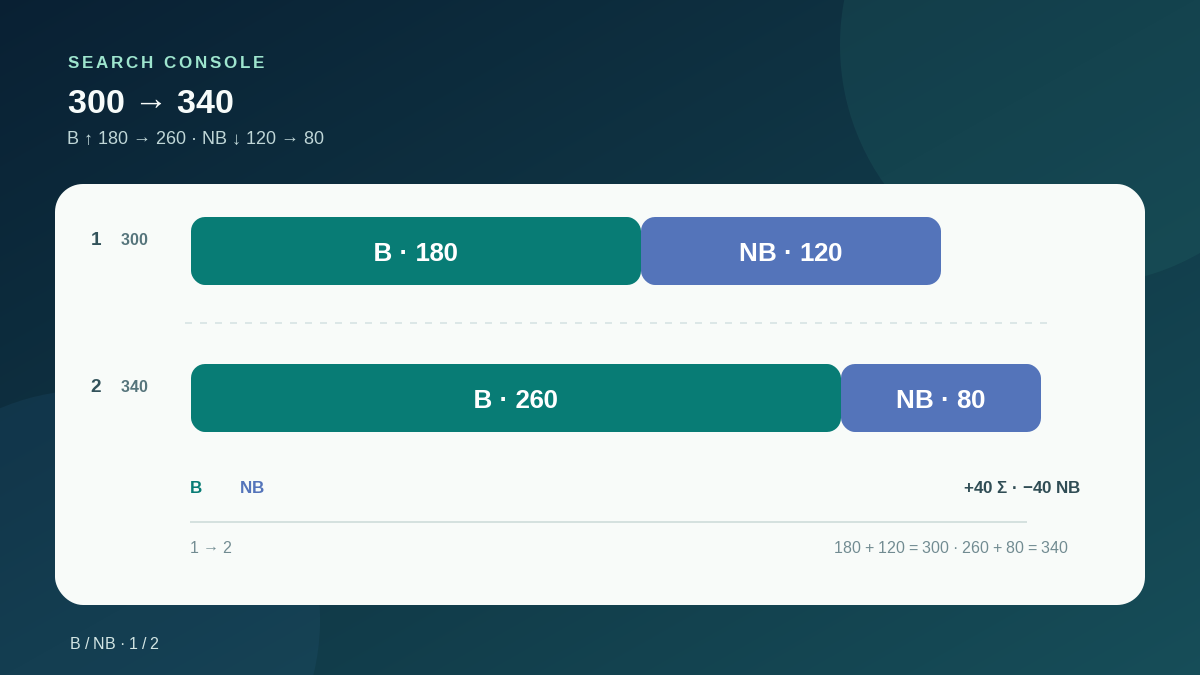
The synthetic example below compares equal-length periods for the same event-page set. Branded clicks rise from 180 to 260 after a campaign, while non-branded clicks fall from 120 to 80. The sum of the two filtered click counts grows from 300 to 340, hiding a 40-click decline in discovery-type searches. This illustrative sum is not necessarily the unfiltered Search Console total, and the figures do not predict a campaign effect.[3]
Read impressions beside clicks. A fall in non-branded clicks with stable impressions suggests a different investigation from falling impressions. Compare the actual queries, result title, destination page and any changed event facts before editing. Higher CTR on branded searches is common because people already know what they seek; it does not prove the non-branded page copy is weak.[1][2]
Do not add visible query rows and expect them to recreate the chart total. Search Console can omit anonymized queries, and property-level chart aggregation differs from page-level table aggregation. Keep a whole-property trend and a page-filtered trend as separate views. Note the campaign date so a recognition spike is not mistaken for an SEO improvement caused by a page edit.[3][4]
| Equal-length period | Branded clicks | Non-branded clicks | Sum of filtered clicks |
|---|---|---|---|
| Before campaign | 180 | 120 | 300 |
| After campaign | 260 | 80 | 340 |
Inspect queries and destination pages
Sample queries from both groups and tag each by attendee task: date and location, program, access, admission, or an unrelated meaning of the event name. Record the URL Google showed. A non-branded query about wheelchair access that reaches a ticket page without access facts suggests a content/navigation question; it does not by itself prove a ranking defect.[2]
Inspect a few borderline classifications. A unique festival name, an abbreviation, a venue name and a recurring-series title can relate to different brands. Google says the system may occasionally misidentify queries. Log the exact query and category as shown, then add a separate human task label; do not silently override the official split in the trend chart.[1]
When the report is filtered to one event URL, check whether queries for a past edition or another venue still appear. If they do, verify the page’s title, date, canonical destination and internal links using their own source facts. Search Console tells you what appeared and was clicked in Google Search, not whether the visitor bought a ticket or found the answer after arriving.[2]
Record a page action and its limits
Choose one content action tied to the evidence. If generic “date and place” impressions rise but clicks do not, inspect whether the visible result and page title state the current date and venue accurately. If access queries reach the wrong URL, improve the route to a verified access-information page. Confirm facts with the event owner before editing; do not promise a traffic lift from a title change.[2]
Record a baseline and a follow-up using equal-length periods and the same property, search type, page set, country and device. Mark the event’s launch, on-sale and campaign dates. Report both branded and non-branded clicks with their impressions, plus sample query tasks and the action owner. Changes in the split may reflect promotion, seasonality, new pages, or classification changes; they are not causal proof on their own.[1][2]
The worksheet captures the filters, eligibility, synthetic or real aggregate counts, ambiguous queries, target URLs and decision. It avoids individual searcher information. Use the split to prioritize a check, then verify the public page and monitor whether the relevant query group changes after enough data arrives.[3]
Download the branded-query review worksheet (Markdown, English)
Sources and further reading
- Introducing the branded queries filter in Search ConsoleGoogle Search Central · Accessed
- Performance report (Search results): Overview and basic setupGoogle Search Console Help · Accessed
- Performance report (Search results): Advanced filtering and comparisonGoogle Search Console Help · Accessed
- Performance report (Search results): About the dataGoogle Search Console Help · Accessed