Measure an event page's Google Search performance with Search Console and GA4
An organizer can see visits in analytics yet still not know whether people found the event page in Google Search, what they searched for, or whether the page answered that need. Search Console describes the search-result side; GA4 can describe activity after arrival if the page is tagged. Use the two views together without treating a search click, a site session, and a ticket order as the same action. This workflow is for a page the organizer can legitimately view in both properties; a page hosted solely on a third-party platform may not be available in the organizer's own Search Console or GA4 property.
Boletolibre editorial team
Published
Write the decision and page set first
Download the event-page search review sheet (English Markdown)
Start with a real editorial question: Are people finding the current edition's date, venue, agenda or ticket information? Choose a primary published event URL and write down any venue, schedule, speaker or archive pages that answer different questions. Record the event edition, publication date, on-sale date and major promotion dates before comparing periods. A query for last year's edition should not be silently grouped with this year's page. The worksheet below gives each URL its own row, plus a place for the decision owner and the next check. Decide whether you are investigating discovery, arrival or a downstream action; each needs a different data source. Search impressions are appearances in Google results, not page loads. A Search click is not a registration. An analytics session is not necessarily a person. A ticket order belongs in the ticket provider's records. State these boundaries in the report title so a colleague cannot mistake a rising chart for sales.[1]
Confirm property access and measurement coverage
Check that the property includes the actual public event URL and that the person reviewing it has appropriate read access. Search Console ownership and GA4 tagging are separate setups. A domain property might cover several hosts while a URL-prefix property covers a narrower address; use the property containing the page you intend to analyze. In GA4, inspect the landing page report for the same host and path. If the site is hosted by another service, first establish whether its owner exposes either property's data; do not assume an external ticket or event page is tagged by your site's GA4. Open the published page on desktop and phone and verify its current canonical destination, title, event date, main information and ticket link before interpreting numbers. A redirect, duplicate path, language variant or archived edition can make a convenient URL filter misleading. Record the exact property names and URL rules in the worksheet, without copying private account identifiers into a public report.[1][2]
Read the event page in Search Console
In Search Console, open Performance for Google Search, select a completed comparison window and use a page filter for the event URL. Read clicks, impressions and click-through rate with the same search type, country and device filters throughout. Then compare a useful prior period, such as the same number of days before and after an agenda update, while noting that an on-sale or ad launch may change demand. Inspect the Pages table before assuming the page you expected is the one Google reported. Search Console can attribute data to a canonical URL; a filtered alternate URL can therefore look empty. It also aggregates some totals by property and others by page, so chart and table totals need not sum in the naive way. The newest data may still be preliminary. Capture the report date, filters and URL shown, not only a screenshot of a metric. If no data appears, check property, date, page filter and indexing separately; absence alone does not prove a broken page or absent interest.[2][3]
Review the queries behind the page
With the page filter still applied, switch to Queries. Note the exact questions and phrases that brought impressions or clicks, and group them by attendee task: date and place, program, speakers, admission, or an unrelated meaning of the event name. Look at changes in impressions and clicks rather than choosing a winner from one day's average position. A high-impression, low-click query may be a cue to inspect whether the visible title and page answer match, but it is not proof that a rewritten title will lift traffic. A query with clicks but a different destination page may need clearer navigation between the relevant pages. Search Console does not expose every individual query row, and related phrasings may be split; do not infer that a missing query has zero demand. Record three evidence-backed content questions, the page section that could answer each, and whether the answer is already accurate. Verify event facts with the responsible program or venue owner before changing them.[2]
Read visits and actions in GA4
In GA4, use the Landing page report to inspect sessions whose first page in a session is the event page. Add or filter Session source / medium so you are looking at Google organic traffic, rather than email, paid ads and direct visits mixed together. Check the path and query-string variant used by the report; a different page may be the actual landing page even when visitors later reach the event page. Google documents landing page as a session-scoped view, so it is different from all page views of that URL. If the site records relevant actions, inspect them with their real definitions: perhaps a ticket-link click, a registration start or a completed on-site action. A ticket-link click is only a handoff; confirm orders from the checkout provider separately. Keep the GA4 date, device, country and source filters beside the Search Console filters. GA4 can describe what the tagged site observed; it cannot supply the search query for each individual session from Search Console.[1][4]
Build one comparison view if it helps
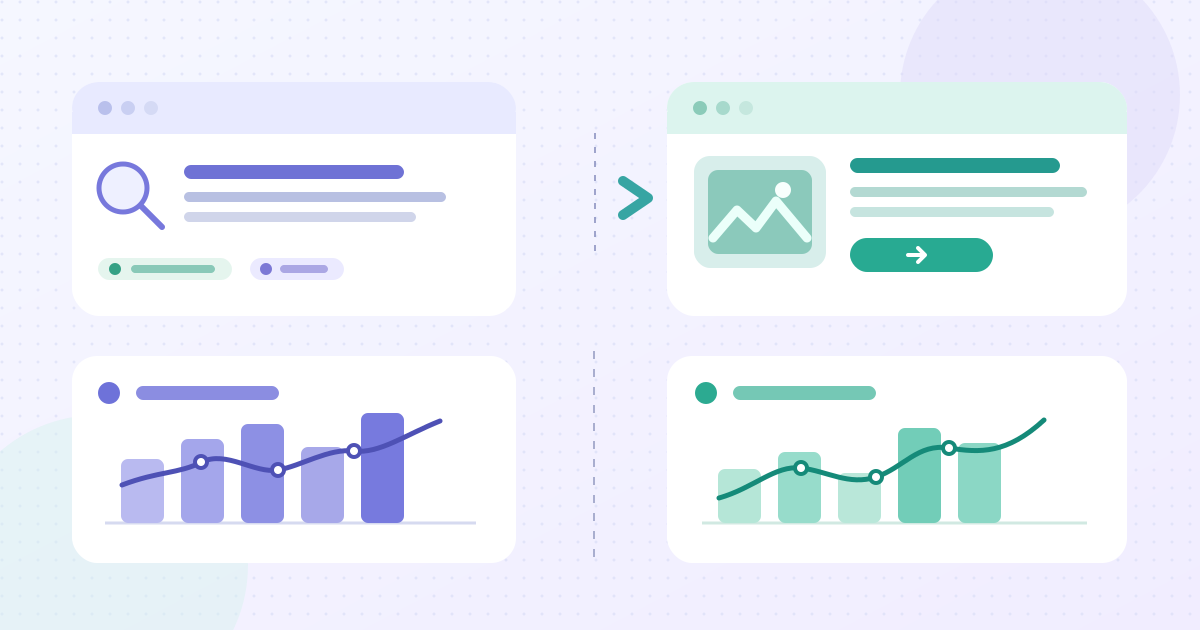
A side-by-side view is useful when several people review the event page weekly. Google's Looker Studio example connects Search Console and GA4 as separate data sources, with the Search Console URL Impression table for page-level analysis. If you use that model, connect only properties you are authorized to view, identify which chart comes from which source, and use the same date, country and device selection on both sides. The GA4 side should be filtered to session source `google` and session medium `organic` when the question is Google organic Search. Keep search clicks and GA sessions in separate series; do not add them or divide one by the other as a conversion rate. Avoid joining individual query rows to GA events: the systems do not provide a reliable person-level link. A spreadsheet with two labeled columns may be easier than a dashboard for a single event. The worksheet supports either route and leaves an explicit note when a chart's filters differ.[1][5]
Interpret the patterns before changing copy
Read the pattern before proposing a fix. More impressions with flat clicks can reflect a wider set of queries, a change in search demand, or a mismatch between the snippet and the task; inspect the actual pages and queries. More clicks with flat GA sessions may reflect differences in collection or counting before it reflects a site problem. More organic sessions with few ticket handoffs could mean people sought directions or program details, the ticket action was not measured, or the offer did not fit; check the page and the checkout data. A sudden rise in one event page may come from a press mention, a date announcement or a different edition, not from your latest title change. Segment by the same country and device when useful, but avoid reading tiny slices as trends. Note both an ordinary explanation and a measurement explanation for each surprising pattern. The decision log should distinguish observed counts, plausible interpretations and verified fixes.[1][2]
Investigate gaps between clicks and sessions
Do not expect Search Console clicks and GA4 sessions to match exactly. A search click is counted at the Google result; a GA session depends on the site's tagging and collection conditions. Google lists additional causes of differences, including consent choices, implementation gaps, time zones and canonical URL handling. Search Console may credit a canonical page while GA4 records the visited path. Search Console's time zone and GA4's property time zone may also differ near an event-day boundary. Before escalating a gap, align dates, devices, countries and exact page scope; then check whether the GA tag is present on the tested page and whether a redirect changes the landing path. Keep a note of possible privacy-related measurement limits without trying to identify or bypass a visitor's choice. A large unexplained gap deserves a measurement-owner investigation, not an editorial conclusion that attendees abandoned the page. Document unresolved differences explicitly.[1][3]
Walk through an illustrative comparison
Suppose an organizer reviews a venue-update week against the preceding week. The event URL shows 800 Search impressions and 64 clicks in the first window, then 1,100 impressions and 70 clicks in the second. On the tagged site, GA4 shows 52 and 59 Google-organic landing sessions. These are invented numbers for practice, not expected event benchmarks. The organizer should first verify identical URL, search type, country, device and completed-day filters. The increase in impressions is larger than the increase in clicks; the published venue update might coincide with more people searching, but the charts alone cannot attribute the change to the update. The difference between 70 clicks and 59 sessions is not eleven lost visitors: the tools count different things. In the Queries view, the organizer notices a venue-name question and checks whether the approved address is clear on the page. They also find a query for last year's event and keep it out of the current-edition editorial decision. The ticket provider reports 18 orders for the week; those orders remain a separate series because neither Search Console nor the landing-session count proves which people bought tickets. A useful outcome is a verified address clarification and a scheduled follow-up, with the causal claim left open.[1][4]
Release-check a shared dashboard or sheet
Before a weekly report leaves the editorial team, inspect one event URL all the way through the proposed view. Make sure the Search Console panel uses URL Impression, the intended Search property and the correct page filter. Make sure the GA4 panel uses the tagged site, a landing-page dimension and `google / organic` session scope; a general organic channel can include other search engines. Compare date pickers, countries and devices on both panels and show any deliberate mismatch beside the chart. Label preliminary data and the last available day. Test a filter change: does only the intended panel update, or is a chart silently showing all events? If a query table appears beside GA action data, place an explicit separation between them so readers do not infer person-level linkage. Have a second reviewer reproduce one displayed number in its source product. Record the dashboard version, editor and publication time in the worksheet. A small, auditable table is preferable to a polished dashboard whose filters no one can explain.[1][5]
Turn evidence into a page update
Make one change that answers a documented attendee task and has an owner. For example, if people find the venue page for the event name plus parking, link clearly from that page to approved arrival information. If queries repeatedly show a start-time question and the event page buries the schedule, bring the confirmed time into a scannable section. If the search result shows an old edition, verify the current and past pages' dates, links and labels before deciding any URL change; the separate past-event-page guide covers keep, redirect and removal choices. Do not rewrite confirmed facts to chase a metric. Write the hypothesis, the exact page section, source of the corrected information and publication time. Ask an editor to check the published mobile page, keyboard path and ticket destination. Keep the older snapshot or change log so the next reviewer knows what actually changed, and leave unrelated campaigns out of the before/after claim.[1]
Record and repeat the review
Use a regular review cadence suited to the event lifecycle: after launch, after a substantial agenda or venue update, around on-sale, and after the event. Save the Search Console and GA4 filters, dates and definitions with each review; screenshots without those details cannot be compared later. Record a baseline and a follow-up of comparable duration, but allow for demand changes and preliminary Search Console data. Identify who owns page facts, analytics access, the ticket-provider order number and the final report. Share only the aggregate counts and conclusions appropriate to the audience. If the event is listed on Boletolibre.com, keep that attendee ticket destination clear in the page review; the organizer's Search Console and GA4 access to that separately hosted page should never be presumed. Close with one of three outcomes: publish a verified content change, investigate instrumentation, or leave the page as is because the evidence is insufficient. The worksheet has an explicit uncertainty and next-check field for this reason.[2][3]
Sources and further reading
- Using Search Console and Google Analytics data for SEOGoogle Search Central · Accessed
- Performance report: common tasks and use casesGoogle Search Console Help · Accessed
- Performance report: about the dataGoogle Search Console Help · Accessed
- GA4 landing page reportGoogle Analytics Help · Accessed
- Connect to Search ConsoleGoogle Cloud Looker Studio · Accessed