Set a ticket check-in window without changing its sale window
A ticket's purchase period and its gate check-in period answer different questions. Use a check-in window only when your provider offers one for the ticket type.
Boletolibre editorial team
Published
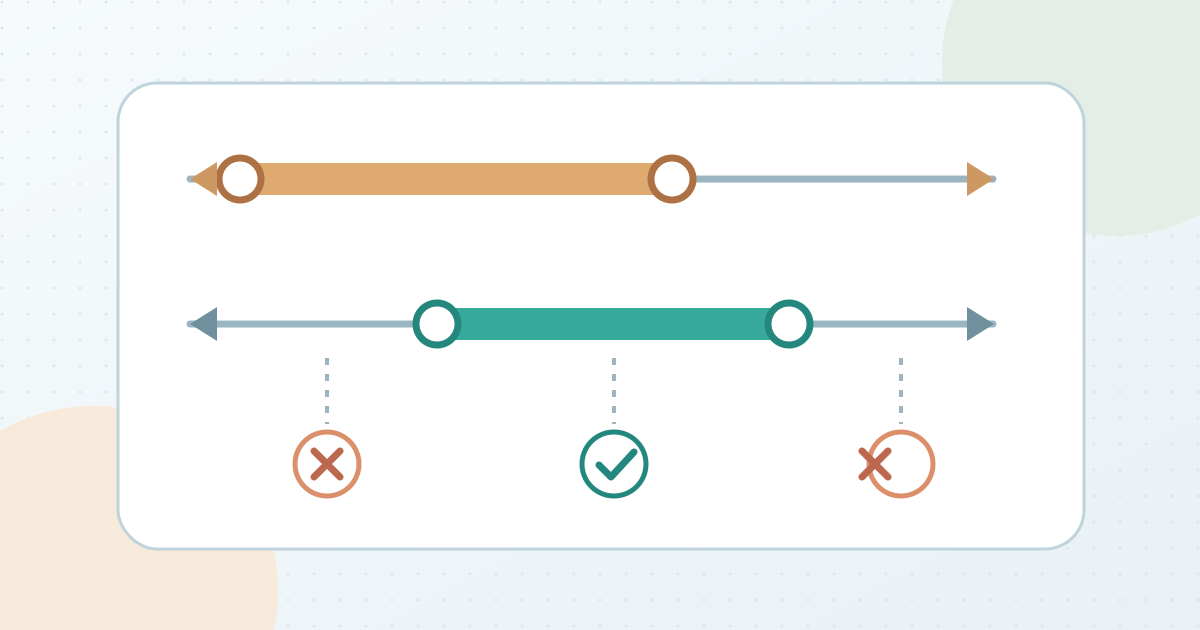
Define the admission interval
Record the exact ticket type, eligible date or occurrence, intended first and last check-in times, and displayed time zone. Check the approved gate plan before setting a boundary. Do not copy the sales start or end time simply because it is already configured.
Set the provider's check-in control
In Tickera, check-in availability is a ticket-type setting separate from ticket sales availability. A standalone Tickera setup edits the ticket in Ticket Types; its WooCommerce Bridge setup edits the ticket product. Tickera documents a selected date range among its check-in modes. Choose the intended mode and save. Other platforms may place this control elsewhere or may not offer it; do not infer the behavior from the event date alone.[1][2][3]
Test the boundary and brief the gate
With an authorized sample ticket, record what the scanner does before, inside and after the intended interval. Confirm the correct event and ticket type, and record the actual result rather than assuming a universal error message. Keep the sale-window check separate. Give gate staff the intended interval, the person who can resolve an exception, and the instruction to follow the approved admission decision if a scan is refused.
Download the check-in window boundary test card (Markdown, English)
Sources and further reading
- Set available date and time for ticket check-inTickera Documentation · Accessed
- Ticket TypesTickera Documentation · Accessed
- Set available ticket sale datesTickera Documentation · Accessed