How to schedule sales windows for multiple event ticket types
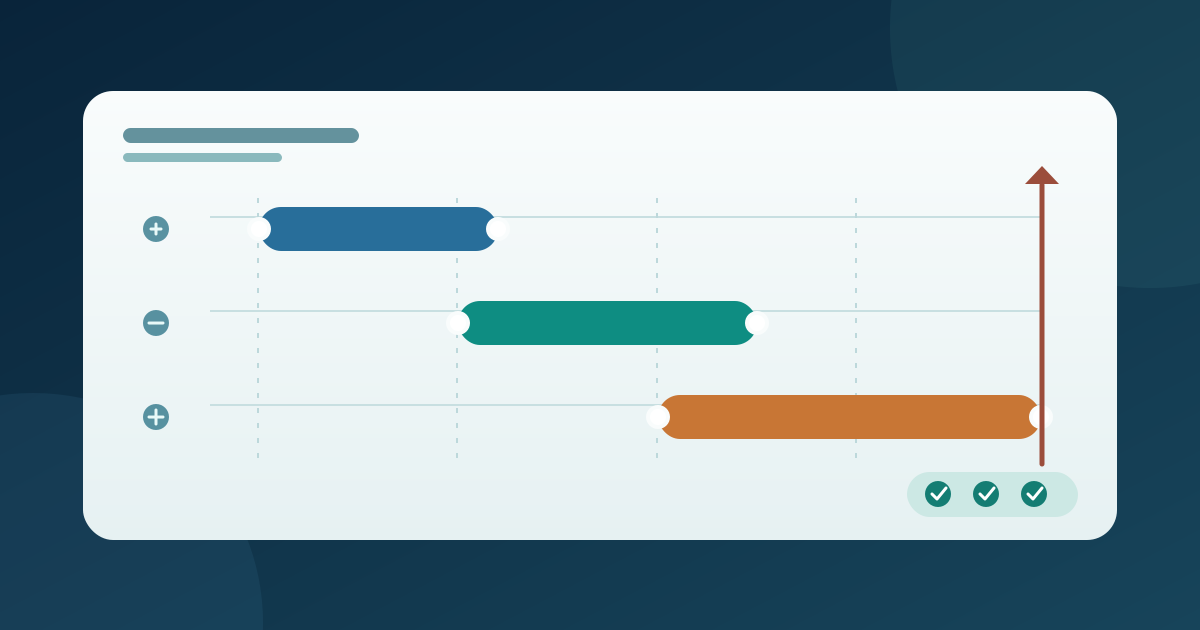
A release plan is more than a list of announcement dates. Each ticket type needs an intended sales start and end, while the event may also have an overall cutoff. Write the plan down before editing the ticket system so that a later tier does not appear too soon or disappear before buyers expect it. Use the worksheet to compare the configured settings with the public buyer view.
Boletolibre editorial team
Published
1. Make one schedule for every ticket type
Download the ticket-window schedule and buyer-view test sheet (Markdown, English)
List each ticket type separately, including any presale, early offer, regular ticket or final allocation that your event actually uses. For each, record the approved start, end, time zone, offered quantity, price and intended audience. Mark whether a ticket should be visible before it becomes purchasable; visibility and sale eligibility are different checks. If two types overlap, state whether buyers should see both. Do not add the quantities as if the schedule itself created venue capacity.
Add an event-level last-sale decision beside the type rows. Peatix distinguishes its event cutoff from a sales period on each ticket type, and its multi-type example places the event cutoff at the last ticket's end while earlier types have their own end. That is a Peatix setup example, not a universal precedence rule. Compare the event-wide and type-specific controls in the platform you actually use; a broad cutoff should not silently contradict a promised later tier.[1]
2. Match the schedule to the provider's controls
Find the ticket-type sale start and sale end controls in the chosen provider. Set each row from the approved table, checking the displayed time zone before saving. Peatix documents per-ticket start and end settings. Billetto documents individual sale windows and a bulk edit for several ticket types that share the same dates. If using bulk edit, select only the intended types and reopen each saved row; a shared schedule is useful only when it truly applies to all selected tickets.[1][2]
Check how publication relates to the sale schedule. Ticket Tailor says an event must be published manually even when the availability of its tickets is scheduled for later; publishing and opening sales are not the same action there. Other providers may attach the start to each type, an event-level setting or a different status. Record the actual control you used, the public page state before sale, and the person authorized to publish. Do not advertise a start merely because a date appears in an editor.[3]
3. Save the windows before publishing
Before publishing, read the provider's restrictions on later edits. Peatix says that after its event is published, a scheduled start cannot be set or edited, and a newly added ticket type cannot receive a scheduled start. Enter and review those Peatix starts while the event is still in the permitted state. For another provider, confirm its own edit boundary rather than borrowing that restriction or assuming the date will remain freely changeable.[1]
Save each type and compare the saved values to the approved schedule. Peatix warns its automatic sale start or end may occur up to 15 minutes before or after the configured time; it recommends manual action when an exact boundary is essential. Do not promise a minute-perfect release on that platform. For any platform, decide who will watch the transition and what they will do if the buyer view differs from the plan. Preserve a record of the original values before making a correction.[1]
4. Test each transition as a buyer
Use a preview if offered, then check the public event page in a logged-out browser. Before the first opening, confirm that a future type cannot be selected even if its name is visible. At the next start, check that the intended ticket appears with the right price, quantity choice and sale status. Near an end, test the outgoing and incoming types separately. A sold-out message is not proof that a time window worked; inventory can close sales for another reason.
Plan checks around the provider's documented timing behavior. On Peatix, the stated 15-minute early-or-late allowance means a check at the exact configured minute may be inconclusive. Note the observed time with its zone and retest within the provider's stated window before diagnosing a fault. If an exact transition is a requirement, follow that provider's supported manual route with an assigned operator; do not invent a universal automated guarantee.[1]
Check direct ticket links, embedded checkout and the main event page if your event uses them. Confirm that a buyer who started earlier does not receive an unexpected offer, but do not assume how an in-progress cart behaves across a boundary; ask the provider or perform an authorized test. Keep any paid completion test controlled. Record what was visible, selectable and actually issued, because these are different states.
5. Assign a monitoring and correction owner
Give one person responsibility for monitoring every start and end and another for approving any public wording change. Keep the worksheet near the run sheet with the configured schedule, observed buyer view and correction decision. If a tier opens early, remains purchasable late or has the wrong price, pause promotion of that offer while the authorized owner investigates the actual setting and inventory. Tell buyers only what has been verified.
After an approved edit, reopen the saved ticket settings and repeat the buyer check for affected types and neighboring windows. Update event page, ads and messages that state sale times; an editor change cannot rewrite an earlier announcement. Close the record with observed timestamps, owner and remaining exceptions. This guide schedules when an offer can be bought; it does not determine whether the offer is a good price or increase the event's approved capacity.
Sources and further reading
- How to set the ticket sales periodPeatix Help Organizer · Accessed
- How do I schedule ticket sales to specific dates (sales period)Billetto Support · Accessed
- How can I schedule my event to go live at a future date?Ticket Tailor Help Centre · Accessed