Test email campaign links all the way to ticket checkout
A green link checker can miss the mistake that matters most: the button opens a real page, but the wrong event or ticket. Use a delivered test message and a short evidence log to follow every action from the email through the destination. The final gate is whether a reader can take the promised next step, not whether the URL merely responds.
Boletolibre editorial team
Published
Inventory the links and promises
Freeze the campaign version, event edition, audience, language and planned send time. List every clickable item: primary and secondary buttons, text links, linked images, venue directions, agenda, preferences and browser view. Give each link a reader job and an expected final page. Record the exact visible label and intended ticket tier or RSVP option. A link to a generic homepage can be technically valid and still fail an invitation that promises a specific workshop.
Use the current event fact sheet or published event page as the reference for date, venue, eligibility, price and availability. If a claim is still unapproved, hold the send; link testing cannot validate an uncertain offer.
Build a small path matrix before clicking
Group links by the decision a reader expects to make, not only by URL. The primary ticket button needs the longest walk. A details link may only need the correct edition and page section; directions need the correct venue; a preference link needs the provider-supported account action. If a button and linked image use the same URL, test both clickable areas because one can be missing its link. Put each item in the register even when several items share a destination.
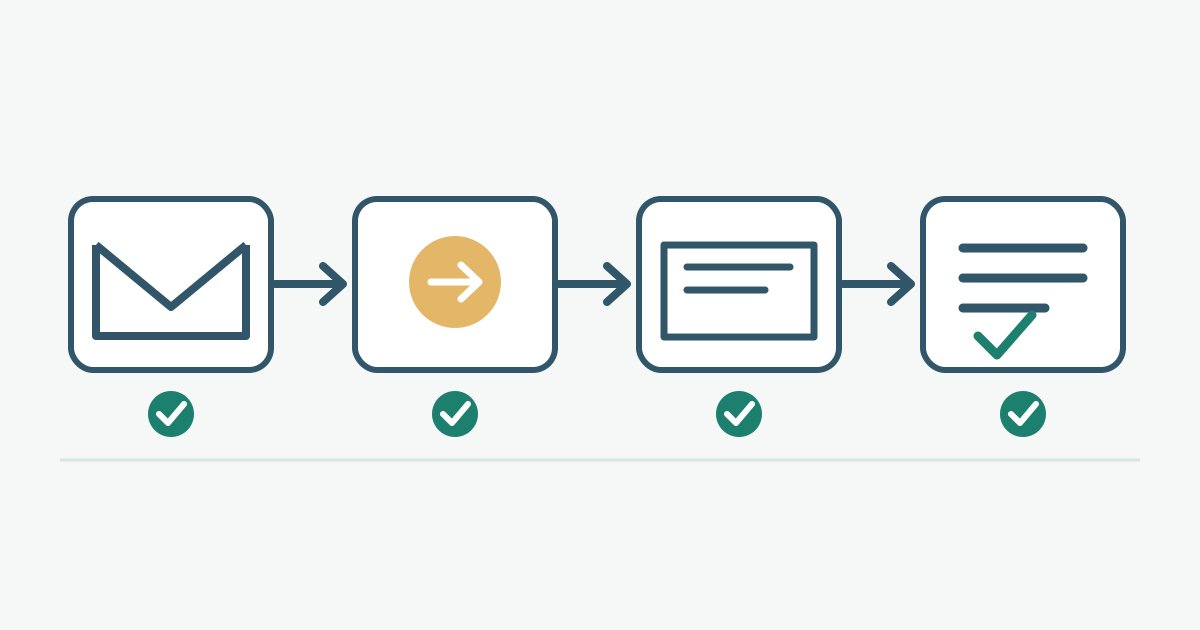
For a ticket link, write the expected route as checkpoints: delivered email → redirect, if any → event edition → ticket tier → quantity → price review → checkout handoff. At each checkpoint record the visible evidence, not just the address bar. The page may show the right event title but preselect a different tier, switch currency, hide fees until review, or display an unavailable option. A PASS means the promised choice remains available at the step the reader must take; a page load alone is insufficient.
Choose test contexts deliberately: one anonymous mobile visit and one ordinary desktop visit are a useful baseline. Add a context when the offer depends on locale, segment, access code, account state or inventory. Mark conditions that cannot be safely exercised UNVERIFIED and name the owner who can test them. Do not turn a sample of paths into a claim that every recipient or device has been checked.
Run the builder check, then open the message
Run the email provider's link checker where available, then send the actual campaign version to a reviewer. Mailchimp's Link Checker can show the URL and warn about invalid links, but it cannot check merge-tag, anchor or mailto links, and some coded templates lack it. This is a first pass, not a pass/fail verdict for the whole campaign.[1][3]
Open the delivered test on desktop and mobile. Tap the visible button, linked image and text separately, especially if they appear to promise the same action. A styled element may not actually be clickable. Confirm that the link text accurately describes the destination. Use a reviewer who is not already logged in when the ordinary reader would be anonymous.
Follow the final destination
For each web link, capture its configured URL and the final address after redirects. Check the event edition, page language, date, venue, ticket type, price and status against the promise in the email. Watch for a route that silently changes to another locale or lands on an expired offer. If a short link or tracking redirect is involved, test the reader-visible result rather than assuming the first URL is the destination.[2]
Example: a fictional email says “Reserve the Saturday ceramics workshop,” but the button resolves to a general events list. The page loads, yet the promised action requires extra searching and may lead to the wrong edition. Mark it FAIL, replace the destination with the verified workshop page, and retest the delivered message or a new test version.
Walk the ticket path without an accidental order
Continue from the event page to the intended ticket or RSVP choice and as far as the final review step permitted by your test process. Confirm quantity rules, visible total, currency, fees, event date and any prerequisite. Do not create a live paid order merely to complete a marketing check. If the organizer has an approved sandbox or test-order procedure, record the separate test transaction and cleanup owner.
Test at least one realistic edge condition: sold-out tier, expired offer, sign-in requirement, or mobile checkout. The message must not promise inventory or eligibility that the path cannot deliver. If the path breaks after the email link, assign the fix to the page or ticket-system owner and leave the campaign on hold until the complete path passes.
Work through one ticket-link failure
Suppose the approved Saturday ceramics email promises a standard ticket at 420 MXN. The delivered message has two ways to act: a button and a linked photograph. Record two rows. The button redirects to the Saturday page, but preselects an early-bird tier that has ended. The photograph opens the Friday edition. Both are FAIL even if the pages return successfully. The reviewer captures the final URLs, the visible edition and tier, and the time of the observation; the page owner confirms whether Saturday standard stock and price are still valid.
If the approved offer is still valid, correct both link targets and send a new test of the changed campaign version. Follow each path through tier selection and the price-review screen. If the email says 420 MXN before fees, check that the page uses the same qualification; if the email promises an all-in total, compare that total at review. When fees, currency, availability or eligibility disagree, do not silently edit the email to match a broken purchase path. Have the offer owner decide the authoritative value, update the relevant surface, then retest. Stop before placing a charge unless an approved test-order process exists.
The register should retain the failed rows and add a retest row with the corrected version, new final URL, observed choice and owner signoff. That history answers whether the fix was actually exercised and prevents yesterday's screenshot from approving today's scheduled message.
Treat tracking and special links separately
Check campaign parameters such as utm_source, utm_medium and utm_campaign for consistent values and a destination that accepts them. Google Analytics documents those parameters as traffic attribution labels; they do not prove a ticket sale. Mailchimp warns that extra tracking query strings may break some destinations and that advanced tracking may not be applied to an ordinary test email until a live send. Record which layer was actually tested.[2][4][5][6]
Treat browser-view, preference, unsubscribe, mailto and personalized URLs according to the provider's test method. In Mailchimp specifically, test its browser-view campaign page link from Campaign Builder preview; Template Builder previews and template test emails cannot validate that link. Contact-specific merge tags do not resolve in an ordinary test email, so use a provider-supported recipient preview or an approved small live test segment where necessary. Record what remains unverified; a generic link check is not a substitute for the personalized destination.[1][6][2]
Separate link, offer, checkout and measurement ownership
Assign each failure to the layer that can correct it. A missing link on an image belongs with the email editor; a redirect to an obsolete event may belong with the web or redirect owner; a wrong tier, sold-out state or total belongs with the offer and ticketing owners. Give the email owner one release decision after those owners provide evidence. If the checkout uses a separate domain or requires sign-in, write down where responsibility crosses that boundary and which step was actually reached.
Keep measurement acceptance separate from purchase-path acceptance. A UTM-tagged URL may preserve attribution labels yet route to the wrong ticket; a correct ticket path may need a later sent-campaign check for click reporting. For Mailchimp, ordinary test-email clicks do not appear in the sent campaign's click report, and advanced tracking may not appear until a live send. Record the configured URL, the URL observed in the test context and the tracking behavior still pending live verification. Do not treat a test click as evidence of a recorded order.[4][2][5]
If UTM acceptance is a release requirement, arrange a separately approved, small live test send with advanced tracking enabled. Mailchimp says an ordinary test email will not exercise that exact layer. Record the resulting URL, whether the destination handles its parameters, and the measurement owner who checked it; do not treat a standard test click as a live measurement check.[2]
Use a bounded release rule: all critical ticket links must pass the relevant path and offer checks; secondary links must pass their own job after any approved correction and retest; personalized and system links must use the provider-supported validation route. Reopen the review after any edit to link target, event facts, ticket rules or scheduled campaign version. After sending, sample the live destination and investigate recipient reports promptly, but do not rewrite the pre-send evidence as though it came from the live campaign.
Log failures and rerun the changed path
Log one result per visible link and test context: version, device, reviewer, configured URL, final URL, expected page, observed page, ticket step, status, evidence and owner. Use PASS only when the reader can reach the promised next step. A redirect to the wrong event is FAIL; a personalized link that cannot be exercised in an ordinary test is UNVERIFIED until a suitable provider-supported check is completed.
After a fix, retest the link and every downstream step that changed. Keep the previous failed observation rather than overwriting it; the new row should point to the corrected version. A successful editor preview from yesterday does not approve a changed link today.
Approve one version for sending
Before release, compare the approved email version with the current event page and the provider's scheduled version. Recheck the primary action, any changed secondary links and the exact recipient segment. Name one person to sign off on the page and checkout evidence. If a critical link remains failed or unverified, postpone the send rather than placing a caveat in the worksheet.[3]
Once live, monitor early replies and the destination page for broken-route reports. A test send does not create ordinary campaign click metrics in Mailchimp; verify live tracking later from the sent-campaign report if measurement is needed. If the offer or destination changes after signoff, reopen the link-path review.
Download the link-path QA register
Copy the localized register below for each campaign version. It captures the expected and observed path, allowing a reviewer to verify a fix without relying on memory or a screenshot of one green icon.
Sources and further reading
- Preview and Test Your EmailMailchimp · Accessed
- Troubleshoot Broken LinksMailchimp · Accessed
- Email Testing TipsMailchimp · Accessed
- Troubleshooting Click TrackingMailchimp · Accessed
- URL builders: Collect campaign data with custom URLsGoogle Analytics · Accessed
- Add a Campaign Page Link to Your Email CampaignMailchimp · Accessed