Test event email merge tags and missing-field fallbacks
A test email that looks fine with one complete contact can still show an empty greeting, the wrong event edition or an obsolete ticket detail to someone else. Test the resolved message for deliberately different recipient records. Keep this field-level check separate from audience permission and final campaign approval.
Boletolibre editorial team
Published
List the fields that change the message
Download the event email merge-tag case matrix (Markdown, English)
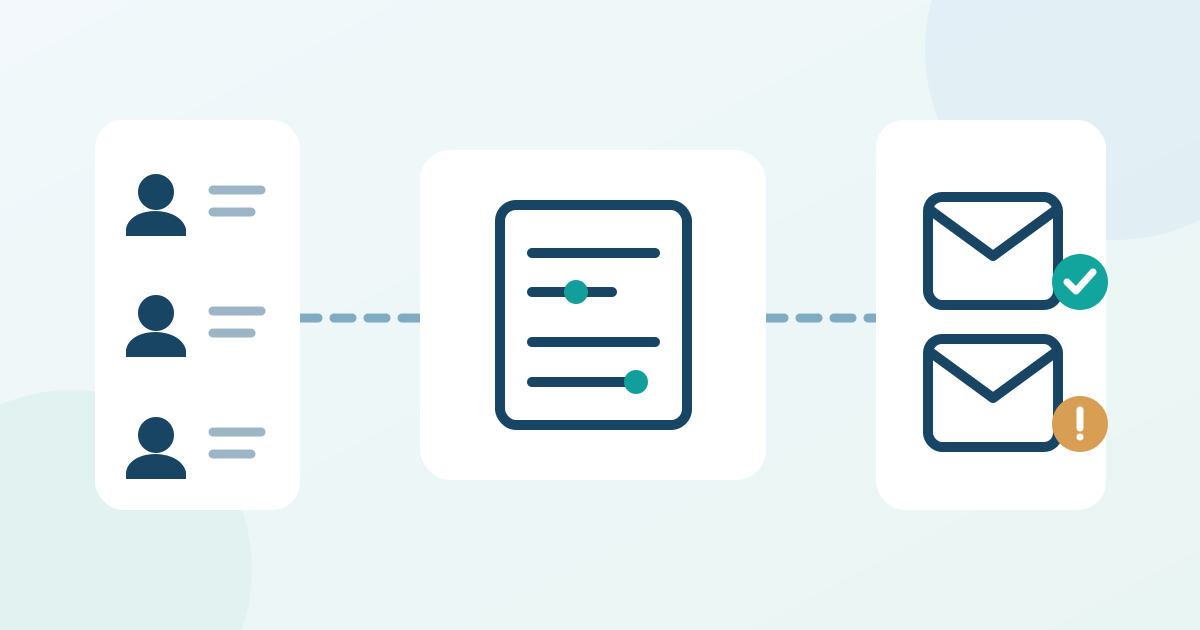
Start from the exact campaign and destination audience. List every variable in the subject, preview text, greeting, body, link, footer and conditional block. Record the field that supplies it and the event edition it belongs to. A first name is optional copy; event date, joining route, entrance, ticket type and recipient identity can change what a person does. If a buyer and a ticket holder have different records, decide which one the message addresses before inserting either name. Do not guess that a ticketing field has reached the email tool: inspect the mapped value in a controlled contact profile. If a message has no reliable value for a material event fact, use approved fixed copy or hold that variant rather than inventing a universal default.[4]
Build a small recipient-case matrix
Use the downloadable English matrix to prepare a complete internal test contact, one with an empty optional name, one missing a material event field, one from another edition, and one whose ticket or language changed after the first sync. Add cases for each conditional branch that changes access instructions. The worksheet stores case IDs and expected output, not personal details. Keep the test contacts in an authorized test route or narrow segment and verify the selected audience before any live send. For each case, write the expected greeting, event facts, link destination and whether the message should be suppressed. A blank first name might deserve a neutral greeting; a missing entrance or join link needs an owner and correction, not a cheerful substitute.
Preview the resolved message, not just a test send
Inspect the rendered subject, preview text, body, links, accessible image text and footer for each case. In Mailchimp, a normal test email does not populate contact-specific audience merge tags, even if its destination address belongs to an audience contact. Mailchimp documents live merge information in Preview Mode; it also suggests a small test segment when needed. Use the equivalent recipient-specific preview or controlled delivery that your provider actually offers, and document which view produced the evidence. For a registration-triggered email, run an approved test registration through the relevant path and inspect the resulting message as well as the profile. A visual editor alone cannot prove that every recipient value, condition or destination resolves correctly.[1][3]
Fix the source or the fallback
When output is wrong, inspect the selected audience, source field, field mapping, stored value and template token in that order. Mailchimp merge-tag syntax is case sensitive, and tags from a different audience may not resolve as expected; its guide also notes that styling around a tag can break it. Mailchimp permits default merge values for audience fields, but choose a default only when the replacement is true for every affected recipient. A neutral greeting may work; an event date, seat, gate or access link should come from the approved record or fixed event copy. If a conditional branch shows the wrong ticket-type instruction, repair the rule and retest both matching and excluded cases. Keep unknown or stale values in a hold bucket until their source owner confirms them.[1][2]
Recheck and record the release decision
After any field, rule or copy change, rerun the case that failed and one case that previously passed. Save the final resolved subject and message version, the case IDs, the method used to view them, the owner of unresolved fields and the decision to send or hold. Check the actual recipient selection separately: correct personalization does not prove a marketing audience is appropriate, and a preview does not prove delivery. If a late ticket transfer or edition change can alter the data before dispatch, name who will refresh the audience and repeat the affected case. Hand this record to the campaign reviewer with the broader pre-send check; do not release a message containing an unresolved material access detail.[3]
Sources and further reading
- Troubleshooting Merge TagsMailchimp Help · Accessed
- Set Default Merge Values for an AudienceMailchimp Help · Accessed
- Preview and Test Your EmailMailchimp Help · Accessed
- Getting Started with Merge TagsMailchimp Help · Accessed