Website certificate warning: expired, wrong domain or untrusted?
If an event page, registration form or ticket checkout shows “Your connection is not private,” stop that attendee path and investigate the exact warning. The problem could be a certificate served for the wrong hostname, a validity or clock issue, or a trust-chain problem. A generic “renew SSL” action can miss the real cause—especially when the public site, CDN and checkout use different providers.
Boletolibre editorial team
Published
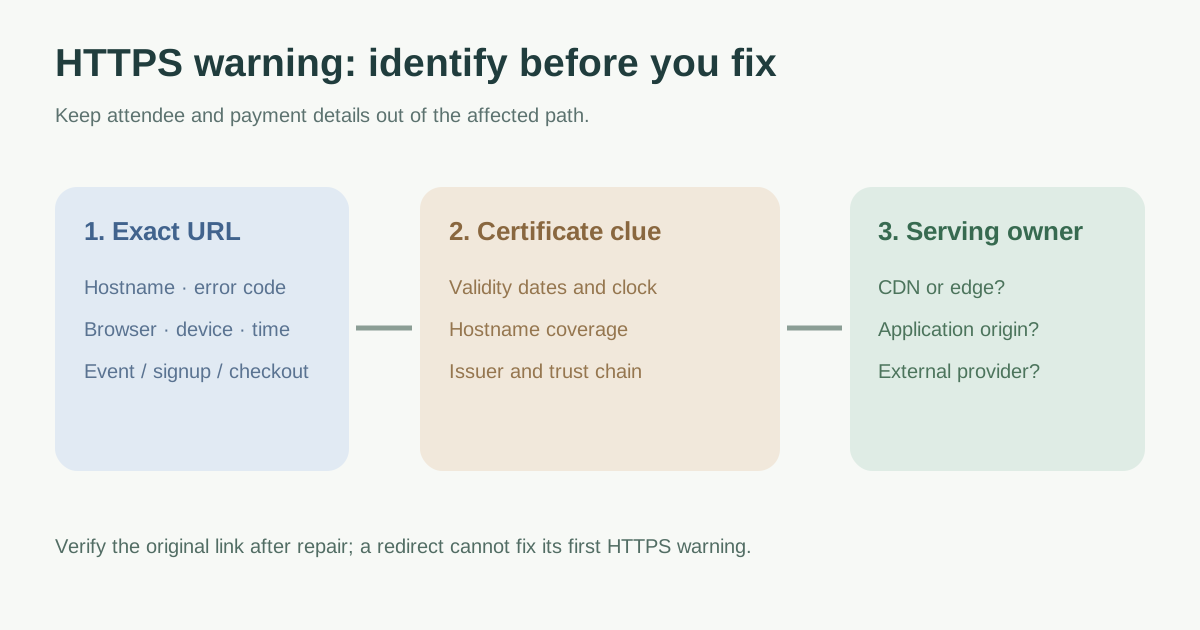
Record the exact failing journey first
Write down the full hostname, browser warning and code, time, device, network and whether the problem affects the public event page, registration, checkout or a third-party link. Test the exact URL on a trusted second device or network without entering personal or payment data. Chrome says a full-page privacy error may be caused by the site, network or device, so a single report is a clue rather than a complete diagnosis.[2]
If the affected flow accepts attendee details or payments, pause promotion of that link and provide a verified support route while the responsible provider investigates. Do not tell attendees to click through a certificate warning.
Separate date, name and trust failures
| Observed clue | What to inspect | Likely owner action |
|---|---|---|
| Expired or not-yet-valid date | Certificate validity window and device clock | Fix an incorrect device clock or have the serving provider replace the expired certificate |
| Wrong hostname | Exact URL versus names on the presented certificate | Issue/deploy a certificate covering the public hostname, including apex or www as needed |
| Untrusted issuer or chain | Presented issuer, intermediates and trust path | Check serving configuration and certificate chain with the provider |
| Only one network/device fails | Clock, captive portal or managed TLS interception | Compare with a trusted second environment; escalate to device/network owner |
A valid certificate can still fail if the server does not present an appropriate intermediate chain to a client. Let’s Encrypt documents that a downloaded certificate comes with a chain containing one or more intermediates; the correct chain can depend on the environment. Avoid guessing from the certificate count alone.[3]
Find which system serves the certificate
For each affected hostname, identify the serving layer: CDN or edge, application host, custom domain on a form provider, or external checkout. The certificate visible to the attendee may differ from the origin certificate behind a CDN. Compare the failing host with the provider’s configured custom-domain status and renewal history. Do not rotate unrelated certificates merely because the website contains the broken link.
A redirect from one host to another does not repair a warning on the first HTTPS connection: the browser must establish trust before it can receive that redirect. Correct the certificate and routing for the hostname visitors actually open.
Verify recovery and prevent a repeat
After the responsible owner changes configuration, open the original URL from more than one trusted environment. Confirm no warning appears, the correct hostname is shown, and the registration or checkout path reaches the intended provider. Record evidence and notify the content/support team before resuming promotion. Set external expiry and handshake checks for every public hostname, including www, registration subdomains and provider-hosted custom domains; assign an alert recipient and escalation.
Download the certificate warning incident worksheet (Markdown, English)
Sources and further reading
- SSL Certificate Error: What It Means & How to Fix ItPulsetic · Accessed
- Check if a site connection is secureGoogle Chrome Help · Accessed
- Root and intermediate certificatesLet’s Encrypt · Accessed