Verify or authenticate an email domain? Approve a new sending platform
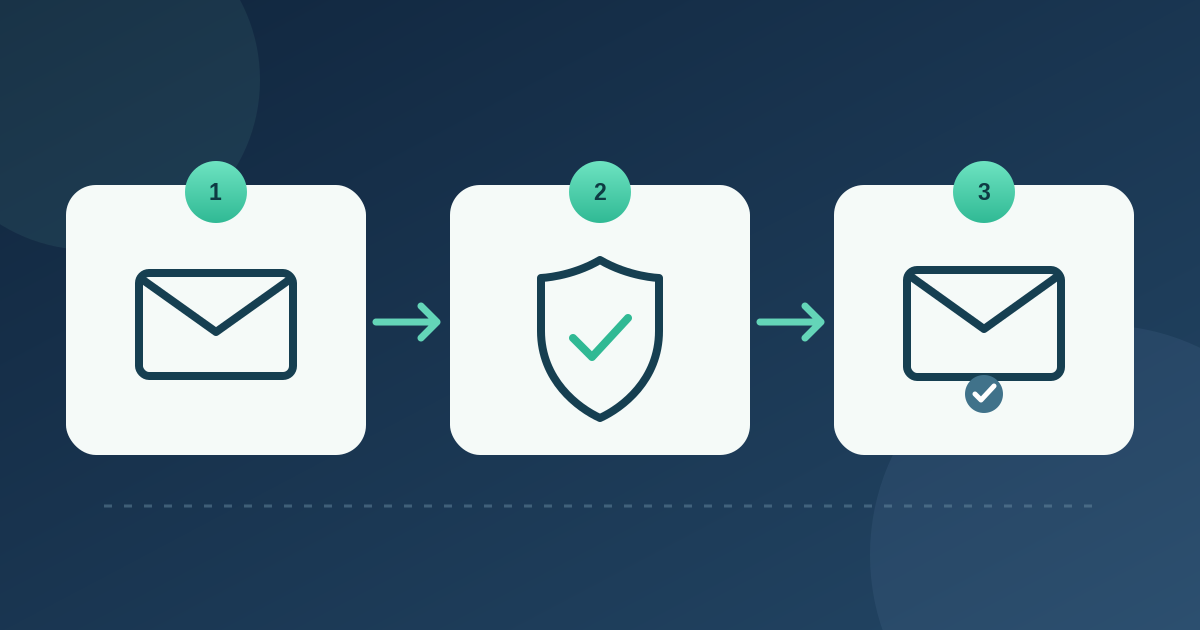
A platform can show a green ‘verified’ label while the first campaign still lacks the authentication expected by receiving mail systems. The two steps answer different questions. Use this checklist when an agency, partner or new email tool asks to send from a domain your organization controls.
Boletolibre editorial team
Published
Record the requested sending identity
Write the exact visible From address, its domain or subdomain, the platform account, the organization that owns the domain, and the person who can approve use of that identity. A partner's request to ‘send as us’ is not sufficient authorization. Decide whether the partner should instead send from its own domain with a clear co-brand, or whether your domain owner will supervise the platform setup. Keep a reply owner and expected message type beside the decision.[1]
First gate: prove the platform may use the domain
Domain verification is a platform access check. Mailchimp, for example, can send a link or code to a mailbox at the domain and requires that step before its separate authentication setup. Other providers may use a DNS challenge. Record which method was used and which authorized person completed it. An inbox verification link shows the platform accepted an access challenge; it does not prove that outgoing messages carry an aligned DKIM signature or pass DMARC. Mailchimp explicitly says verification alone does not affect delivery.[2][1]
Second gate: authenticate messages from that platform
Email authentication gives receiving systems evidence about a message's sending domain. Follow this particular provider's instructions for DKIM and, where needed, SPF and DMARC; do not copy Mailchimp's record count to another service. For direct mail to personal Gmail accounts, Google's bulk-sender rules require the visible From domain to align with an authenticated SPF or DKIM domain. The owner should identify which domain appears in the DKIM signature and envelope sender, and whether the provider supports the needed alignment. A ‘verified’ address and an authenticated sending domain are separate states.[3][4]
Approve only the DNS changes the provider actually requests
Have the DNS owner review the provider's exact host, type and value for every requested record, the existing record at that name, and the impact on other authorized senders. Preserve existing SPF, DKIM and DMARC configuration unless the responsible owner has a reviewed change plan. A generic domain-verification TXT token, a DKIM CNAME and a DMARC policy record serve different purposes. Do not publish a broad SPF include or replace a DMARC policy simply because a setup screen mentions it. Record who will remove or revise a vendor-specific record when the relationship ends.[3]
Test a real message, not only a status badge
Wait for the provider to report its relevant authentication status, then send a permitted, representative message to a controlled mailbox. Inspect the received message's Authentication-Results or equivalent: note SPF, DKIM and DMARC results and compare the authenticated domain with the visible From domain. Gmail Help explains how to inspect authentication details in a received message. A DNS lookup alone proves only publication, not that this platform signed this message or that the intended identity aligned. A passing sample also cannot promise inbox placement for every recipient; it closes this identity check, not the whole deliverability review.[5][4]
Keep a reversible handoff record
Sender-domain platform approval card
Put the evidence in the downloadable approval card: owner consent, exact sending identity, verification method, provider-specific DNS request, authentication status, a redacted header result, reply and unsubscribe owners, and a rollback contact. Hold the campaign if access was verified but a required authentication check is pending or fails. When the partner relationship ends, review the account access and vendor-specific records before removing anything shared by another sender. Keep the existing sender inventory updated, but use this card for the one platform being approved.
Sources and further reading
- About Email Domain AuthenticationMailchimp · Accessed
- Verify an Email DomainMailchimp · Accessed
- Set Up Email Domain AuthenticationMailchimp · Accessed
- Email sender guidelinesGoogle Gmail Help · Accessed
- Check if your Gmail message is authenticatedGoogle Gmail Help · Accessed