Webinar replay email for registered no-shows: audience and access checks
A replay email is a small post-webinar task: identify who registered but did not join, confirm that those people can open the recording, and send one clear message. Do not infer nonattendance from an unopened email or a missing purchase record.
Boletolibre editorial team
Published
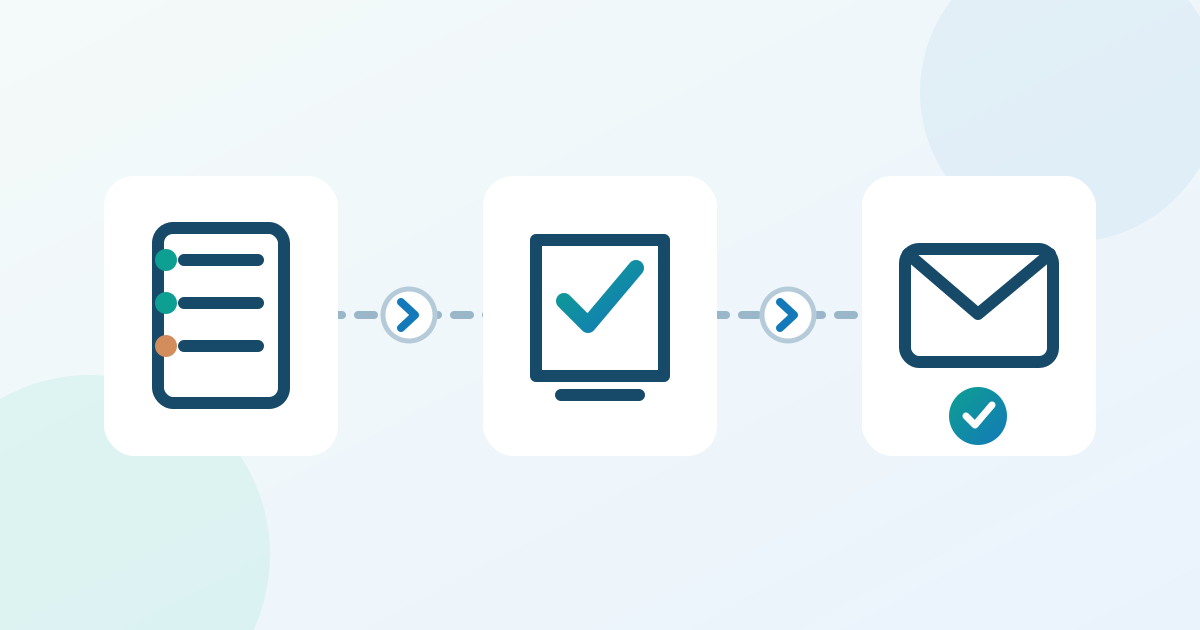
Confirm the absentee audience
Download the attendance-state and replay-access matrix (Markdown, English)
Start with confirmed registrants for the exact webinar edition and compare them with the host’s live attendance record. Exclude people who attended, cancelled or never completed registration, plus duplicate addresses and people already sent this replay message. If attendance data is incomplete, use neutral wording for registrants instead of telling someone that they missed the session. Zoom, for example, has a separate absentee follow-up setting for registrants who did not attend; your own webinar and email tools may define that group differently.[1]
For example, a registration export shows 120 confirmed addresses and the live report shows 78 joins. The difference is a review queue, not an automatic no-show list. Someone may have joined with another address, a report may include panelists or repeated joins, and a later recording registration is not a live registration. Reconcile these cases against the host records without putting names in a shared planning sheet. Hold unresolved people out of an absentee claim; if they should receive a recording, decide separately whether neutral wording is appropriate.
Verify replay access before writing
Check that the approved recording is available and that the link opens with the permissions a recipient will actually have. A working organizer link does not prove recipient access. In Zoom on-demand webinars, the list of recording registrants is separate from the live webinar audience, and recording access may involve approval. Record the link, access rule, any verified expiry, support owner and one successful recipient-view test in the worksheet. If access fails, fix the destination before sending the email.[2]
If the replay opens a registration or approval screen for a test recipient, do not write “watch instantly.” Decide whether that gate is intended, confirm the recipient can complete it, and explain the step in the message. On Zoom, a host can configure approval for on-demand recording registrants; a different video host may use a password or a private account instead. Test the actual link after any visibility or recording-setting change, and record whether it leads to playback, a legitimate access step, or an error.[2]
Use a plain replay email
Subject: Recording of [webinar title] is ready. Hello [name], the recording from [webinar title] is available here: [tested replay link]. If you could not join live, start with [specific segment or timestamp, if useful]. [Approved slides or resource link, if available.] You can watch until [verified date and time zone, if access expires]. If the link does not open, reply to [monitored help address]. Thank you, [organizer]. Replace every bracketed field; remove any sentence you cannot confirm.
Choose one sending route
Choose either the webinar host’s absentee follow-up or a separate email campaign for this message. In Zoom, the absentee email is an available webinar-specific setting, but its editable fields and timing depend on that setting; do not assume every host offers a free-form template. If you use a separate sender, build the recipient rule from verified registration and attendance data, then compare its count with the host report. Keep one owner responsible for suppressing the other route and documenting which message was actually sent.[1]
A practical duplicate check is to compare three items before scheduling: the host’s absentee-email setting, any marketing-campaign schedule, and the list of people already sent a recording link. If the host email is enabled and a separate campaign is also queued, decide which one carries the approved copy and disable the other. Do not rely on an email-open metric to suppress a second send; it does not prove delivery, access or live attendance.[1][3]
Test the send and close the loop
Send a test to an account with the intended access state. Check the subject, link, mobile view, help reply and any expiry language. Recheck the final recipient count and exclusions in the sending tool; Mailchimp, for example, lets a campaign include a segment and exclude another segment or tag. Confirm whether the webinar platform already sends an absentee email so the same person does not receive an accidental duplicate. After sending, assign an owner to failed-access replies.[3][1]
When a recipient reports an access failure, check the exact link and account state before replying. If the same error affects the test account or several recipients, pause any planned replay reminder, correct the destination or permissions, and retest. Then decide whether only affected recipients need a corrected link. Keep the reply factual: state the verified access step, a monitored help route and any real deadline. Close the issue only after the recipient-view test passes; do not promise that every platform can identify who watched.
Sources and further reading
- Customizing webinar email templates and settingsZoom Support · Accessed
- Using on-demand webinarsZoom Support · Accessed
- Create and Send to a SegmentMailchimp Help · Accessed