What is email preview text? Event-email examples
Email preview text is the short snippet some inboxes show beside or below a subject line. It gives readers one more clue before they open a message. For an event email, use that space to clarify the action or useful fact, rather than repeat the subject or promise something the message does not deliver.
Boletolibre editorial team
Published
Where does preview text appear?
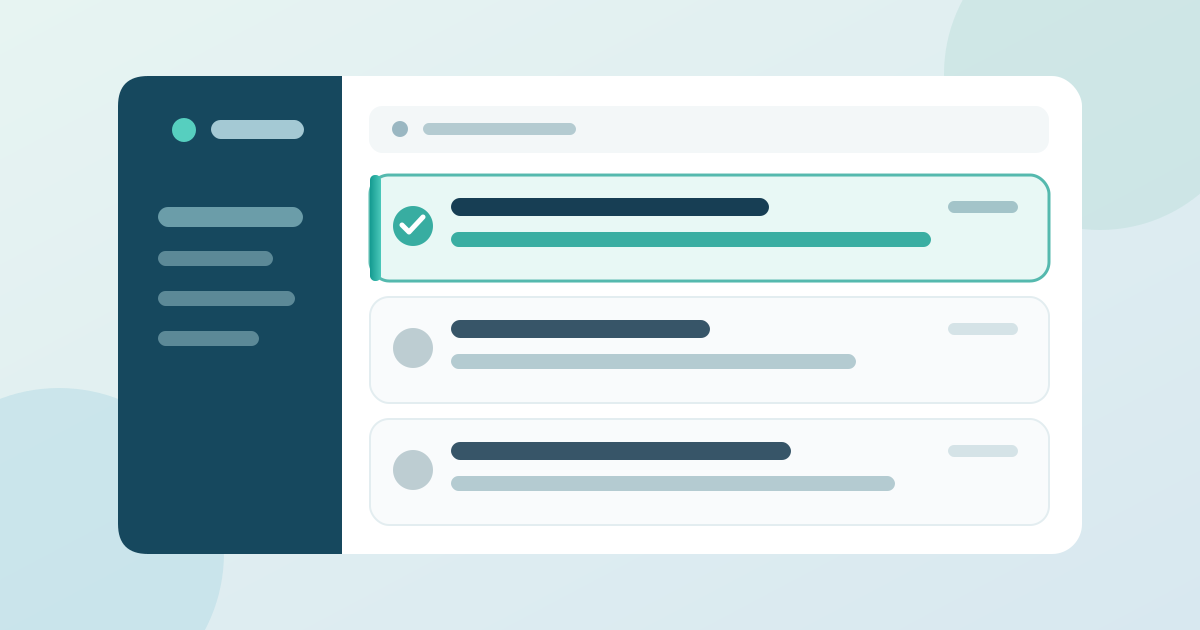
The sender name, subject and preview may appear together in the message list, but the amount shown depends on the inbox and device. Preview text is not the subject line, an attachment name or the first paragraph of the opened email. It is a short inbox-level summary. Your email service may offer a separate field for it; check that service’s instructions before composing.[1]
Make the subject and preview work together
Let the subject identify the message and the preview add one useful detail. A subject such as “Registration is open for [Event]” identifies the moment; the preview can explain that the reader can compare ticket options and current event details. Put essential facts at the start because the visible snippet can be cut short. Keep the promise consistent with the actual email and destination.[1]
Three event-email pairs to adapt
These pairs are prompts, not claims about a live event. Replace every bracketed field with an approved fact and remove any line that does not apply.
- Invitation — Subject: “Registration is open for [Event].” Preview: “Compare the current ticket options and event details.”
- Program update — Subject: “The [Event] program is available.” Preview: “Review the confirmed sessions and current schedule.”
- Arrival notice — Subject: “Your [Event] arrival details.” Preview: “Check the approved entrance and check-in instructions.”
What happens if you leave it blank?
If you do not set preview text, an email client may take leading body content instead. That can expose a “view in browser” link, navigation text or a stray code fragment beside your subject. Some senders generate a suggestion automatically; review what the recipient will actually see rather than assuming the suggestion is correct.[1]
Check the pair in real inboxes
Send a test through the email service you actually use. Compare the subject and preview together on a phone and desktop inbox, check that no placeholder or unintended opening text appears, and read the full message to confirm the promise is delivered. Different email clients can render messages differently, so check the clients relevant to your audience when practical. Avoid treating any character count as a guarantee.[2][3]
Use the pairing worksheet
The editable sheet records each message purpose, approved subject, preview, fact source and test result. It is in English; translate the finished pair for each audience language and test the localized inbox view.
Download the subject-and-preview pairing worksheet (Markdown, English)
Sources and further reading
- About Preview TextMailchimp · Accessed
- Email Testing TipsMailchimp · Accessed
- Test with Inbox PreviewMailchimp · Accessed