Alt text for event email images: a writing and review guide
An event email often uses a poster, speaker portrait, sponsor logo or graphic button. Some readers will not see that image: they may use a screen reader, block images or open a client that renders them differently. Alt text helps convey an image’s purpose, but it cannot rescue essential event information hidden inside artwork. Review the message, image and destination together.
Boletolibre editorial team
Published
Begin with the message, not the picture
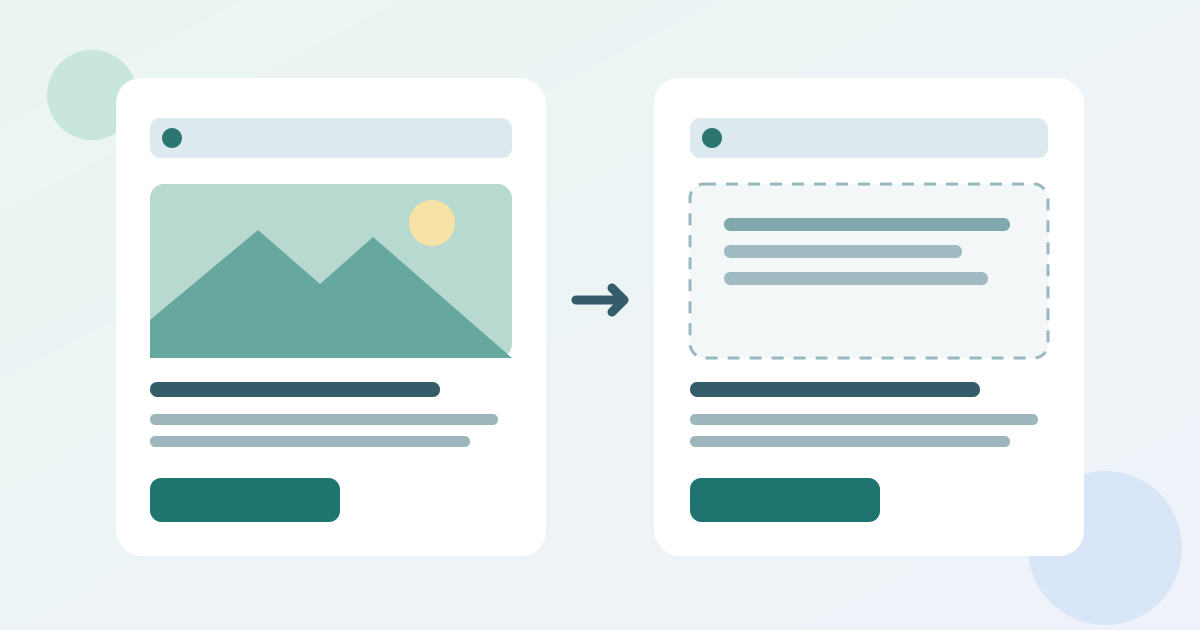
Read the email with every image concealed. Can someone identify the event, understand why the message arrived, find the current date and place, and reach the intended next step? If not, repair the body copy and links first. Alt text is a substitute for a particular image, not a second version of the whole email. The same picture can need different wording when its purpose changes between a save-the-date and a speaker announcement.[1]
Look at the nearby heading and caption before writing. If they already give the same information, repeating them in the alternative adds noise. Record the image’s purpose in one sentence, then decide what would be lost without it. W3C guidance bases the alternative on an image’s role in context.
Assign each image a job
Sort images into three working groups. An informative image contributes a fact or identification that surrounding text does not provide. A functional image is the link or control itself. A decorative image adds atmosphere or layout but no necessary information. A complex image, such as a map or programme grid, may need a concise identification plus an equivalent in nearby text or on a maintained destination page.[1][3]
Do not assume that every photograph needs a visual inventory. A stage photograph beside a complete event title may be decorative; a portrait that identifies a newly announced speaker is informative. Decide from this email, not from the image filename. Ask a reviewer who knows the approved programme when the visual appears to convey a factual claim.
Write for the event decision
For an informative image, say what the reader needs for the next decision. “Speaker Ana Silva at the lectern” may be enough when her name and role are already in live text. If a venue entrance photo distinguishes the accessible arrival point, describe that distinguishing information only after the venue has confirmed it. For a sponsor logo, use the approved organization name when identification matters.[1]
- Poster: keep date and venue in body copy; use a short poster alternative only for what remains informative.
- Portrait: identify the person or linked biography when that is the image’s purpose.
- Logo: use the approved sponsor name if recognition matters; otherwise assess whether it is decorative.
- Graphic CTA: name the action and destination, and verify the link.
Avoid “image of” unless the medium itself matters. Avoid speculative names, pronouns, dates, route claims or capacities. Do not copy a poster’s entire text into a huge alt attribute. Move important poster information into selectable body text, then give the poster a short alternative appropriate to its remaining purpose.
Treat image links and decorative art differently
An image-only button needs an alternative that names its action or destination, such as “View ticket options for [Event].” A decorative flourish can use an empty alt attribute, alt="", so assistive technology can skip it. A linked image is not automatically decorative: if it is the only link to a destination, its purpose must still be understandable. W3C distinguishes functional from decorative images on this basis.[1][2]
Check the link itself, not just the wording. If a speaker portrait links to a biography, the alternative may identify the biography action; if the same portrait is unlinked and the biography link follows in live text, a different or empty alternative may fit. Keep adjacent links from announcing the same action twice without benefit.
Keep essential details in live text
Place date, time zone, venue or online access details, ticket choice, price conditions and changes that affect attendance in normal email text when they matter to the message. A poster screenshot can be a useful visual, but images may be unavailable and a long alt string is hard to scan. For a schedule graphic, provide a short label and a readable schedule in the message or at a current, clearly named link.[3]
Make a single approved source of event facts available to the editor. Before sending, compare the email’s visible text, alternatives and linked page with that source. If the plan changes, update all three surfaces. Alt text must not be the only place where a correction or access instruction appears.
Localize and verify the facts
Translate an alternative for the audience of each email version. Keep official event, venue, speaker and sponsor names as approved; translate the action and explanation naturally. Do not use machine output unchecked for directional information or names. The French or Japanese alt text may need a different word order to state the same purpose clearly.
For every locale, have someone compare the localized alternative with the localized heading, button and destination. A translated alt attribute that says “register” while the linked page offers only a waitlist creates a misleading action. If an image contains embedded words, the translation review must also decide whether to replace the artwork or present those words in live text.
Test the delivered email
Send a real test message through the chosen email service and inspect it in the inboxes or clients your team can reasonably test. Turn images off or block remote images; read in a screen reader or accessibility tree if available; follow each image link. Some clients show only part of an alternative or suppress it for certain image layouts, so do not rely on a universal character limit or a preview pane alone. Mailchimp documents this client variation for its own campaigns.[4]
Check the fallback at narrow width and in forwarded or quoted email if that is a common reader path. Confirm that an empty alternative stays silent, a linked image has a discernible action, and live event facts remain legible. Record the client and result rather than claiming that one test certifies every inbox.
Use an image-by-image review register
Use one row per image and locale. Record the image reference, its role, nearby text, approved factual source, link destination, draft alternative and reviewer decision. Mark what happened with images off and who will repair any unresolved gap. This keeps the content decision visible when a designer replaces the artwork late in production.
The editable register below includes example rows and a send-blocking exception field. Copy it for the campaign; it is an English worksheet, while the article guidance is available in six languages. Keep subscriber or personal data out of this content log.
Download the event email image alt-text review register (Markdown, English)
Sources and further reading
- Images TutorialW3C WAI · Accessed
- Decorative ImagesW3C WAI · Accessed
- Understanding Success Criterion 1.1.1: Non-text ContentW3C WAI · Accessed
- Add Alt Text to ImagesMailchimp · Accessed