How to cancel one ticket in a multi-ticket event order
When one attendee will not use a ticket from a multi-ticket order, start only after the event’s policy and payment decision has been approved. A ticket cancellation, a void, a refund and a buyer notice may be separate operations. Identify the exact ticket before changing anything.
Boletolibre editorial team
Published
1. Identify the ticket, not just the order
Download the per-ticket before/after verification card (Markdown, English)
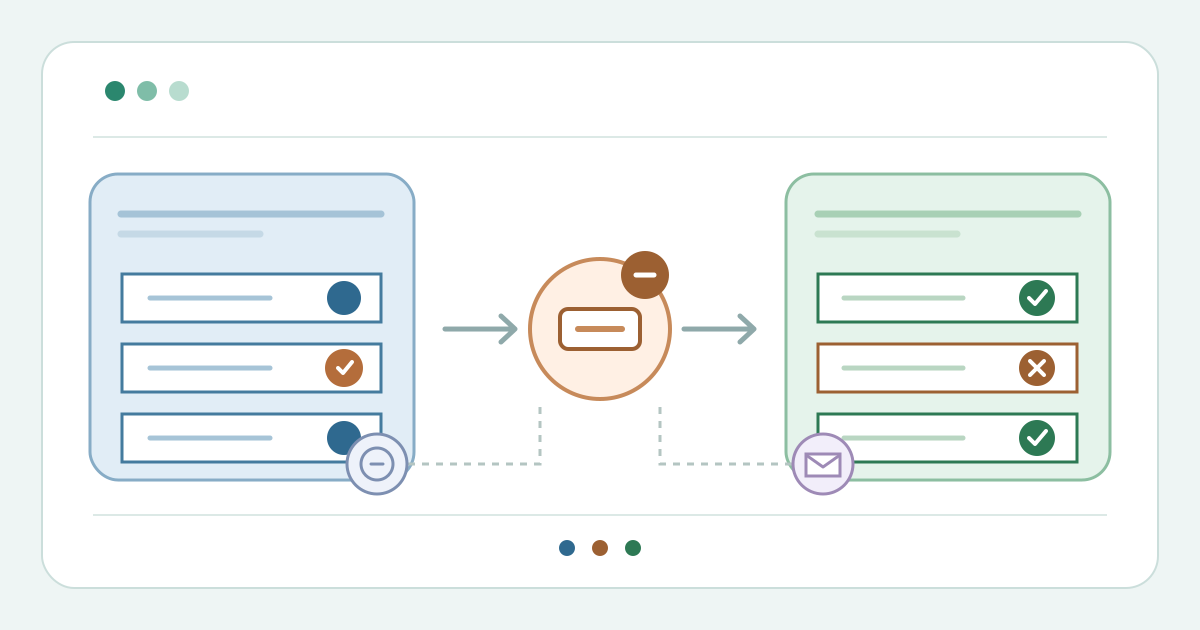
Open the order and list its individual ticket IDs, types and current admission states. Match the approved request to one exact ticket; record which tickets must remain usable. Do not choose a top-level order action simply because the buyer purchased all tickets together. Use the card to capture a before snapshot and the authorized outcome without copying names or payment details into it.
2. Select the supported ticket-level action
Check your provider’s documented control and its scope before confirming. Eventbrite’s free-order guide distinguishes an order-level Actions menu from the menu beside one ticket. Eventcube documents selecting an individual ticket to revoke. Ticket Tailor distinguishes voiding a ticket from cancelling and refunding a line item. Peatix says partial cancellation can be unavailable for some payment methods. If your provider cannot isolate the intended ticket, stop and route the case to its supported alternative.[1][4][3][5]
3. Keep payment and notice decisions separate
Apply only the ticket action the decision owner approved. In Ticket Tailor, a line-item refund can leave the ticket valid unless the separate Void items option is selected; voiding alone has no payment effect. Eventbrite says cancelling a free ticket emails its attendee, while deleting does not. Check the actual platform’s notice preview or record after the action. Keep the approved payment or credit outcome in the payment system; do not infer it from an admission-status change.[2][3][1]
4. Verify every ticket after the change
Reopen the order and compare every ticket ID with the before snapshot. Confirm the target no longer grants admission and the other tickets retain their intended status. Check whether the provider changed available stock, an assigned seat or a waitlist; do not assume any of those effects or that a cancelled ticket can be restored. Record the buyer-notice result and give check-in staff the final ticket status, without circulating payment information. Escalate any mismatch before anyone tries to admit the group.[4][1]
Sources and further reading
- Cancel or delete a free orderEventbrite Help Center · Accessed
- How to refund one ticket in an orderTicket Tailor Help Centre · Accessed
- How to void individual tickets in an orderTicket Tailor Help Centre · Accessed
- How to Revoke an Individual Ticket from a Single or Multi-Ticket Order on EventcubeEventcube Help Center · Accessed
- How to respond to ticket cancellation requestsPeatix Help Organizer · Accessed