How to change the quantity of an existing event ticket type
A ticket type’s quantity and the event-wide capacity are different controls. Use this workflow when an existing offer needs more or fewer issuable tickets, after its allocation is approved. A per-order purchase limit is different again.
Boletolibre editorial team
Published
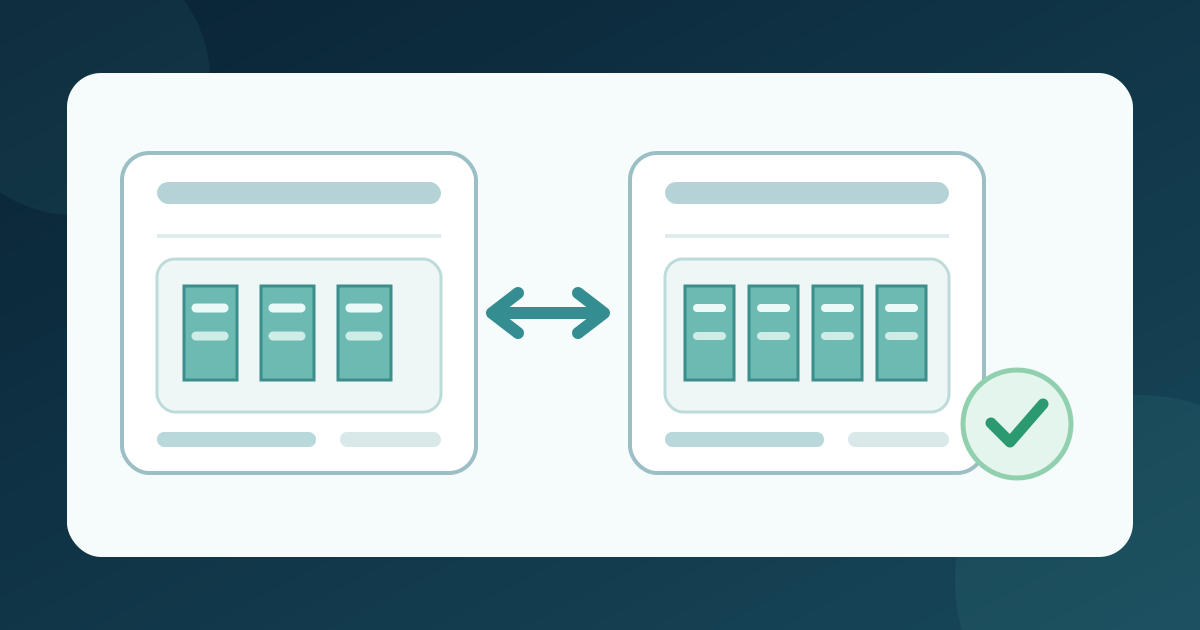
1. Capture the starting numbers
Download the ticket-type quantity before/after card (Markdown, English)
Record the event and occurrence, the exact ticket type, its configured total, tickets already issued, and remaining quantity as your platform reports them. Note the separate event-wide capacity and whether other types share it. If numbers are missing or the event uses reserved seats, resolve the inventory model with the owner before editing. Do not treat a ticket-type label as permission to exceed an approved venue limit.
2. Open the existing ticket type
Find the existing type in the organizer ticket editor, rather than creating a second type with the same name. Eventbrite directs organizers to Tickets, then the selected ticket type; its new total is entered under Available quantity. Ticket Tailor uses Events, Edit event and tickets, then the type’s Change quantity control. Those menu names belong to their providers; confirm the field’s meaning on your own platform before saving.[1][2]
3. Enter the intended change
Write down the desired new total and the size of the change. Ticket Tailor’s control asks whether to increase or decrease the current total: to move from 20 to 25, its example enters 5. It says a type cannot be reduced below its already-issued tickets. Eventbrite instead asks for a new quantity and says the change applies immediately after saving. Review the preview or confirmation your platform provides, then save once.[1][2]
4. Verify the saved result
Reopen the type and compare configured, issued and remaining figures with the baseline. Check that the event-wide cap and other types still have their intended settings. If the event is published, inspect the buyer page for the changed type and try the approved non-purchasing preview or test route, if offered. Eventbrite distinguishes the type quantity from its event capacity; Ticket Tailor says type limits can exceed its separate event cap. Neither fact is a reason to raise the event cap. Record the operator, time and any discrepancy for correction before promoting the new availability.[1][2]
5. Work a two-type check
Imagine an event with a configured event cap of 100. Type A is set to 30, with 20 issued; type B is set to 70, with 40 issued. The owner approves changing A to 35 while B and the event cap stay fixed. In Ticket Tailor’s increase-by-amount control, that is a change of 5; in Eventbrite’s new-quantity field, it is 35. This example does not create five new event-wide places. Check the provider’s actual remaining and issued figures after saving, including any other valid entitlements or holds that your event records show.[1][2]
Sources and further reading
- Change your event capacityEventbrite Help Center · Accessed
- How do I limit the quantity of tickets?Ticket Tailor Help Centre · Accessed