Check an email campaign send time across a daylight-saving change
A scheduled email can show a familiar clock time while the underlying UTC instant changes. Around a daylight-saving transition, that can put a reminder on the wrong side of a registration cutoff or land it at an unexpected hour. Use a dated schedule proof before release; do not assume one fixed offset works for every date or recipient.
Boletolibre editorial team
Published
Why a clock change matters
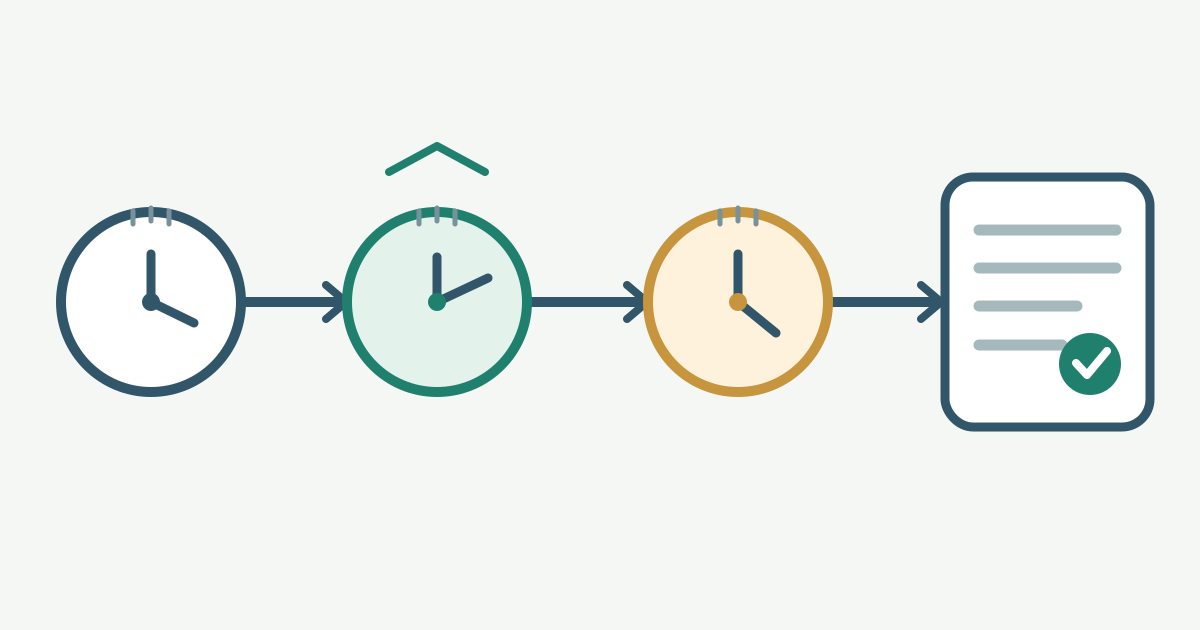
A wall-clock label such as 09:00 is incomplete without a date and time zone. Some places change UTC offset seasonally; others do not, and governments can revise the rules. IANA's time-zone database records those location-based changes. A fixed label such as GMT or UTC−5 cannot stand in for a city zone on every future date. The risk is greatest when the campaign, audience and event cutoff use different zones.[3][4]
A local time near a clock change may be skipped in spring or repeated in autumn. RFC 5545 describes those cases for calendaring data, but an email platform may resolve or reject them differently. Avoid scheduling inside a transition window when a clear daytime option is available; check the provider's saved schedule rather than guessing its rule.
Identify the actual delivery mode
Write down whether this is one send at the account's scheduled time, a recipient-local-time feature, or separate sends by segment. Mailchimp recommends choosing a local account time zone rather than an absolute GMT setting when seasonal changes apply. Its standard scheduled email displays the saved date and time after confirmation. Review that displayed value after any account-zone or campaign change.[1][2]
Mailchimp Timewarp is a distinct recipient-zone delivery feature, not a synonym for ordinary scheduling. It uses inferred location; contacts without location data receive the account default-zone batch, and the feature needs advance setup. Availability and behavior depend on the account and message type. If using another provider, verify its own zone source, lead time and fallback before using the same plan.
Build a dated schedule proof
For each send, record the intended local date and time with a named zone such as Europe/London, the corresponding UTC instant for that date, and what the platform actually shows. Do the same for the event's registration close or start time. A one-hour shift in the send zone and no shift in the event zone can change the interval even when both wall clocks look unchanged.[3][2]
For a recipient-local send, test representative zones and the unknown-location fallback. Do not claim that IP-derived location is the person's current time zone: travel, proxies and old activity can make it stale. Ask whether the last recipient batch would still arrive before the event or purchase deadline. A promised ‘24 hours left’ needs a measured interval for each relevant batch, not just the organizer's clock.
Work through one offset change
Suppose a team wants a campaign to leave at 09:00 in London before and after the UK clock change. On a winter date, 09:00 in Europe/London is 09:00 UTC; on a summer date it is 08:00 UTC. Those are different instants, though the intended local hour is the same. A fixed 09:00 UTC setting would instead appear as 10:00 in London during summer.[3]
This is a conversion example, not a recommended send hour. Enter the actual dates in a current zone-aware tool, inspect the provider's saved schedule and record the result. If the event closes in another zone, convert that deadline separately; do not subtract a fixed number of hours from last month's campaign.
For concrete 2026 dates, 15 January at 09:00 Europe/London is 09:00 UTC, while 15 July at 09:00 Europe/London is 08:00 UTC. On 29 March 2026, 01:30 London local time does not occur; on 25 October 2026, 01:30 occurs twice, at 00:30 UTC and 01:30 UTC. These are zone-rule examples, not predictions of how an email provider will accept or resolve those inputs.
Check the difficult cases
Give extra attention to sends on the transition date, just before a ticket cutoff, and to countries that change clocks on different dates. If a local hour does not exist or occurs twice, choose an unambiguous later hour and recheck the UTC instant. If the message is segmented by region, compare every version's local send and destination deadline. Ensure the same contact will not get both an old and a corrected schedule.[4][2]
For Timewarp, the earliest recipient zone starts first and later zones follow; Mailchimp says to plan at least 24 hours ahead. Its default-zone batch handles contacts without location data. A campaign with time-sensitive facts may need a common instant or separate regional versions instead. Choose the delivery mode from the deadline, not from a generic ‘best time’ claim.
Approve, monitor and revise
Before confirming, have a second person compare the saved provider date/time, account zone, recipient rule, cutoff, message wording and current audience snapshot with the proof sheet. Save a screenshot or export of the scheduled state. If the clock rule, deadline, audience or event fact changes, pause and inspect the provider's rescheduling procedure; Mailchimp warns that pausing very near delivery may be too late. Reconfirm the new saved state, and do not create a second scheduled copy until the first one's status is known.[1]
After the send, record the actual provider timestamps and any recipient reports of an odd hour. Delivery can vary after a campaign is queued, so distinguish the intended instant, the provider's scheduled instant and observed delivery. Use that evidence to improve the next schedule, without treating a single open-rate change as proof that the clock-change plan worked.
Download the send-time proof sheet
The editable sheet captures the location-based time-zone choice, the fixed-versus-recipient-local mode, expected UTC instants, the latest useful arrival, unknown-location behavior, approval and post-send evidence. It is a planning record, not a scheduling control in an email platform.
Download the daylight-saving send-time proof sheet (Markdown)
Sources and further reading
- Schedule or Pause a Regular EmailMailchimp · Accessed
- Use TimewarpMailchimp · Accessed
- Time ZonesInternet Assigned Numbers Authority · Accessed
- RFC 5545, Date-TimeIETF · Accessed