Should an event ticket link open in a new tab? A release check
A ticket link has two separate decisions: where it goes and what happens to the current browser tab. An external checkout is not, by itself, a reason to force a new tab. Decide from the attendee's actual starting point and test what they see after activating the link. This checklist covers tab behavior; use the separate shareable-link guide to choose the public destination.
Boletolibre editorial team
Published
Confirm the starting point and destination
List each ticket action on the live page: header button, price card, session page and footer. Record its exact destination, event edition, date and language. A link to the event overview and one directly to a hosted checkout may behave differently. Confirm which page owns ticket details and who can correct a wrong destination. Keep a plain, descriptive link such as ‘Tickets for [event and date]’ even if the button has a short visual label.
Use the same tab unless a new one solves a real problem
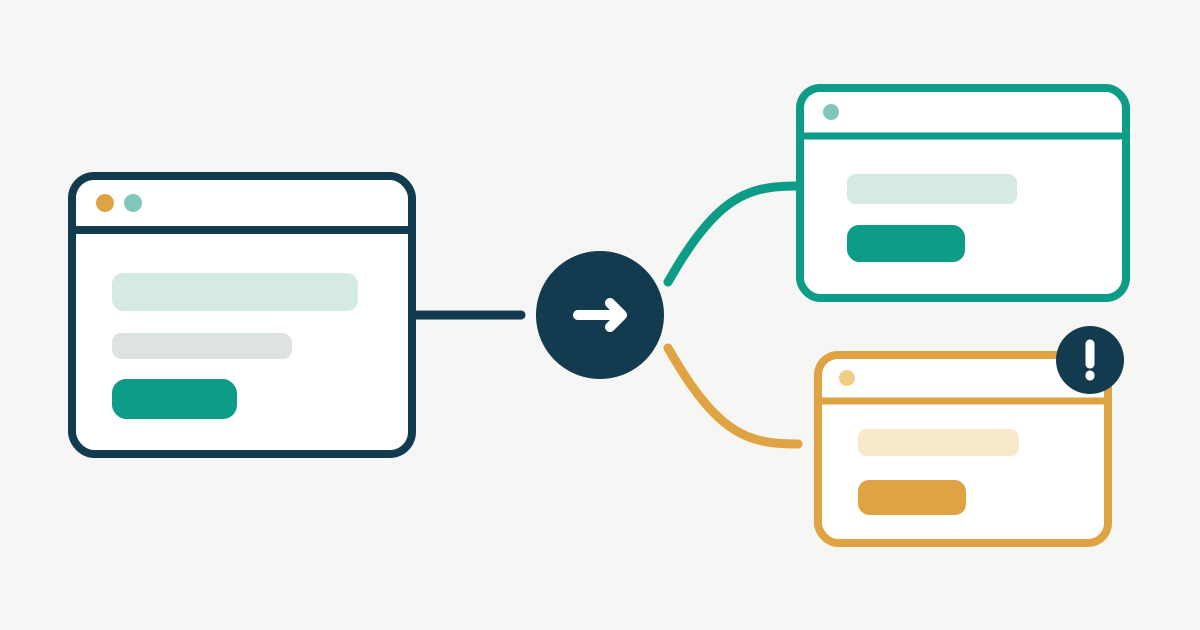
For a normal event-page-to-ticket journey, keep navigation in the same tab so the browser's usual Back path remains available. W3C advises limiting new windows and tabs because they may disorient people. A new tab can be reasonable when following the link would interrupt an in-progress form or other state the attendee needs to keep; verify that risk in the actual service rather than assuming it. Do not force a new tab just to keep your event page open or because the destination is on another domain. The ticket provider may have its own redirect or sign-in behavior, so inspect the full route.[1]
If a new tab is necessary, say so before the click
When a justified link opens another tab, put the warning in visible link text or immediately alongside it, for example ‘Tickets for [event and date] (opens in a new tab).’ Ensure the warning is also available to assistive technology. W3C treats advance warning as an advisory technique, not a universal compliance certificate. Describe the destination as well as the tab change; ‘Continue’ alone gives little context. Apply the same wording to repeated ticket actions that lead to the same place, and remove the warning if the implementation changes back to same-tab navigation.[2][3]
Test the published link as an attendee
Copy the link from the published page, not only the editor. In a signed-out phone browser, activate every ticket action and verify the intended event, date and checkout entry point. Repeat with a keyboard: reach the control, read its label and warning, activate it, and confirm where focus lands. If a second tab opens, return to the original page and check that its state is intact; if the same tab opens, test Back. Record unexpected prompts, lost form entries and provider redirects for the responsible owner. Retest after a ticket-provider or page-template change. The worksheet keeps each link's decision, owner and observed result together.
Download the editable ticket-link tab and release worksheet (English Markdown)
Sources and further reading
- Opening new windows and tabs from a link only when necessaryW3C WAI · Accessed
- Giving users advanced warning when opening a new windowW3C WAI · Accessed
- Providing link text that describes the purpose of a linkW3C WAI · Accessed