Keyboard accessibility testing checklist for event websites
A guest should be able to discover an event, inspect sessions and reach registration without relying on a mouse. The leading Google result for “website keyboard accessibility testing checklist” covers focus order, visible focus, traps, forms, widgets and retesting. This original event-site version turns those areas into real guest tasks. It is a manual first review; a completed sheet alone does not establish WCAG conformance.
Boletolibre editorial team
Published
Choose tasks across the complete event route
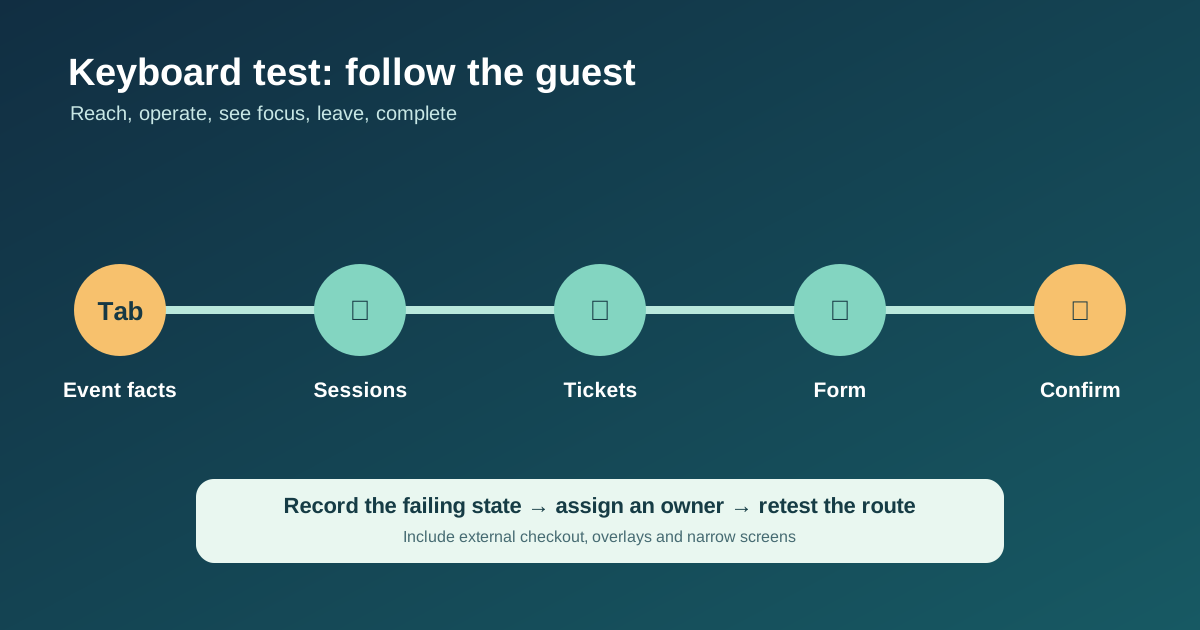
Write down the paths a guest actually takes: open the event page, find date and venue, browse a session schedule, use a filter or accordion, inspect access details, follow the ticket button, choose a ticket, fill a form and read confirmation. Include overlays, cookie controls, maps, video players and any external ticketing or checkout domain. A component can pass on a static page yet fail when opened or after validation. The leading checklist recommends testing dynamic states and whole journeys; record the platform owner for each step.[1]
- Use a fresh browser session and do not touch the mouse after starting.
- Note the URL, viewport and state before each action.
- Use safe test data or a sandbox for checkout; do not create an unintended charge.
Watch visible focus on every screen size
The focused link or control should be apparent to a sighted keyboard user. Inspect sticky headers, fixed ticket bars, cookie banners and chat bubbles at desktop and narrow widths, and at zoom. W3C’s Focus Not Obscured (Minimum) criterion says author-created content must not entirely hide the focused component; the stronger editorial goal is to keep it clearly visible. Capture a screenshot of the failing focus state and the exact action that produced it.[4]
Recover from errors and finish the guest task
Test a required-field error and a realistic invalid input using keyboard only. Can you find the message, return to the affected field, correct it and resubmit? Check custom date and ticket-quantity controls, sign-in steps, payment widgets and final confirmation on the actual external platform if one is used. A form that can be reached but cannot be completed is still a blocker. The related full registration accessibility audit also covers labels, requests and screen-reader feedback; use both records rather than treating a keyboard pass as a complete accessibility review.[1][2]
Log evidence, fix and retest
Use one worksheet row per task or failing state. Include keyboard sequence, expected and actual result, guest impact, screenshot or recording reference, provider owner and retest outcome. If a blocker lives on an external ticket platform, assign an owner to contact that provider and offer an accurate alternative support route while it is unresolved. Re-run the complete guest path after a fix, because changed focus behavior may affect nearby controls. W3C describes its easy checks as preliminary, not a comprehensive evaluation.[2]
Download the original event website keyboard test record (CSV)
Sources and further reading
- Keyboard Accessibility Checklist for Websites and Web AppsIAAP Audit · Accessed
- Easy Checks: A First Review of Web AccessibilityW3C Web Accessibility Initiative · Accessed
- Understanding Focus OrderW3C Web Accessibility Initiative · Accessed
- Understanding Focus Not Obscured (Minimum)W3C Web Accessibility Initiative · Accessed
- Understanding No Keyboard TrapW3C Web Accessibility Initiative · Accessed