How to cap sign-ups for individual conference sessions
An event registration does not necessarily reserve a place in a particular workshop or breakout session. If attendees choose sessions, define each bookable session and test its own limit before opening the form. Keep the approved room limit, the signup ceiling, and the number of people who actually enter the room as separate records.
Boletolibre editorial team
Published
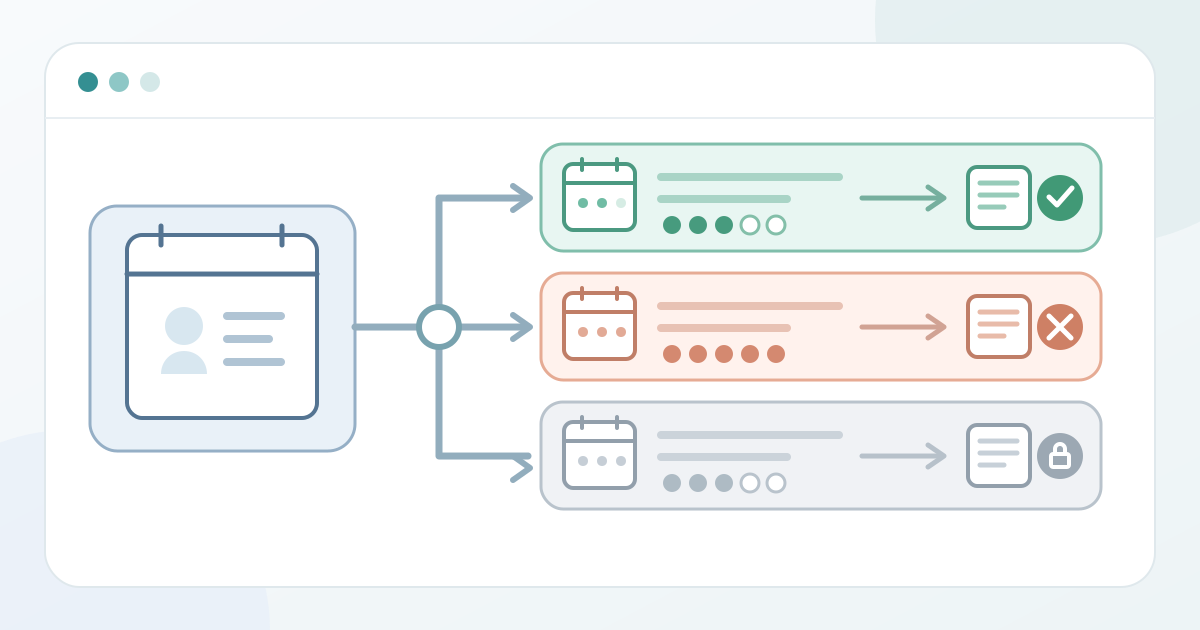
Define the session and approved signup ceiling
Download the session-by-session booking test matrix (Markdown, English)
Create one row per bookable session with its exact title, date, time, room and intended audience. Identify whether the session is optional, included with an event registration, or needs a separate selection. Record the authoritative source for that decision. If a session is offered in two time slots, treat the slots as separate booking units unless the chosen platform explicitly shares their inventory. Name the person who approves changes to each row.
Enter a signup ceiling only after the room and operating team have approved the applicable limit. The registration setting is a sales or booking control; it cannot establish a safe room capacity by itself. Keep the approved limit and its owner next to the configured ceiling. Account for any places already committed through invitations, speakers, holds or other channels before deciding what the public form may offer. Do not silently convert an event-wide ticket cap into a session cap.
Configure booking, capacity and visibility
Find the controls in the selected provider for session availability, selection, per-session capacity and attendee eligibility. Check whether the form requires a session choice, permits several choices, blocks schedule overlap, or merely adds an item to a personal agenda. Those are different outcomes. Write down the exact behavior you intend and which control provides it; if a necessary control is absent, resolve the workflow before publishing rather than relying on a label that looks similar.
In Microsoft Customer Insights - Journeys, the session maximum capacity and the switch allowing attendees to register for sessions are separate settings. Its registration form must include a Sessions element for attendees to choose sessions. Microsoft also documents optional single-session and required-selection controls, and says its event capacity must be at least as high as each session capacity. These are Microsoft rules and interface steps, not defaults to apply in another system.[1]
EventMobi documents a per-session Capacity field, distinct Session Access Control for who can see a session, and an Allow Overlap setting. Its guide says an empty Capacity field means unlimited signup in EventMobi and that a full session is shown as full to attendees. Record the behavior of your actual provider rather than assuming blank, hidden, closed or full mean the same thing. An access group may determine visibility without changing the number of places.[2]
Check the attendee selection path
Open the attendee-facing form or preview with an eligible sample profile. Confirm that the right session title, time, room and selection instructions appear. Select an available session, complete the authorized sample registration, and read the confirmation or personal agenda. Identify whether it says the session is reserved, merely saved for later, or still requires another action. The buyer message should agree with the organizer record, not just with the button that was clicked.
Repeat the view with a sample that should not be eligible and with a session that has reached its configured limit. Check what each profile can see, select and complete. Microsoft requires its Sessions form element for session-level registration; EventMobi describes separate visibility and capacity settings. Neither example proves that a different provider will hide an excluded session, show remaining places, maintain a waitlist or block a checkout in the same way. Document the actual buyer-facing result.[1][2]
Rehearse the boundary and inspect the records
Use a controlled test setup or reversible sample records, never an unplanned live guest. For each session, record the starting signup count and limit. Book an eligible place and check that the specific session roster changes by the expected amount. Test a different session at the same event and make sure its count stays separate. If attendees can choose several sessions, test a valid combination and one overlapping or excluded choice according to your own intended rule.
Next test the boundary: attempt the last available place, then one more signup when the session is full. Capture the buyer message and the resulting organizer count; do not infer enforcement from a gray badge alone. If you cannot safely fill a session with samples, use a temporary low limit in an authorized test setup and restore the approved configuration afterward. Check how cancellations or removed selections affect available places in this provider before promising that a space automatically returns.
Compare the event registration record with the roster for the exact session. Microsoft exposes event-level registrations and each session's registrations in separate locations. Verify that the sample appears where the booking promise says it should, that an excluded or full attempt did not add a place, and that the displayed count matches the recorded rows. A session booking does not prove admission at the venue or actual attendance in the room; those processes need their own checks.[1]
Hand off ownership and control later changes
Give the registration owner a current matrix of sessions, approved limits, configured ceilings, visibility rules, tested buyer outcomes and roster locations. Assign one exception owner for mismatches, oversubscription or a missing session. Before opening registration, have that person sign off the buyer view and the organizer counts. Tell support staff what a confirmed session place looks like in the authoritative record and how to escalate a disputed booking without improvising a new entitlement.
When a room, session time or signup ceiling changes, update the approved matrix first. Then change the provider setting, repeat the relevant eligible/full/excluded tests, and inspect the before-and-after roster and available-place count. If the new ceiling is below bookings already recorded, stop and resolve those commitments with the responsible organizer before making a public promise. Preserve a dated handoff so the next shift knows which limit and buyer message are current.
Sources and further reading
- Set up session-level registrationMicrosoft Learn · Accessed
- Sessions: Learn How to Create Sessions for your AgendaEventMobi Knowledge Base · Accessed