How to diagnose a website 500 error after a CMS update
A public 500 error after a CMS, plugin or theme update is urgent, but the update is only a clue. HTTP 500 says the server could not complete the request; it does not identify the faulty component. Use the failing URL, change time and server evidence to choose the smallest safe recovery action. Keep an independent attendee information channel ready if registration is near.
Boletolibre editorial team
Published
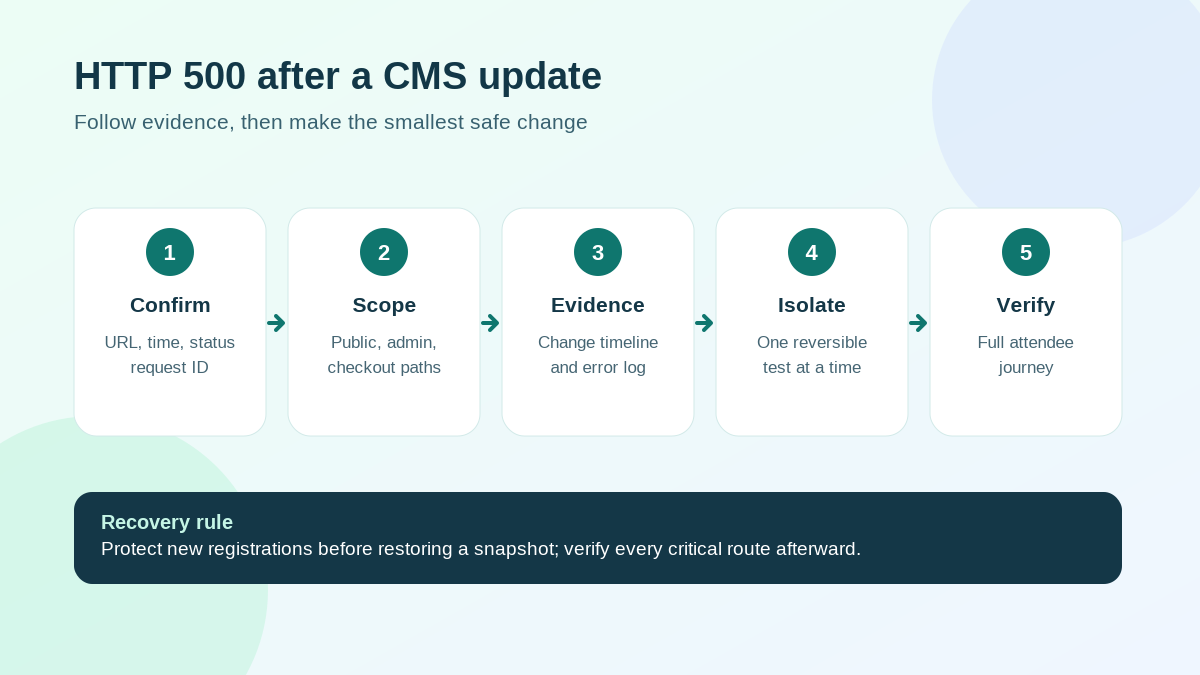
Confirm the failure and preserve the first facts
Download the editable 500-error evidence worksheet (Markdown, English)
Record the exact public URL, time with time zone, status code and what the visitor sees. Test the homepage, event detail page, registration start and administrative login separately from a private window and another network if available. A browser’s generic error screen is not a diagnosis; ask an operator or host to confirm the actual HTTP response and request ID. HTTP 500 is a general server error that can come from configuration, an unhandled exception, memory pressure or permissions.[1]
Stop nonessential publishing and record the last known good time. Capture which CMS core, plugin, theme, PHP/runtime, configuration or deployment changed, who made it and when. If ticket checkout lives on another service, check its official destination independently; a working ticket provider does not prove the event site is healthy.
A page that looks broken is not always the request returning 500. A document may load with 200 while a registration API call fails, or the browser may display a cached error after the server has recovered. Record the status of the exact document or action request and repeat it once with a fresh session. Do not submit a live registration repeatedly to reproduce a fault; use a read-only public route or an approved test identity. Preserve the original response time, URL and request identifier before a reload hides them.[1]
Map the affected paths before changing anything
A 500 on every public path points to a shared application or host layer. A 500 on one event page can point to that page’s rendering or data. An error only in the admin may leave attendees unaffected but block urgent corrections. Test both logged-out and editor paths; do not infer that every visitor is affected from one administrator screenshot.
Use this triage grid to make the next check explicit. It is a hypothesis map, not a fault diagnosis: the same symptom can have several causes.
| Observed scope | Likely layer to inspect first | Next evidence |
|---|---|---|
| Every public route fails | Shared CMS, runtime or hosting | Host/PHP error at onset; recent global change |
| One event route fails | Page template, content or page-specific data | Exact URL and related exception |
| Admin fails, public site works | Editor-only plugin or admin action | Admin request, recovery email, PHP error |
| Site works, checkout fails | External ticket or payment service | Official provider status and handoff URL |
Build a small route-and-actor matrix before naming a cause. Compare one working static asset with two dynamic pages, one affected and one unaffected event page if available, and the same path logged out and as an editor. Test a translated route if the failure appears locale-specific. A static image returning 200 only shows that delivery path works; it does not prove the CMS, database or registration flow is healthy. Mark each route as failing, working or untested, with a timestamp, so later changes can be judged against the same baseline.[1]
Match the failure to the change and logs
Compare the first failing request with the update timeline. Read the host’s server or PHP error log around that timestamp and look for the failing file, exception, resource limit or request identifier. Keep private data out of shared screenshots and support tickets. If the CMS is WordPress, its official debugging guide explains WP_DEBUG_LOG and warns that debug tools are intended for local or staging use; never expose errors to public visitors just to diagnose a live failure.[2]
If WordPress sent a recovery-mode message, use the official route to identify a paused plugin or theme. Treat that message as evidence, not proof that the named component is the whole cause. Where logs or file access are unavailable, send the host the URL, UTC time, observed status, update list and request ID and ask for the corresponding server error. Recovery Mode pauses the extension only for that administrator’s browser session; recheck the public route while logged out before calling the incident fixed.[3]
Give the operator a narrow evidence request: exact URL and method, UTC time window, response status, request ID if present, and the first relevant error line or stack frame. Match repeated failures by path and timestamp instead of searching an entire log for any mention of the updated plugin. A warning from yesterday or a recovery email alone is weaker than an exception tied to today’s failed request. If logs are unavailable, write “cause unconfirmed” and ask the host for correlation; do not create a public debug page as a substitute.[2][1]
Isolate the smallest plausible cause
Start with the component changed immediately before failure, but make one reversible change at a time. In a WordPress site, an operator can deactivate a suspected plugin in the admin; if the admin is inaccessible, WordPress documents disabling plugins through a file manager, then reactivating them individually. Switching to a default theme can test a theme conflict. Use a staging copy when possible so investigation does not create additional public changes.[4]
Do not blindly raise memory limits, overwrite core files, delete .htaccess or change permissions because an article lists them as possible fixes. Those actions are appropriate only when matching log evidence and the host’s configuration support the hypothesis. Record the result of each test and restore a test change that did not help.
Write the test before making the change: suspected component, expected improvement, owner, backup or staging state, exact action, and how to undo it. Change only one variable, then retest the original failing URL and an unaffected control route while logged out. If nothing improves, restore the previous state and revisit the evidence instead of disabling the next plugin at random. Do not deactivate an extension that owns registration, payment, access control or email delivery merely to make the homepage green; its absence may turn a visible 500 into a quieter attendee failure.[4][2]
Worked decision: a sponsor widget update breaks public pages
Imagine a sponsor-widget plugin updated at 09:00. At 09:07 the public event page and registration-start page return 500, while a poster image returns 200 and an external ticket provider opens. The WordPress administrator receives a Recovery Mode message naming that plugin, but the public site remains broken. At 09:09 the host’s PHP log shows a fatal error in the widget path for a matching public request. Those clues narrow the hypothesis; neither the image nor the recovery email alone proves the whole visitor journey works.[2][3]
| Observed evidence | Decision | Reversible next step |
|---|---|---|
| Public dynamic routes fail; poster loads | Scope the CMS request path, not every asset | Preserve failing URLs and request IDs |
| Matching fatal error names the updated widget | Test one plausible component; do not claim proof yet | Disable it in staging and retest the same routes |
| Staging passes without the nonessential widget | Consider a controlled production change | Record owner, undo step and before/after results |
| Public pages recover; approved checkout test is pending | Mark service mitigated, not fully recovered | Get provider-approved test evidence and monitor |
If staging deactivation does not change the 500, undo it and look for another matching error instead of disabling unrelated plugins. If it helps, the production operator can make the same recorded, reversible change only after confirming the widget is not needed for registration or security. Verify from a logged-out browser; Recovery Mode’s administrator view cannot stand in for that check. Use an approved test checkout or leave confirmation unverified. This example is a decision sequence, not evidence that any specific plugin caused a real outage.[4][3]
Restore service without losing new data
If a recent update caused the failure, choose the smallest supported rollback or restore path. Confirm what the backup contains: database content, uploads, theme, plugins and configuration may be separate. A full-site restore can replace registrations or edits made since its snapshot; record the time of the backup and preserve any newer data first. WordPress recommends backing up before updates and describes restoring a previous release when an upgrade goes wrong.[5]
If isolation identifies a single plugin or theme, leave that component disabled only if the attendee route still works and its function is nonessential. Escalate payment, registration or security-related dependencies to the responsible provider or developer. If you cannot establish a safe recovery path, let the host or CMS maintainer work from the evidence rather than trying successive production changes.
A file rollback and a database restore have different consequences. Replacing a plugin with a known compatible version may leave new attendee records intact, while restoring a whole snapshot can erase work after its timestamp. Conversely, a plugin update may have changed stored data, so an older file set may not be compatible with the current database. Have the maintainer check the update’s documented rollback path and the backup contents before choosing either. If preservation of recent registrations cannot be proved, hold the full restore and use an isolated recovery rehearsal or provider assistance.[5]
Verify the full attendee path and close the incident
After recovery, verify the original failing URL, homepage, event date and venue, registration start, checkout handoff and confirmation route as a logged-out visitor on mobile and desktop. Check the admin separately. Note the final response code, time, operator and whether any later registrations need reconciliation. Monitor the failing paths through the next high-traffic period; a green homepage alone is insufficient. Use an approved test path for checkout or confirmation; if none exists, mark those steps unverified and ask the provider how to check them safely.[6]
For search visibility, remove the 500 response rather than serving an error message with HTTP 200. Google says repeated 5xx responses slow crawling and persistently failing URLs may leave its index; the response should reflect the real page state. Search Console can help confirm whether crawlers saw server errors, but it is not a live attendee health check.[6]
Define a pass for each critical step, not just “page opens.” The event page must show approved facts; the registration start must accept an approved test path; the ticket link must reach the expected provider; and confirmation must appear through a safe test flow if one exists. A 200 page containing an application error, an administrator-only Recovery Mode view, or a live provider page with a broken site handoff is not a pass. Record any step that cannot be tested without a real purchase as unverified, name its owner, and keep the incident at mitigated status until evidence arrives.[3][6]
Prepare the next update window
Before the next update, document a tested backup and restore path, a staging check, a change log, a host escalation contact and a short list of attendee-critical URLs. Schedule updates away from sales peaks, but keep security updates timely. Ensure an authorized backup editor and communication owner can act if the usual maintainer is unavailable.[5]
Save the incident evidence and the successful fix in an editable worksheet. The useful record is concrete: failing URL, onset, change, log signal, test, result, rollback decision and verified attendee path. It reduces guesswork next time without implying that every future 500 has the same cause.
Turn the incident into a bounded update runbook: a short change window, the exact components and versions, a backup timestamp, a prewritten backout decision, and named people who can change the site and communicate with attendees. Keep the route matrix and safe test identity ready before the next update. After the fix, record which evidence actually established the cause and which checks merely showed correlation. That distinction helps the next team avoid repeating a lucky but unexplained rollback.[5]
Sources and further reading
- 500 Internal Server ErrorMDN Web Docs · Accessed
- Debugging in WordPressWordPress Developer Resources · Accessed
- Fatal Error Recovery Mode in 5.2Make WordPress Core · Accessed
- Common WordPress errorsWordPress Developer Resources · Accessed
- Updating WordPressWordPress.org Documentation · Accessed
- How HTTP status codes affect Google's crawlersGoogle Search Central · Accessed