Duplicate GA4 page views after a website plugin: trace the second hit
A plugin can add GA4 to a site that already sends page views through a theme, Google Tag Manager or another integration. The symptom is two page_view events from one page load or one intended virtual route change, but a report total alone cannot identify the cause. Trace the individual hits, choose one owner for each page view and verify the change on the attendee path.
Boletolibre editorial team
Published
Prove that one action sent two page views
Download the GA4 duplicate-page-view diagnosis worksheet
Open a published event page once in a fresh test session. In GA4 DebugView, look for two page_view events from that same visit with the same page_location. Note their timestamps and whether a browser reload or a genuine route change occurred between them. Two views for two real navigations are expected; a high Views-per-user ratio in a standard report is only a clue, not proof of duplicate collection.[4][1]
Record the exact URL and measurement ID, then repeat once on a second page. If the duplicate only appears after opening a menu, changing a filter or using Back, investigate browser-history measurement. If it appears immediately on the first load, investigate two initial-load senders. Consent choices, browser extensions and debug mode can affect what your own test reveals, so note the test conditions.[4][1]
List every possible sender before changing settings
Make a simple tag inventory: CMS analytics plugin, theme or site-builder integration, a hard-coded Google tag, Tag Manager container, ecommerce or ticket widget, and any vendor-managed page. Mark which person or team owns each setting. A single page may expose more than one Google tag, and a combined Google tag may have both Analytics and Ads destinations; that fact alone does not prove two GA4 page views.[6][2][7]
Before touching a plugin, save its current settings and the published Tag Manager version. Identify the GA4 measurement ID (G-…) used by each route. Record whether the plugin controls Analytics only or also controls Ads conversions, consent settings or checkout events. An empty published GTM container does not rule out a page-builder or plugin installation outside GTM.[6][2][7]
Trace the two hits in a controlled session
Connect Google Tag Assistant to the exact public URL and select the relevant Google tag. In its event timeline, inspect each page-load, configuration and history-change step and whether a hit was sent to the GA4 destination. Compare this with the two page_view events for your device in DebugView. If needed, use the browser Network panel to count requests for the same measurement ID; keep the request log as corroboration, because the tag timeline usually gives the clearer ownership clue.[2][3][4]
Write a two-row evidence note: hit A at time X, triggered by source Y; hit B at time Z, triggered by source W. If Tag Assistant sees two tags but only one GA4 hit, do not remove one merely because it exists. If DebugView shows two events while Tag Assistant does not explain them, check whether the second sender is a separate plugin, embedded widget or tag outside the selected container.[2][3][4]
Classify the duplicate before choosing a fix
On the initial load, a Google tag configuration sends a page_view by default. A second manual page_view from a plugin or GTM can duplicate it. For a single-page app, GA4 enhanced measurement can also send page views on browser-history changes; a GTM History Change trigger that sends another page_view can double-count that virtual navigation. Google notes that send_page_view: false suppresses the configuration hit, but it does not by itself suppress enhanced measurement history hits.[1][5]
Separate those cases before editing. Same page_location and near-identical time at initial load suggests overlapping senders. Two hits after one virtual route change suggest overlapping automatic and manual history measurement. Different page_location values may represent an intended virtual navigation, a redirect, or a misconfigured page_location; examine the user action and tag sequence rather than deleting the later hit.[1][5]
| Observed sequence | Likely place to inspect | Next safe check |
|---|---|---|
| Two hits before any click | Plugin, theme, hard-coded tag and GTM | Match each hit to a sender and the same G-ID |
| One hit on load, two after one route change | Enhanced measurement and GTM History Change | Check both history handlers before disabling either |
| Two tags detected, one GA4 hit | Shared destinations or non-sending tag | Leave configuration unchanged until a second hit is proven |
| Duplicate only on checkout hostname | Vendor-managed page or embedded widget | Trace that hostname and ask its owner |
Change one sender and keep a rollback path
Choose one documented owner for initial page loads and, if relevant, one owner for each virtual page change. In a staging or preview environment where possible, disable only the extra GA4 page-view path. For a plugin-plus-GTM overlap, this may mean turning off the plugin’s GA4 page-view integration while leaving the plugin itself active. For a manual SPA implementation, it may mean adjusting enhanced measurement history tracking. The correct setting depends on the sender shown by your evidence.[2][1][7]
Test the change before publishing and keep the saved configuration ready to restore. Do not remove an entire Google tag, GTM container or shared Ads destination merely to reduce the GA4 count: those paths may carry conversion, consent or checkout measurement. If the owner is a vendor-managed ticket page, ask the vendor what they can change; a setting on your own site cannot control tags on their hostname.[2][1][7]
Worked example: plugin plus Tag Manager
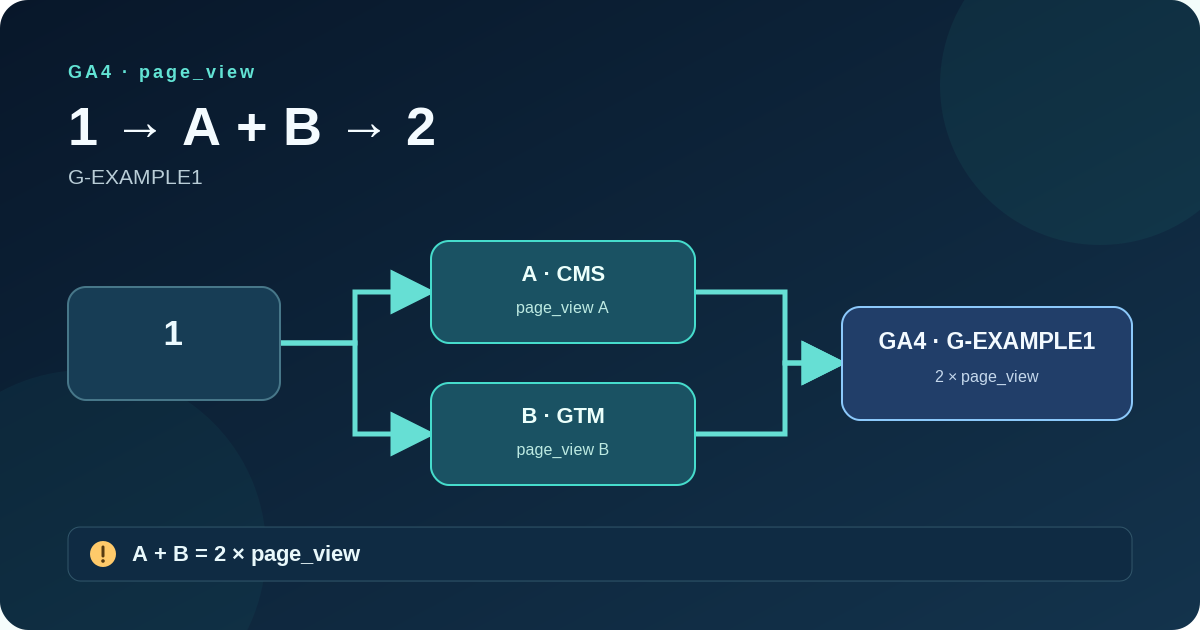
Suppose the event landing page contains a CMS plugin configured with G-EXAMPLE1, while a published GTM container also fires a Google tag for G-EXAMPLE1 on page load. One test visit produces two page_view hits with the same page_location before any click. Tag Assistant identifies one hit from each path. That evidence supports a duplicate initial-load installation; it does not justify changing browser-history settings or referral exclusions.[1][2][7]
Save the plugin settings and GTM version. In preview, turn off only the plugin’s GA4 page-view output, then reload the page once. If one hit remains, test the same page after consent, a second event page, the ticket link and any virtual route change. If the plugin also supplies an Ads destination or purchase event, separate those responsibilities before publishing; if they cannot be separated safely, use a different owner change and retest.[1][2][7]
Verify the complete route and record the change
After publishing, run a fresh controlled visit on desktop and mobile. Expect one page_view for each real page load and, for an SPA, one for each intended virtual page. Inspect page_location and page_referrer when the route changes. Confirm that ticket-link clicks, form outcomes and Ads conversions still fire where they are supposed to; a clean page-view count alone is not a complete release check.[4][6]
Log the date and time of the change, the original two-hit evidence, the setting changed, the test URLs and the final one-hit sequence. Existing historical GA4 reports are not rewritten by a forward-looking tag fix. Compare reporting periods with that change date in mind, and avoid multiplying or dividing all older traffic by two unless an independent audit proves the affected scope.[4][6]
Sources and further reading
- Measure pageviewsGoogle Analytics for Developers · Accessed
- Troubleshoot with Tag AssistantGoogle Tag Manager Help · Accessed
- Find your way around Tag AssistantGoogle Tag Manager Help · Accessed
- Monitor events in DebugViewGoogle Analytics Help · Accessed
- Measure single-page applications with Google Tag ManagerGoogle Analytics for Developers · Accessed
- Verify your Google tagGoogle Analytics Help · Accessed
- Set up your Google tag across your Google accountsGoogle Analytics Help · Accessed