Diagnose payment-provider referrals in event-site GA4
A payment hostname in GA4's referral traffic does not, by itself, prove that ticket attribution is broken. This guide is for an organizer whose own event site runs GA4 and whose ticket or payment journey returns a visitor to that tagged site. If checkout ends on the ticket provider's domain and no tagged return happens, the organizer's site cannot observe that later purchase through a referral setting. Map the journey first.
Boletolibre editorial team
Published
Confirm the return path that GA4 can observe
Download the payment-referral diagnosis worksheet (English Markdown)
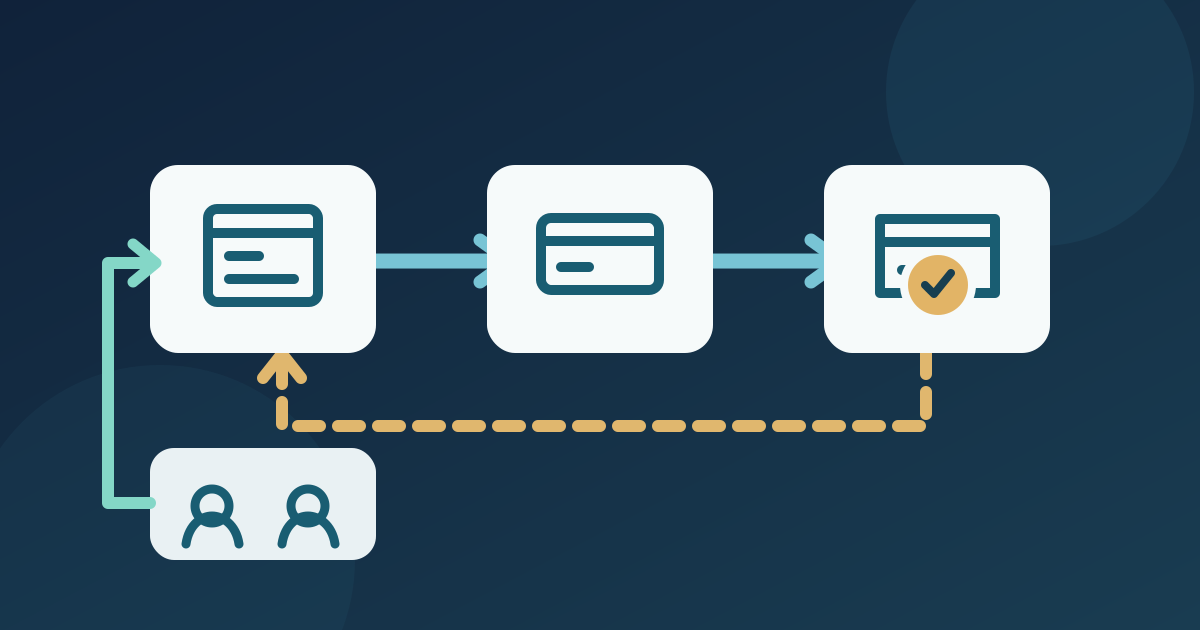
Open the published event page as a visitor and follow its actual ticket button. Record each hostname in order: event page, ticket form, payment step, confirmation page, and any return to the organizer site. Note whether GA4 is installed on the page reached after payment, and whether the ticket provider allows the organizer to configure tags or a return URL. Some checkouts never return to the organizer site. In that case, a payment-domain referral shown elsewhere in GA4 needs a different explanation, and excluding a hostname cannot create missing order events.[1]
Write down the symptom with its reporting scope
In a completed GA4 reporting period, capture the property, web stream, date range, report, and exact Session source / medium row that looks wrong. Session acquisition is the relevant starting view for a new referral; First user source and event-level attribution answer different questions. Record the affected landing page and the observed payment hostname, but do not copy buyer identities into the worksheet. Save the current domain configuration before changing it. Ask the ticket and website owners whether that hostname is an operational payment hop, an owned second site, or a genuine partner sending new visitors.[3][1]
Classify the hostname before choosing a remedy
Use the route, not the name alone, to decide. A third-party payment processor that sends visitors back to the tagged event site is Google's example of an unwanted referral. A venue, sponsor, media outlet, or discovery site that sends people to the event page is a real acquisition source and should remain visible. If the event page and checkout are two domains both legitimately tagged with the same GA4 web-stream tag, cross-domain measurement may be appropriate to preserve an eligible journey. That setup requires compatible tagging and navigation on both domains; it is not a switch that grants access to an external provider's checkout. GA4 already avoids many self-referrals from the same domain and subdomains automatically, so first verify that the apparent problem exists in new session data.[1][2]
For example, imagine an attendee opening a campaign link to a festival page, buying on a ticket platform, and landing on the organizer's thank-you page. If GA4 on that return page reports the payment host as a new session source, the observed return is relevant to this guide. If the provider displays confirmation only on its own domain, the organizer's GA4 never sees that page and its own referral list is not the repair. In either case, the provider's order record remains the source for whether a ticket was actually issued.[1][2]
Make one evidenced, narrow correction
For a confirmed payment return, an authorized GA4 editor can review Admin → Data streams → the web stream → Configure tag settings → Show all → List unwanted referrals. Choose a domain match rule as narrow as the evidenced payment hostname allows, record the old and new setting, and save. Do not add the ticket provider's whole domain merely because the checkout link points there; first prove that it is the referrer on a return to your tagged site. If both domains are under a supported shared tagging arrangement, follow Google's separate cross-domain setup and check that the destination receives its linker parameter. Do not treat the two settings as interchangeable.[1][2]
Test the route and read new processed data
Use an approved test path, such as a provider sandbox or a non-purchase return, with the site's normal consent choices intact. Start from a known event-page entry, record the outgoing ticket URL, payment hostname, return URL, and whether a pageview on your site is observed. Test an alternate payment route and a cancellation route if they exist. DebugView can confirm collected events from your own debug device, but Google says it offers limited attribution analysis; use a later processed Traffic acquisition view to inspect Session source / medium for new activity after the change. Compare the same scope and date window with the baseline. Old reports are not rewritten, and a previously attributed source can still appear for returning users. A cleaner referral row is not proof that ticket orders were measured: reconcile orders with the ticket provider separately and keep any missing return or purchase integration as an open issue.[5][4][1]
Sources and further reading
- Identify unwanted referralsGoogle Analytics Help · Accessed
- Set up cross-domain measurementGoogle Analytics Help · Accessed
- Scopes of traffic-source dimensionsGoogle Analytics Help · Accessed
- Data freshnessGoogle Analytics Help · Accessed
- Monitor events in DebugViewGoogle Analytics Help · Accessed