Image URL returns the wrong MIME type? Trace the response before changing the site
An image on a public page is blank, or an audit flags its MIME type. The extension may say .png while the response says text/html—but that alone does not tell you which setting to change. Follow one image request through its final URL, status, response body and Content-Type, then fix the layer that returned the wrong representation.
Boletolibre editorial team
Published
What the MIME warning does—and does not—prove
HTTP Content-Type describes the representation returned by a request; it is not determined solely by the file extension in the URL. For a PNG image the expected type is image/png, for a JPEG image/jpeg, and for SVG image/svg+xml. The actual file and browser context matter too. A browser may infer some types from bytes, so a wrong header does not prove every browser will show a broken image. Conversely, a 200 response with text/html may be a login page or site fallback rather than an image with one bad header.[1][2][5]
Treat a missing poster or sponsor logo as a specific failed request. The page HTML, its image URL, the network response, and the file that should exist are separate pieces of evidence. Do not rename a non-image file to .png, set image/png on an HTML error page, or remove a security header just to make one browser render it. Those changes hide the cause and can affect unrelated assets.[1][2][5]
Capture one exact image response
Open the public page in a fresh browser session. In the Network panel, reload with the log preserved if the URL redirects, and select the failed image request. Record the requested URL, final URL, host, status, Content-Type, response size and any redirect. Inspect the Preview or Response tab: does it contain image data, an HTML page, a JSON error, or no body? Chrome documents these views and fields. A screenshot of the visible symptom alone cannot answer those questions.[4][1]
Compare the same image URL opened directly and requested inside the page. A different result can point to a redirect, authentication, origin policy or variant selected by request headers; it is not proof of a MIME mapping problem. Check one image that still works on the same host. Preserve the relevant status and headers, but redact signed query strings, cookies and private paths before sharing a capture.[4][1]
Let status, body and type choose the next check
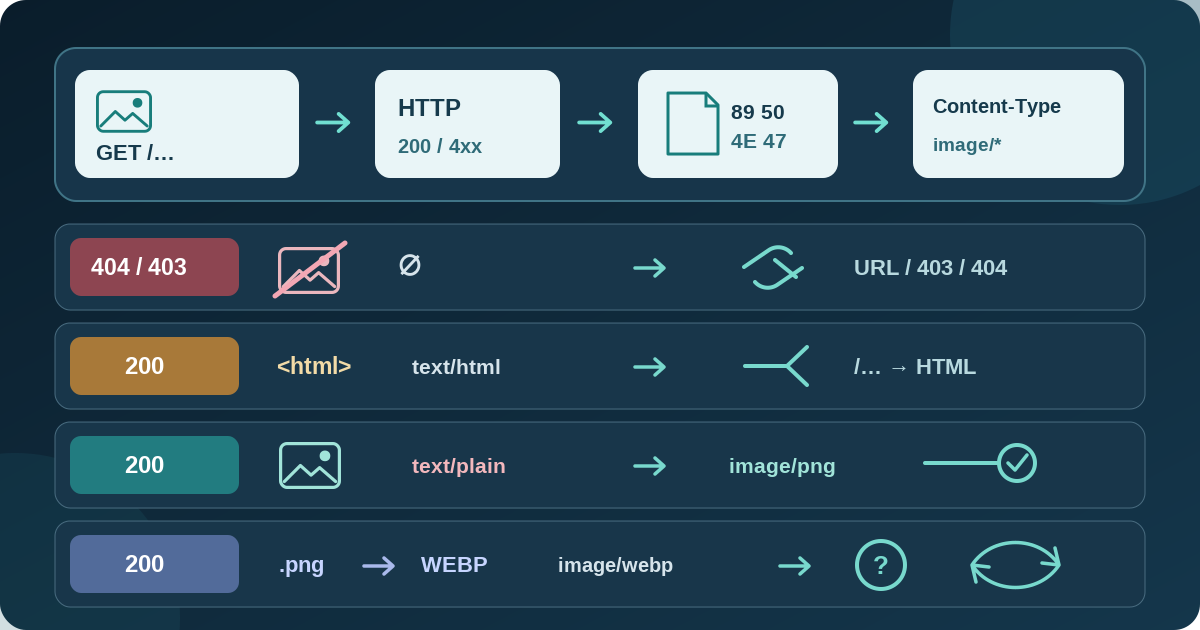
Use this response matrix for the specific request. Start with status and returned body, then compare Content-Type with the real format. A missing file, an HTML fallback and a real PNG mislabeled as text/plain call for different owners and repairs. The MIME warning may be a secondary symptom of a 404 or access denial; changing a type mapping will not create the missing image.[4][2]
Do not infer format only from .jpg, .png or .svg in the URL. A CMS or image CDN can generate a different representation at a URL, and an extension can be stale after a move. If the bytes differ from the extension, first check whether a deliberate image transformation produced them and whether the target browsers support them. Republish through the site’s workflow only when the actual format is unintended or unsuitable. Do not simply change the response header to match a filename that is wrong.[4][2]
| Observed response | Likely next check | Do not do first |
|---|---|---|
| 404 or 403; no image body | Check URL, file publication or access owner | Add a global MIME mapping |
| 200 but body is HTML or JSON | Trace fallback, redirect or error route | Label that body image/png |
| 200; real image bytes; wrong Content-Type | Correct type at the serving layer | Disable security headers |
| 200; image bytes use an unexpected format | Check transform intent and browser support | Rename only the extension |
Find which layer owns the response
Trace where the final response was produced. Compare the public response with the known source file or origin response when the site owner can access it. An image path that returns the main HTML page may be caught by an application fallback or an old migration rule. A redirect to sign-in points toward access or route configuration. A real image with the wrong type may point to an asset-server mapping, CMS media handler, application response, or CDN transformation.[3][4]
Keep the diagnosis bounded to one path and one known-good neighbor. Note whether the issue affects one upload, an image format, a directory or every image on a host. That pattern helps assign ownership, but it does not replace the actual response evidence. Ask the responsible host, CMS or CDN owner to identify the rule or deployment that emits the final Content-Type.[3][4]
Repair the confirmed mismatch
If the body is HTML or an error, restore the correct image URL or file, correct the redirect or access rule, or stop the fallback from answering that asset path. Recheck status and body before editing MIME mappings. If the body is a valid image but the type is wrong, configure the component that serves that image to return the corresponding image media type. MDN’s server guidance is to send the correct Content-Type for each document; the exact control depends on the server or framework.[3][5][6]
If the actual format is unintended or unsupported by target browsers, republish an appropriate image and update the page reference. If a supported transformation is intended, make the response type describe its actual bytes. For scripts and styles, nosniff can block responses with incorrect types; that rule is not a universal explanation for every broken image. Keep security headers in place while correcting the underlying response. Record the original setting and a rollback path before changing a shared asset rule.[3][5][6]
Handle cached copies after the source is right
After the origin or asset publisher returns the correct file and type, compare that with the public response. A CDN or browser cache can keep an older response available until it expires or is revalidated. If the public edge is stale, use the provider’s narrow invalidation for the affected asset or publish a new versioned URL when the workflow supports it. A broad purge does not repair a wrong source file, URL or header.[7][4]
Avoid using a random query parameter as the only proof of a fix: it may choose another cache key or a different server path. Test both the normal visitor URL and a fresh fetch, and record the cache-related response headers only if they help identify the stale layer. The final public URL is the one that must work.[7][4]
Copy the image-response worksheet
Copy the worksheet for each affected image. It makes the distinction between the requested URL, final response and intended file explicit, and gives the owner a verifiable change target. Keep it with the publication or migration record; do not paste signed links or private headers into a public issue.
| Field | Record for this image |
|---|---|
| Public page and visible symptom | Page URL, placement, time in UTC |
| Requested and final asset URL | Host, path, redirect chain; redact tokens |
| Response | Status, Content-Type, size, cache clues |
| Body versus intended format | Image bytes / HTML / JSON / empty; expected format |
| Source and response owner | CMS, application, host, CDN; rule or upload ID |
| Change and rollback | Smallest confirmed fix; owner; old setting |
| Published verification | Page view, direct URL, neighbor image, mobile/locale |
Verify the page and the asset together
Reload the actual page from a fresh session and check that the image appears at its intended size with its surrounding text and alt text intact. In Network, confirm the same image request now returns the intended status, image bytes and Content-Type. Open the final URL directly as a second check, not as a substitute for the page test. Check a neighboring unaffected image, a mobile viewport and any translated page that reuses the asset.[4][2]
If the image is still blank although the response is a valid image, move beyond MIME: inspect the element’s chosen src/srcset, CSS sizing or visibility, format support and console errors. Document the final URL, status, type and time. The repair is complete when the public page uses the corrected asset, not merely when a server configuration file looks right.[4][2]
Sources and further reading
- RFC 9110 §8.3: Content-TypeIETF / RFC Editor · Accessed
- Media types (MIME types)MDN Web Docs · Accessed
- Properly configuring server MIME typesMDN Web Docs · Accessed
- Chrome DevTools Network features referenceChrome for Developers · Accessed
- Image file type and format guideMDN Web Docs · Accessed
- X-Content-Type-Options headerMDN Web Docs · Accessed
- RFC 9111: HTTP CachingIETF / RFC Editor · Accessed