Embed a livestream on an event website: publish and rehearsal checklist
A livestream player can look correct in your editor yet fail for guests because the stream is private, the event domain is not permitted, or the live session has not started. Treat embedding as a publishing and rehearsal task. Use the video provider’s current instructions for its code and account settings, then test the actual attendee page at each stage of the event.
Boletolibre editorial team
Published
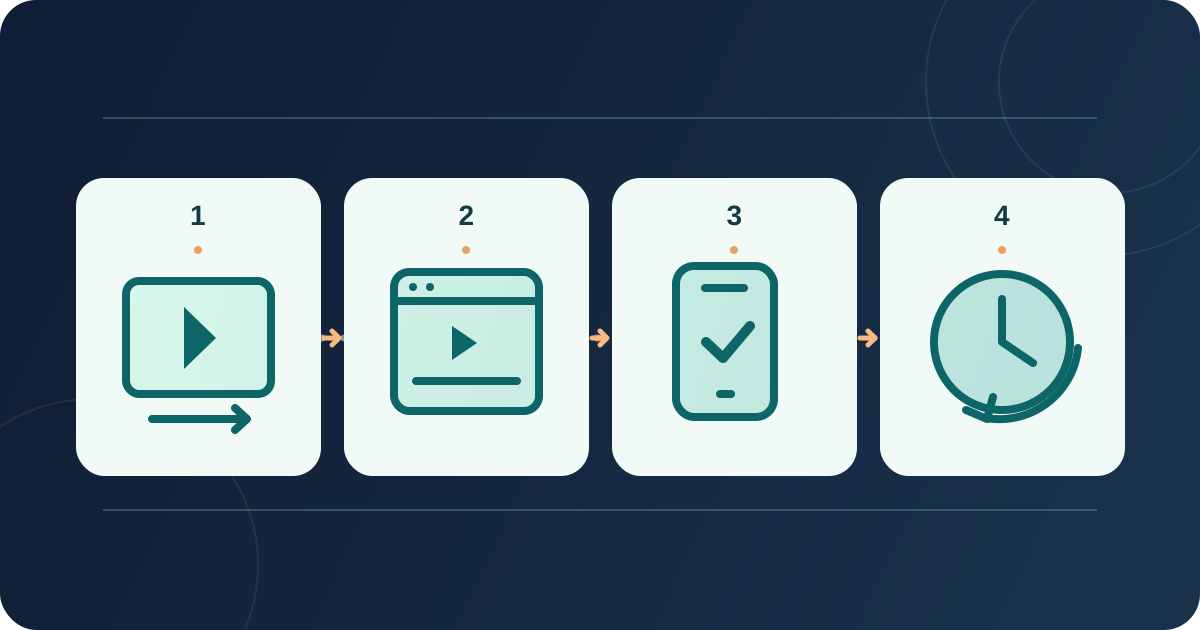
Choose the viewer destination and official embed
Download the editable livestream publish-and-rehearsal worksheet (English Markdown)
Decide which live session belongs on this page and who controls its provider account. Record the provider event URL, event-page URL and settings owner. In the provider’s current dashboard, create or select the live event and copy its actual embed code. Vimeo documents an iframe code for live events, with choices such as player only or player plus engagement tools. YouTube documents Share, then Embed, for supported videos. Controls vary by service; never guess an iframe URL.[1][3]
Check whether your website editor accepts an HTML or embed block, and which provider code it supports. A watch-page URL may differ from embed code. Record its source for later changes.
Check privacy and allowed domains before publishing
Review two separate questions: who may view the stream, and where may its player be embedded. Vimeo’s live-event settings include viewer privacy and an allowed-domain choice; a domain restriction can stop a player on an otherwise public page. Test the published hostname; include staging only if you use it. Keep private access private. If access requires a password, account or entitlement, follow that provider’s documented flow and test it with a legitimate guest account.[1][2]
Do not promise a public watch-page fallback until you have opened that exact URL as a guest. Some provider settings allow viewing only through an approved embed, so the normal provider page may not be usable. Embedding alone does not grant ticket or stream access; describe the actual viewing system.[2]
- Provider account and event ID match the public session; the embed code comes from that session.
- Viewer privacy, allowed domains and any guest access method are approved and recorded.
- A direct watch URL, if offered, works for an authorized guest; otherwise the support/status path is clear.
Place the player beside useful event information
Paste the approved code into the site editor’s supported field and inspect the published page, not only the editor preview. Prefer the provider’s responsive embed option where available, then check that controls fit a narrow screen. Give the iframe a descriptive title such as “Live stream of [event name]” when your editor exposes that setting.[1][5]
Keep the event title, local start time with time zone, joining instructions that are safe to publish, and a current status message in ordinary page text near the player. Explain whether visitors are seeing a waiting screen, a live broadcast or a replay. If the embed cannot load, provide a verified alternate viewer route only when the provider permits it; otherwise give a clearly labeled status or support route.[2]
Rehearse the published guest journey
Schedule a rehearsal while you can still correct the page and provider settings. Use a guest session without staff privileges on the final URL; check a phone and desktop, at least one narrow viewport, and a keyboard path to the player and nearby links. Confirm the intended access prompt, the player’s visible state, start-time wording and whether the stream actually plays during a permitted test broadcast. Record device, browser, result and correction owner.
Listen for audio, check that play and volume controls work, and verify that available live captions can be enabled and read without covering essential content. W3C’s live-caption criterion addresses audio in live synchronized media; a caption icon alone does not prove the actual broadcast is captioned. If available, test guest chat separately. Caption production has its own checklist.[4]
Plan the before-live, live and replay handoff
Choose who changes the page from “starting soon” to “live,” and who answers if the feed is late or unavailable. The video platform may show its own waiting or ended state, but the surrounding event copy still needs an owner. Prepare a truthful delay message and update route; never label a static poster as a broadcast.
After the session, verify what the embedded player shows: ended notice, empty frame or replay. If a replay is approved, confirm its privacy, captions and URL before changing the page label. Remove stale “Watch live” wording and time-sensitive access directions. Recheck after changing the player or permissions; retain the worksheet. Retest playback after any autoplay or loading change.
- Before live: waiting message, local start time and access instructions are accurate.
- During live: guest playback, audio, captions and nearby help route work on published mobile and desktop pages.
- After live: the ended state or approved replay is labeled correctly and stale live calls to action are removed.
Sources and further reading
- How to embed my live event on my websiteVimeo Help Center · Accessed
- About privacy settings for live eventsVimeo Help Center · Accessed
- Embed videos and playlistsYouTube Help · Accessed
- Understanding SC 1.2.4: Captions (Live)W3C WAI · Accessed
- Using the title attribute of the iframe element (H64)W3C WAI · Accessed