Event website video autoplay audit: when to play and when to stop
An event trailer can set the scene, but a visitor may only need the date, location and official registration link. The leading Google result explains autoplay in headers and content, yet its fixed video-size and conversion claims are vendor advice rather than rules. Use this audit to decide whether each clip should start at all and to prove that the attendee journey still works when it does not.
Boletolibre editorial team
Published
Start with the attendee task, not the trailer
Download the editable autoplay audit worksheet (Markdown, English)
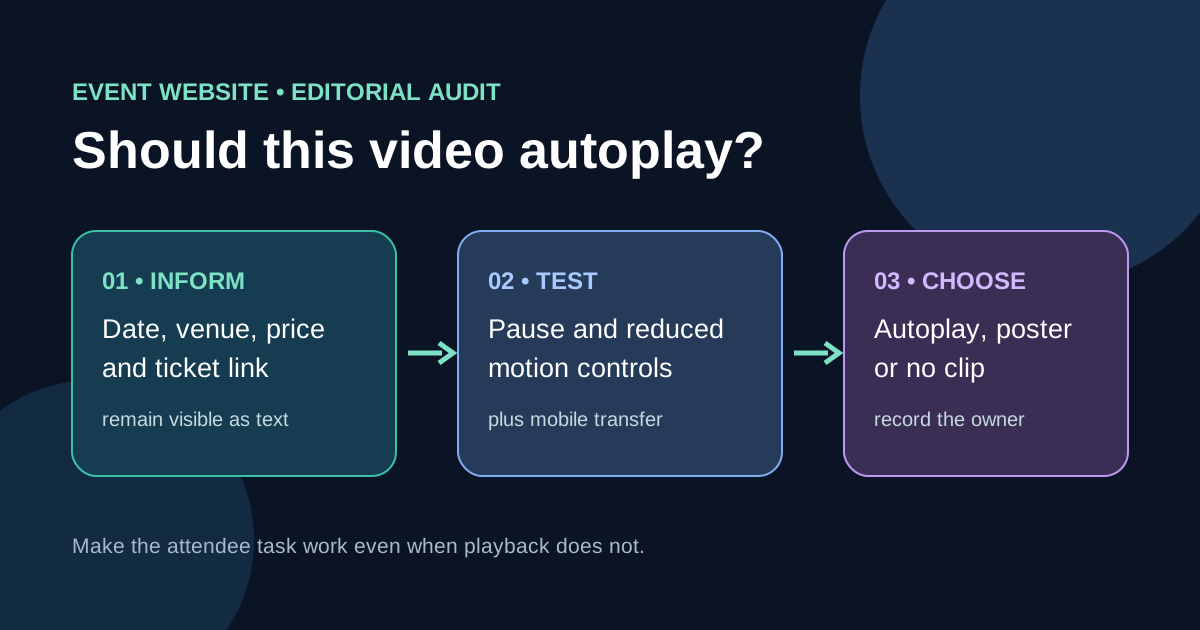
For each hero, speaker reel, sponsor clip or highlight, write the job it performs. If it communicates a ticket deadline, accessibility detail, price or venue change, put that fact in adjacent text. A still poster with a labeled Play button is the default worth comparing against autoplay. Keep the event date, time zone, venue, price or price link, and official registration action visible without waiting for video or its host. A silent loop may create atmosphere, but it cannot be the sole carrier of essential information.[1][2][3][4][5]
Record every player and its fallback
Use the worksheet to list page URL, clip owner, hosting domain, placement, autoplay/loop/sound setting, captions or transcript, poster, pause control and fallback text. Check a direct video element and a third-party iframe separately: controls and loading behavior may differ. Record whether the host sets cookies or loads other resources for local privacy review, without assuming a particular legal consent rule. Recheck the inventory after a campaign or sponsor swaps an embed.[1][2][3][4][5]
Check motion, sound and keyboard control
Browsers may block audible autoplay; do not build an event announcement around playback starting. Try the page with autoplay blocked, sound muted and keyboard only. If moving content starts automatically, continues for more than five seconds and sits alongside other content, WCAG 2.2.2 calls for a way to pause, stop or hide it unless the motion is essential. Make that control clear and keyboard-operable. Respect a reduced-motion preference by choosing a static poster or avoiding nonessential motion; test the actual player rather than assuming an iframe inherits the page setting.[1][2][3][4][5]
Measure the cost before approving a loop
Compare first-load network transfer with the autoplay enabled and with the poster-plus-play alternative on a representative mobile connection. Record video, poster, player script and third-party requests separately, as well as whether event facts and the ticket action appear before those assets finish. A poster and preload setting can defer video transfer, but actual behavior depends on markup, browser and player. Do not prescribe one universal bitrate or file size. If the clip delays the task, switch to click-to-play or move it below the essential details.[1][2][3][4][5]
Make the acceptance decision and retest
For each placement record Keep, Replace with poster, or Remove, plus owner and retest date. Test blocked playback, reduced motion, keyboard pause, narrow viewport and slow network on the published page. Check that captions or a text alternative carry spoken information; the separate caption production checklist covers creation and review. After a player or campaign change, repeat the page-level check. This is a practical audit, not a guarantee of full accessibility or legal compliance.[1][2][3][4][5]
Sources and further reading
- Using Autoplay the Right Way: How Videos Work in Headers & ContentIgnite Video · Accessed
- Understanding Success Criterion 2.2.2: Pause, Stop, HideW3C WAI · Accessed
- Autoplay guide for media and Web Audio APIsMDN Web Docs · Accessed
- prefers-reduced-motion CSS media featureMDN Web Docs · Accessed
- Video performanceweb.dev · Accessed