Create an add-to-calendar link for an event: .ics file and test checklist
An add-to-calendar action should save the same date, time and location that visitors see on your event page. A downloadable .ics file is a practical way to offer that action across calendar programs, but a file generated on your own computer is not yet a public link. This guide takes you from approved event details to a hosted file and a real import test. It also explains the separate Google Calendar publish-event option and what to do when details change.
Boletolibre editorial team
Published
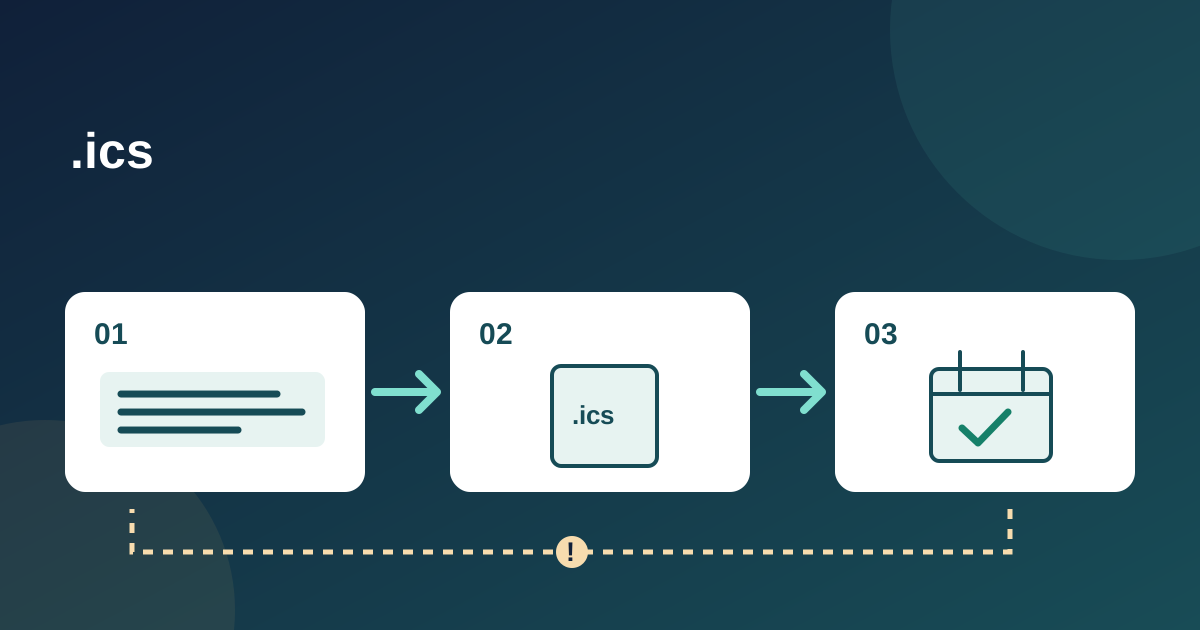
Create the file and keep a release record
Open the browser-based .ics generator (English interface)
Download the publishing and test checklist (English Markdown)
The generator makes a single-event .ics download in your browser. It does not upload your fields, host the file, create a public URL, register a guest or send an invitation. Use the checklist to record the approved values, where the eventual file is hosted and which calendar apps you tested. If your website or calendar provider already exports an event, you can use that file instead and follow the same review.
Approve event details before generating
Start with one source of truth: the published event page or the organizer's approved event record. Copy the public title, start and end, venue or general online location, and stable details URL. Decide whether the file may include joining instructions. A file at a public URL can be downloaded by anyone with the link, so keep private meeting codes, attendee names, unpublished addresses and internal contact numbers out of it.
- Write down the event's local time zone and UTC offset on the event date. A region can change offset seasonally; the start and end may even have different offsets if a long event crosses a clock change.
- Confirm the end is later than the start after both are converted to UTC. An event ending at midnight may have a different calendar date.
- Use a public event-details URL for current logistics. A short calendar description should not be the only place where changes appear.
The generator asks for an explicit UTC offset at both start and end. Check these values against the time zone used in the public event record rather than assuming your computer's current offset applies on a future date. RFC 5545 represents UTC date-times with a trailing Z; an event's start is inclusive and its end is non-inclusive.[1]
Generate, preview and host the .ics file
Enter the approved fields, generate a preview and compare the displayed UTC instants with the intended local times. Download the .ics and open it in at least one calendar app. The file contains a unique event identifier, a creation timestamp, start and end, and the public fields you supplied. The generator creates a new identifier for each generation; it does not manage a continuing event series or revisions.[1]
To make a shareable add-to-calendar link, upload the reviewed .ics to a public HTTPS location you control, then link to that file from the event page or email. Test the hosted URL in a private browser window without staff access. Microsoft documents hosting an iCalendar file on a website and linking to it in email; this is different from attaching a meeting request and does not give you RSVP confirmations.[3]
- Use link text such as “Add event to calendar” or “Download calendar file” so people know what will open.
- Keep the file URL stable during the event campaign where possible. If you replace the file, test the same public URL again.
- Confirm that a phone and desktop browser can download or open the hosted file.
Use a Google event link only when visibility fits
Google Calendar also offers a Publish event action that produces a public event link or HTML button. Google says the calendar must be public for this option. Before using it, review the calendar sharing setting and every event field that could become visible. This is a separate publishing path; the local .ics generator does not create a Google Calendar event or a Google-hosted link.[2]
Google notes that published-event links work best in desktop browsers and can show a blank event in the mobile Google Calendar app. Test your actual link on devices your audience uses. If public calendar visibility is unsuitable, publish a reviewed .ics file from your own site instead.[2]
Put the action where the date is decided
Place the calendar action beside the visible date and time on the event page and, if useful, in a confirmation message. Keep the title and venue wording consistent across channels. A calendar entry is a reminder, not proof of registration, payment, admission or a reserved seat. For a waitlisted applicant, avoid wording that implies a confirmed place. If you publish the event on Boletolibre.com, compare that public event page with the calendar file before sharing either link.
Make the action a descriptive text link or button that works by keyboard and has a visible focus state. Do not hide the only date or venue detail inside the calendar file. People should be able to read essential event information before downloading. If a visitor must sign in to view the event, decide whether a public file would expose details meant to stay private.
Test the saved result, not just the download
Open the final published link from a clean browser, import the file and inspect the saved event. Check the title, local start and end, venue text and details URL. Repeat in a second time zone or with a colleague there when your audience travels. Testing the UTC preview alone is not enough: calendar apps may display the time according to the viewer's device zone.
- Try a desktop and a phone. Record device, browser, calendar app and observed start/end beside the approved time.
- Follow the link by keyboard and check its accessible name and focus state. If it downloads a file, the label should say so.
- Compare the saved entry with the event page, ticket or registration confirmation, and partner listings. Resolve any mismatch before promoting the link.
Treat app behavior as a real-world test rather than a guarantee that every calendar renders every optional field identically. The important result is a correct event time and a route back to current details.
Plan for corrections and postponements
An imported .ics file is a snapshot. Microsoft distinguishes importing a file from subscribing to an online calendar: the imported copy does not refresh when the source changes. Replacing a hosted file may help future downloads, but it does not reliably repair entries people already imported. This generator creates a fresh identifier each time and makes no update promise. If the date or venue changes, update the source event page and tell affected attendees directly through the channels you actually use.[4]
Then replace and retest the hosted file, check any separate Google event link, and search email templates, partner pages and printed QR destinations for stale details. State the new date and time explicitly in the correction message. Keep old and new values in the release record so support staff can explain why a saved calendar still shows previous information.
Sources and further reading
- RFC 5545: iCalendar formatRFC Editor · Accessed
- Add a calendar to your websiteGoogle Calendar Help · Accessed
- Create an Add to calendar link in an email messageMicrosoft Support · Accessed
- Import or subscribe to a calendar in Outlook.com or Outlook on the webMicrosoft Support · Accessed