Set an event-page social sharing image and test its link preview
A link to an event page may appear in a message or social post with an image, title and short description. That link-generated preview is separate from an image someone uploads as a post. Use this release check to choose a page-specific image, inspect the published preview and record corrections before promoting the URL.
Boletolibre editorial team
Published
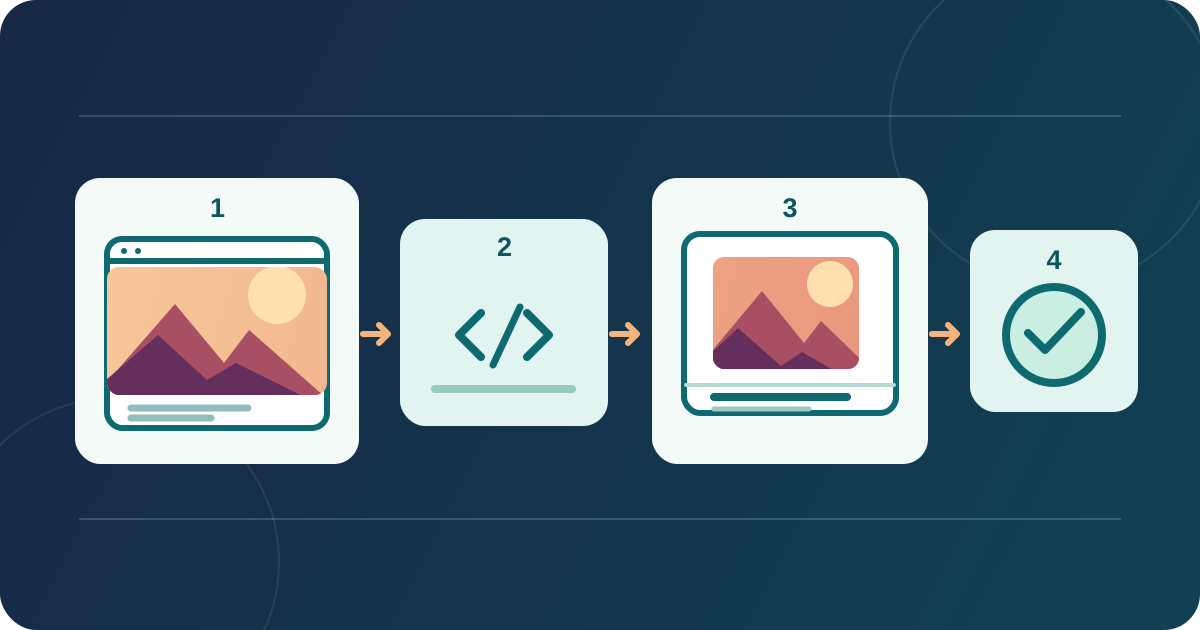
Choose the event page and image together
Download the editable link-preview release worksheet (English Markdown)
Start with the exact public URL that guests should open: the event overview, ticket page or current edition, rather than a generic homepage. Confirm its details are current. Choose a visual approved for that page and event edition. Use a simpler crop if print-poster details become tiny. Keep essential event facts as page text because a preview may be cropped or omitted.
Record the source image, approved crop, page owner and correction owner in the worksheet. The image should match the event at the destination.
Set the page-level sharing image
In your website editor, look for the social image setting for this specific page; a site-wide default may appear when no page image is assigned. Publish the change. On a custom site, ask the maintainer to inspect Open Graph metadata. The Open Graph protocol defines og:image as the image URL for the page, with og:title, og:type and og:url among its core properties.[1]
It also defines optional og:description and og:image:alt. This image alternative describes the shared image; keep event facts in page text too. If the editor offers only a site-wide image, document that limitation and test the resulting card. Do not assume a setting for your own website changes a separate event listing on another service.[1]
Publish and inspect the actual link card
Copy the full published HTTPS URL and share it in a test context for the channels your audience actually uses. Inspect the card on a phone and desktop. Compare the visible image, crop, title and destination with the approved event facts; then open the card and confirm it reaches the intended public page. Record what appears; layouts vary by platform.
For multilingual pages, repeat the check on each language URL you plan to share. If you share a Boletolibre.com event page too, test that URL separately from your own website. Record the observed card and correction owner in the worksheet. Search-result snippets and uploaded social-post artwork have their own review paths.
Troubleshoot a missing or stale preview
If no preview appears, first verify that the exact URL opens publicly and the revised page and image are published. Check the page-level field or metadata, then retry. An old card may reflect a cached preview rather than the current page. Avoid changing the event URL solely to force a new image unless the destination itself has changed.
LinkedIn says its Post Inspector can refresh a cached URL preview for new posts, while existing posts with that URL keep their earlier preview. Use that tool for LinkedIn, then inspect a newly composed post; do not promise the same behavior for every app. After event changes, review the page, image and circulating posts; assign corrections.[2]
Sources and further reading
- The Open Graph protocolOpen Graph protocol · Accessed
- Use Post Inspector to refresh URLLinkedIn Help · Accessed