Event registration cross-browser testing checklist and matrix
A form that submits in one desktop browser may fail at a mobile date picker, autofill, validation message or checkout handoff. The leading Google result offers a broad browser compatibility checklist; this version narrows the evidence to the event registration path and provides a matrix an organizer and developer can actually sign off. It complements the general event form testing checklist, which focuses on destinations and staff handoff rather than browser coverage.
Boletolibre editorial team
Published
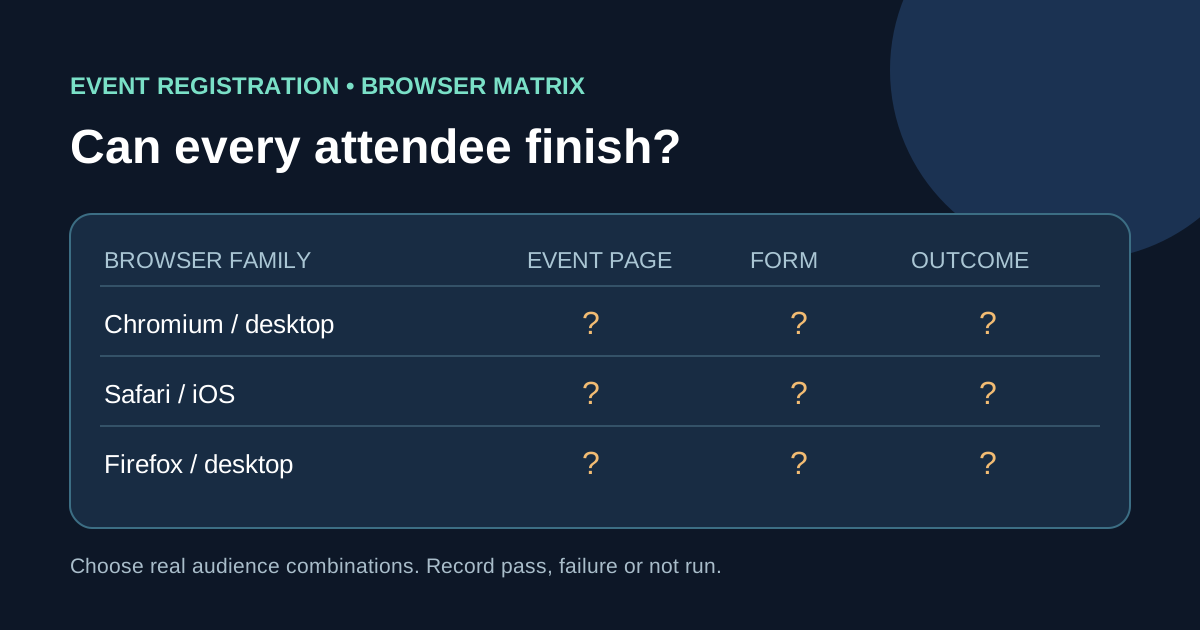
Choose a support matrix from the audience
Download the editable browser and registration matrix (Markdown, English)
List the browser families and device types your attendees actually use or are likely to use. Include a current desktop Chromium browser, Safari/WebKit and Firefox where relevant, plus representative iOS and Android devices. Record OS and browser version, viewport and input method rather than writing “mobile” alone. Add an older version only when audience evidence, product support or a reported bug justifies it. MDN notes that not every combination can be tested and that feature-support summaries do not replace testing an actual workflow. Document any unsupported configuration before ticket sales open.[1][2][3][4][5]
Exercise the entire registration path
In every selected combination, open the official event page, choose a ticket or RSVP option, complete required fields, review consent choices, submit once, follow the legitimate payment or confirmation step, and verify the outcome. Cover autofill, keyboard focus, select/date controls, locale-specific characters and mobile software keyboards. Use authorized synthetic attendee data and approved non-chargeable test flows; do not create real purchases or expose personal information for the sake of a browser test. A visible submit button is not proof that the registration was recorded.[1][2][3][4][5]
Check validation and interruption behavior
Try a missing required field, a corrected invalid value and a return from an interrupted or rejected step. Confirm errors are visible, tied to the field, and do not silently erase unrelated entries. Compare browser behavior for autofilled names, emails and phone numbers, and look for a keyboard or viewport that hides the next action. A payment iframe or hosted checkout may behave differently from the event form, so record that boundary and test it in the supported browser when permitted by the provider.[1][2][3][4][5]
Log defects so the right team can reproduce them
For each failing cell, record page URL, browser and OS versions, device, locale, ticket type, exact step, expected and observed outcome, and a redacted screenshot or console/network clue if useful. Separate cosmetic differences from blockers that prevent registration, confirmation or access to policy text. Assign an owner and recheck the affected cell after a fix. Baseline compatibility data can explain a specific feature gap; it cannot certify a complete event checkout.[1][2][3][4][5]
Sign off the matrix and keep it current
Mark each selected browser-path cell Pass, Fail or Not run, with tester and date. Treat a failed purchase or confirmation path as a release decision, not a footnote. Re-run the relevant cells after changes to forms, ticket types, payment provider, embedded widgets or localization. Publish an attendee support route for a real-world browser problem. This worksheet is a scoped compatibility record, not proof that every browser, assistive technology or payment method works.[1][2][3][4][5]
Sources and further reading
- Cross Browser Compatibility Testing ChecklistBrowserStack · Accessed
- Introduction to cross-browser testingMDN Web Docs · Accessed
- Strategies for carrying out testingMDN Web Docs · Accessed
- Baseline (compatibility)MDN Web Docs · Accessed
- Autofillweb.dev · Accessed