How to set up and test an event ticket discount code
A code can look correct in an organizer dashboard and still change the wrong ticket, stop at the wrong time, or exhaust a limit unexpectedly. Define the offer before creating the code, then check the buyer view. This workflow covers ordinary ticket discounts; your ticketing provider determines the exact controls and counting rules.
Boletolibre editorial team
Published
Write the offer in one sentence
Download the code setup and checkout-test matrix (Markdown, English)
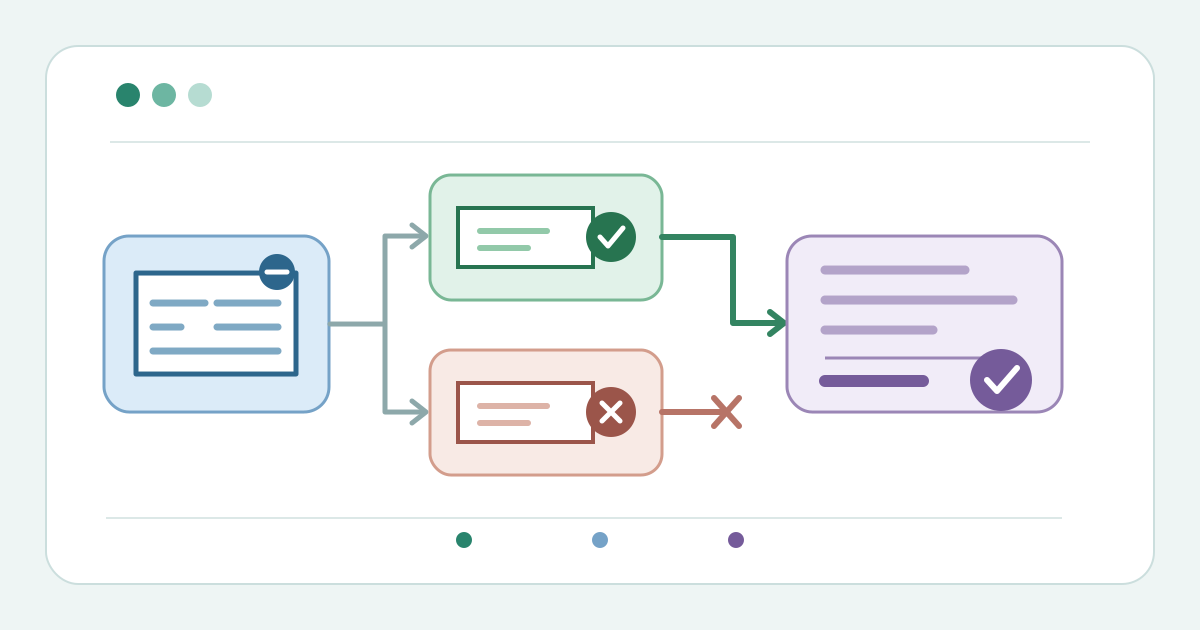
Record who may receive the code, which event it covers, the intended ticket types, the buyer-facing price change, and the last moment it should work. Give one organizer ownership of changes. The worksheet below keeps those decisions beside the checkout observations. If the offer cannot be explained clearly without naming a platform field, resolve its rules before announcing it.
Choose the discount value and base
Choose a fixed amount or a percentage only after checking what the provider applies it to. Ticket Tailor lets an organizer choose fixed or percentage discounts and separately configure a face-value and, where set, booking-fee discount. Eventbrite offers a set amount or percentage off eligible tickets. Do not assume that taxes, fees, a fully discounted ticket, or another code behave alike across services. Inspect the displayed total with a sample basket before writing buyer-facing copy.[1][2]
Select eligible ticket types
List included and excluded ticket types explicitly. A general-admission code should not silently change a VIP ticket unless that is the offer. Ticket Tailor assigns a saved discount code to selected ticket types or products; it says every eligible item in a basket receives the discount. Eventbrite lets an organizer apply a code to all applicable tickets or specific ones. Record the intended result for a mixed basket and a basket with two eligible tickets, then compare it with checkout.[1][2]
Set the usable window
Write the local start and end date, time, and time zone on the setup card. Both providers document time controls, but the code may also depend on whether the selected ticket is still on sale. Eventbrite advises checking ticket availability and sale dates when a code does not work. Check the boundary in the buyer view where the provider permits it; a saved setting is not proof that a buyer can use the code now.[1][2]
Define the limit in its real unit
The word “limit” needs a unit. Ticket Tailor documents a cap on how many orders can use a code; one qualifying order can contain several discounted items. Eventbrite calls its control a ticket limit: the number of tickets to which a code can apply. Do not translate either into “customers” or assume a test application is harmless. Ticket Tailor says a redemption is counted when the code is successfully applied to a basket. Note the provider’s actual unit and choose a safe way to test without consuming the intended public allotment.[1][2]
Keep discounts separate from access
Decide whether the offer lowers a price or unlocks a ticket. These are different promises. Ticket Tailor directs organizers to use a separate ticket access code to reveal a hidden type; its ordinary discount code reduces eligible items. Eventbrite says a promotional code can discount tickets or reveal hidden tickets. Check your provider’s available action and test the result. The public instruction should say exactly what a buyer will see, without promising a hidden ticket from a price-only code.[1][2]
Test the buyer checkout
Use an unpublished or controlled test path where available. Enter the code as a buyer would and stop before a real payment unless an authorized test transaction is intended. Compare the checkout result with the matrix: one eligible ticket, multiple eligible tickets, an excluded ticket, and a mixed basket. Test a mistyped code and, when safely possible, a not-yet-active, expired, or exhausted code. Record the observed price and message, not just a green check. Eventbrite documents testing from the event page and checking code settings and ticket availability when application fails.[1][2]
| Checkout case | Expected observation |
|---|---|
| One eligible ticket | Discount appears on intended item and total |
| Two eligible tickets | Confirm whether both receive the intended reduction |
| Excluded ticket | No unintended reduction or revealed access |
| Mixed basket | Only intended items change; inspect final total |
Review use and close the code
After launch, compare provider reports with the announced rules, especially if the offer is changed mid-campaign. Check the remaining unit of use and any support reports about excluded tickets, sale windows, or checkout totals. Ticket Tailor says its code remains on the original order when a discounted order is rescheduled, so its new-order code column can be blank. Treat that as a provider-specific reporting caveat. When the offer ends, confirm the code no longer applies and retain the final settings and owner note.[1][2]
Sources and further reading
- How to create discount codesTicket Tailor Help Centre · Accessed
- Create a promotional code for your eventEventbrite Help Center · Accessed