Event website security offboarding checklist and template
A person leaving an event team may still control the CMS, registrar, ticketing account, payment dashboard, support inbox, code repository or an integration key. Disabling one login does not prove those paths are closed, while deleting an account too early may strand the next operator. The leading Google result is an access-removal worksheet. This event-specific version links an authorized cutoff to every service, named successor, session and secret review, and a final attendee-path check.
Boletolibre editorial team
Published
Agree the cutoff and preserve business work
Download the editable event website security offboarding worksheet (Markdown, English)
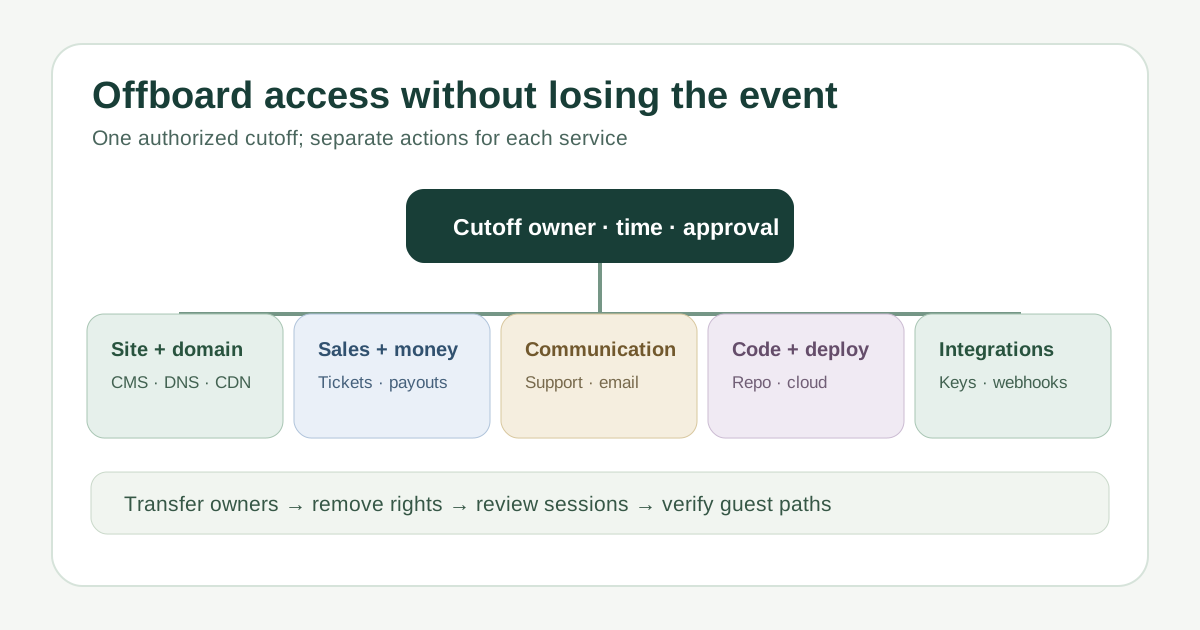
Record the person or vendor role, event edition, authorized cutoff time and time zone, approver, coordinator and backup. Plan transfers of open support cases, scheduled campaigns, ticket operations, domain renewals and pending refunds before access is removed. Ask the appropriate owner about record preservation or an active investigation; the worksheet is not legal advice or a direction to destroy mail and files. Google Workspace says suspension blocks access to its services but retains email and documents, so removal and record retention are separate decisions.[1][2][3][4]
Inventory every access path, not only SSO
List CMS, registrar/DNS, hosting/CDN, ticketing, payment, support inbox, email and analytics, code/deployment, status page and automation. For each, identify individual role, direct vendor login, group membership, invitation, shared credential, API token, recovery contact and business owner. A central identity may not control a separate provider account. The worksheet provides a row for system, current access, successor, action, evidence and exception. Do not record actual secrets or attendee data there.[1][2][3][4]
Remove roles and review sessions at the authorized cutoff
Have the appropriate administrator disable or remove the individual’s access using each provider’s controls, then review active sessions, integrations and any secret the person could still use. Microsoft Entra explains that revoking its tokens does not directly revoke session cookies issued by an application; provider-side deprovisioning or session controls may be needed. GitHub warns that organization removal may not eliminate local copies or all access through other enterprise membership. Assess shared keys and recovery methods for rotation according to actual exposure, rather than blindly rotating a key that would break ticket sales.[1][2][3][4]
Transfer operational ownership before closing accounts
Confirm a new owner can edit event details, manage registration and capacity, see legitimate payment and payout information, reply from support and deploy an urgent correction. Reassign scheduled emails, webhook alerts, domain renewal notices, billing contacts and incident escalation. Keep the public address and domains under organization control. An account suspension is not a handover; the successor must demonstrate the specific task without relying on the departing person’s login.[1][2][3][4]
Verify removal and the attendee path
Check provider audit or membership views, record who performed and independently checked each action, and assign unresolved systems an owner and deadline. Review recent sign-ins or changes when warranted by the departure context without speculating about misconduct. Test the public event page, official ticket path, confirmation and support reply after the cutoff. Close the worksheet only when access decisions and continuity checks are evidenced; schedule another review when a vendor or event edition changes.[1][2][3][4]
Sources and further reading
- Employee Offboarding Security ChecklistLocke Identity · Accessed
- Revoke user access in Microsoft Entra IDMicrosoft Learn · Accessed
- Removing a member from your organizationGitHub Docs · Accessed
- Suspend a user temporarilyGoogle Workspace Admin Help · Accessed